You made a CMDK tab for newsletters, or for a client, and those emails now show up twice: once in their own tab and again in your Inbox tab. That happens because every CMDK tab is a saved Gmail search, and the Inbox tab’s search is in:inbox, which matches everything in your inbox, including mail another tab already shows.
To fix it, edit the Inbox tab’s search and add each of your other tabs to it with a minus sign in front. The Inbox tab then shows only mail that none of your tabs cover. We call that the leftover inbox.
Edit the Inbox tab
- Click the gear at the end of the tab bar to open CMDK’s tab settings.
- Under Default Tabs, click the pencil next to Inbox.
- In Gmail Search Query, keep
in:inboxand add a minus sign in front of each tab you want to leave out (examples below). - Click Save Changes and reload Gmail.
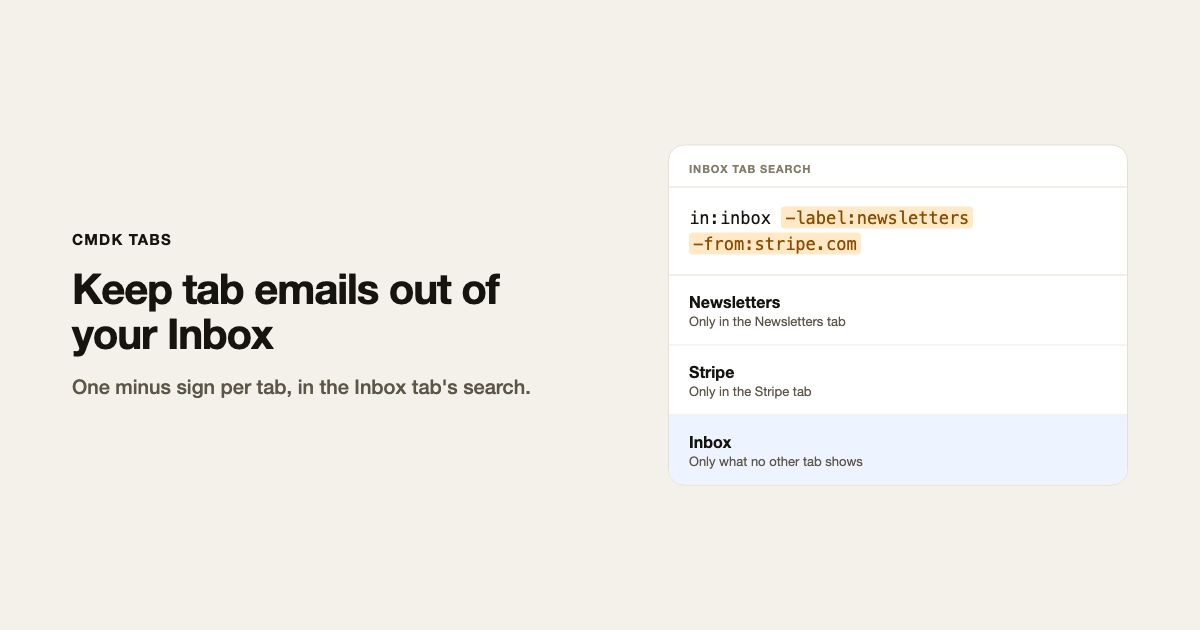
Say you have a Newsletters tab with the search label:newsletters and a Stripe tab with from:stripe.com. The Inbox tab’s search becomes:
in:inbox -label:newsletters -from:stripe.com
Newsletters and Stripe emails still show in their own tabs, and the Inbox tab skips them.
Turn a tab’s search into an exclusion
Copy the tab’s search from its row in tab settings, then:
- For a one-word search, put a minus in front.
label:clientsbecomes-label:clients. - For a search with several words, wrap it in parentheses first.
from:stripe.com has:attachmentbecomes-(from:stripe.com has:attachment). Without the parentheses, the minus only applies to the first word. - Drop
in:inboxfrom the copy. If a tab’s search isin:inbox label:clients, exclude just-label:clients. The Inbox tab already hasin:inboxonce. - To exclude several labels at once, use curly braces, which mean “any of these,” so
-label:{clients newsletters receipts}excludes all three.
In search, Gmail writes spaces and slashes in label names as hyphens. A label called Cold Pitches is label:cold-pitches, and Clients/Acme is label:clients-acme.
Which tabs to exclude
Exclude tabs that sort mail by who sent it or what it is about: a client, a team, newsletters, receipts. Those are the duplicates you want gone.
Leave out tabs that filter by status, such as Unread (is:unread), Starred (is:starred) or Attachments (has:attachment). Excluding an Unread tab would hide every unread email from your Inbox tab, which is the opposite of what you want.
If you also use Gmail’s inbox categories, add -category:{social promotions updates forums} to keep promotions and notifications out of the Inbox tab too.
When the search gets long
A tab’s search can hold up to 500 characters. If you exclude a long list of senders, move them into a label instead:
- Open an email from one of those senders, press Cmd+K (Ctrl+K on Windows) and choose Filter messages like these.
- Add the other senders to the From field, separated by OR, and click Create filter.
- Tick Apply the label, pick or create a label, and tick Also apply filter to matching conversations.
- Change the sender tab’s search to that label, for example
label:vendors, and exclude-label:vendorsin the Inbox tab.
A single-label tab can also show an unread count, which a list of senders cannot.
To keep a long search out of sight, turn on Hide search query in the Inbox tab’s settings. The search bar looks empty while the tab is open, and the search still runs.
Things to know
The Inbox tab loses its unread count
Unread counts only work for tabs whose search is exactly in:inbox, is:starred, is:important or a single label. Once you add exclusions, the Inbox tab cannot show a count. Gmail’s own Inbox count in the left sidebar still works.
Replies can bring a conversation back
Gmail puts labels on individual messages, not whole conversations. If a filter labeled the first email in a thread and a reply does not match that filter, the conversation can show up in the Inbox tab again. Filters that match a sender’s address or domain catch replies better than filters that match a subject line.
The email is still in Gmail’s inbox
A tab only changes what you see in that tab. The email stays in Gmail’s inbox, so it still appears in Gmail’s own Inbox view and in the Gmail app on your phone. To take it out of Gmail’s inbox everywhere, add Skip the Inbox to the filter that labels it. Then make sure that tab’s search is just the label (label:newsletters), not in:inbox label:newsletters, or the tab will come up empty.
Frequently asked questions
Why does the same email show in two CMDK tabs?
Each tab is a Gmail search, and one email can match more than one search. The Inbox tab’s default search, in:inbox, matches everything in your inbox. Add your other tabs to it with a minus sign to remove the overlap.
Does excluding a tab move or archive my email?
No. Changing a tab’s search only changes what that tab shows. Nothing is archived, labeled or deleted.
Can I undo it?
Yes. Edit the Inbox tab again and set its search back to in:inbox.
Can I do the same for other tabs?
Yes. Any tab can exclude another. A Team tab with from:(@yourcompany.com) -label:clients shows colleagues’ mail but leaves client threads in the Clients tab.
Why can’t my Inbox tab show an unread count anymore?
Counts only work when the tab’s search is in:inbox, is:starred, is:important or a single label with nothing else. Exclusions make it a custom search, which has no count.
For more tab ideas, see split inbox tabs in Gmail and the Gmail search operators cheat sheet. For complete setups built around a leftover Inbox tab, see how to organize Gmail as a professor and manage VC deal flow in Gmail.