Quick answer: Set reminders in Gmail three ways: snooze an email back to your inbox on a date you pick, turn on follow-up nudges on sent mail so CMDK reminds you if nobody replies, or schedule a send for later with plain-English timing in the compose bar.
How many times have you opened a critical email, thought “I’ll take care of this later,” and totally forgotten about it? If you’re like most of us, this occurs at least once a week. Perhaps more.
Gmail actually does have a snooze feature, but it’s hidden in menus and asks you to select from predefined time intervals that never really fit what you might need. Need to be reminded of something “next Tuesday after my meeting”? Forget about it. You’ll waste more time adjusting the snooze options than you will actually reading the email.
The issue worsens when you have to follow up on emails that you have sent. Did the client accept your proposal? Has your supplier replied about the delivery date? Without an efficient gmail follow up reminder system, such things fall through the gaps all the time.
I used to maintain a stand-alone email follow-up to-do list. It was chaos. Half the time I forgot to even look at the list, and half the time I spent too long trying to recall which email I was going to follow up on.
There has to be a better way to manage gmail reminder than turning your inbox into an endless game of whack-a-mole.
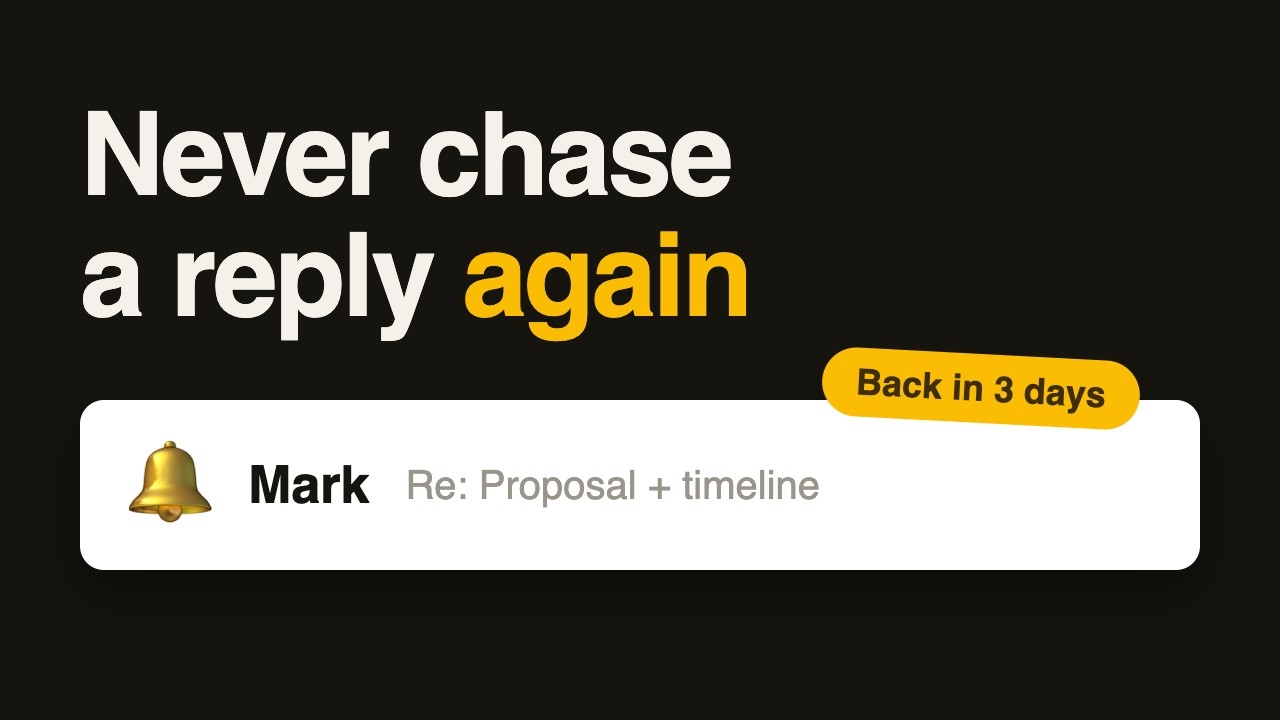
Here is the fix in 31 seconds:
Why Gmail’s in-built snooze function makes everyone mad
Let’s discuss what’s actually so wrong with Gmail’s snooze feature. For one, it’s not very intuitive. You must click on a small clock icon that is way too easy to overlook, then sift through a dropdown menu with possibilities such as “Tomorrow 8 AM” or “Next week.”
But the thing is – that’s not how humans cognize time. When you’re reading an email, you don’t think “I need to see this again at 8 AM tomorrow.” You think “remind me about this after lunch” or “bring this back next Monday.”
The pre-set time choices won’t do anything for all but the most frivolous real-life situations. What if you want to be reminded of something in three hours? Or next Thursday at 2 o’clock? You’re stuck guessing precise times and dates rather than simply stating when you’d actually like to have the email pop up again.
Worse still, Gmail’s snooze is not great for follow-up reminders. You can snooze an incoming email, but how do you snooze outgoing emails that require follow-up? There isn’t really an easy option to remind yourself to go back and see if someone replied to your email.
The natural language solution that turns all this around
This is what I learned after decades of email frustration: the optimum reminder system is one that functions in the same way your brain processes time. Rather than making you convert “next Monday” into an exact date and time, it should simply know what you mean.
That’s where CMDK makes the game-changing move. Rather than struggling with Gmail’s cumbersome snooze menus, you simply type B and tell it when you’d like to see the email again. It’s almost as easy as saying to a coworker “remind me about this next Monday.”
Want to view an email again after your 3 PM meeting? Simply enter “after 3 PM today.” Want to send a follow-up message next week? Enter “next Wednesday morning.” The system is based on natural language and does all the date/time calculations for you.
Because the parsing is timezone-aware, even loose expressions work – try “this weekend”, “end of month”, or “in 2 months” and CMDK schedules the reminder correctly. You can also open the command bar with Ctrl+K (or Cmd+K) to set a reminder without leaving the keyboard.
How to send a reminder email in Gmail using CMDK
Setting up a Gmail reminder with CMDK takes about 5 seconds. Here is exactly how to do it:
- Install CMDK from the Chrome Web Store (free 15-day trial, no credit card needed).
- Open any email in Gmail that you want to be reminded about.
- Press B on your keyboard. A natural language input bar appears.
- Type when you want the reminder in plain English: “tomorrow morning”, “next Monday at 2pm”, “in 3 hours”, or “after my meeting on Thursday”.
- Press Enter. The email disappears from your inbox and reappears at exactly the time you specified.
That is it. No menus, no date pickers, no dropdowns. Just tell Gmail when you want to see the email again in your own words.
Setting a follow-up reminder on a sent email
After sending an important email that needs a reply, press B and type something like “remind me in 3 days if no reply” or “follow up next Tuesday”. CMDK will bring the sent email back to the top of your inbox at that time so you never forget to follow up.
Gmail follow-up reminder: how to never miss a reply
The follow-up issue is where everyone else’s email systems totally fail. You send out a significant email, then must track manually if you received a response. Most people either forget to follow up at all or come up with complex systems that are more hassle than they’re worth.
CMDK resolves that most beautifully. Once you mail an email that requires follow-up, you simply press B and mention something like “remind me about this in 3 days.” The system automatically reminds you of the email.
The elegance of this system is that it demands virtually zero mental overhead. You’re not juggling distinct lists or having to recall which emails must be followed up. The reminders are done automatically, and they’re also contextual – you’re viewing the original email conversation, not some nebulous task description.
Three types of Gmail reminders every professional needs
Not all email reminders are equal. Through the years, I’ve come to discover that there are essentially three types of reminders that account for 90% of email management situations:
Action reminders are for messages that need you to take a specific action. Perhaps you should check a document, place a call, or provide information to someone. Those typically have brief time spans – “remind me about this in 2 hours” or “pick this up tomorrow morning.”
Follow-up reminders are for messages you’ve sent where you want to ensure that you received a response. These generally have longer timeframes – “remind me about this in 3 days”.
Reference reminders are for emails with information you’ll require at a particular time. Perhaps it’s information about a meeting next week or a ticket confirmation number you’ll need to travel. These are time-specific – “remind me about this on Tuesday” or “return this a day before I travel.”
Creating your reminder workflow
This is the system that really functions for working professionals. While dealing with email, you take one of four actions: delete, do, delegate, or defer. The defer category is where gmail reminder comes into play.
For messages requiring action but not immediately, press B and tell it when you’d like to be reminded. “Remind me about this tomorrow at 9 AM” or “bring this back next Monday.” The message vanishes from your inbox and returns precisely when you directed.
For emails you’re sending that require follow-up, include a reminder before sending. “Remind me about this in 3 days.” This is a safety net that prevents messages of importance from getting lost in the queue.
The process becomes quite habitual within a couple of days. Rather than just leaving the emails sitting in your inbox as a mental reminder, you deal with them entirely and let the system decide when.
Why the B shortcut is genius
CMDK B shortcut is more than a quicker way to use Gmail’s snooze feature. It’s an entirely new way of thinking about timing email. Rather than requiring you to interpret your plans into precise dates and times, it lets you express yourself in your own words.
This is more important than you’d realize. The drag of having to use Gmail’s native snooze is high enough that it gets used by most people at all. They’ll glance at an email, say “I’ll handle this later,” and leave it in their inbox. Eventually, this builds up a gigantic stack of emails that require action but lack explicit next steps.
The B key removes that drag altogether. It takes less time to add a reminder than it does to leave the email in your inbox. That changes your behavior in tiny but significant ways. You begin to really process emails rather than just reading them.
The natural language processing also decreases cognitive load. Rather than needing to process “what day is next Monday” or “what time is 3 hours from now,” you simply state what you want in English. The system processes all the mental arithmetic for you.
Common mistakes that kill your reminder system
The largest pitfall is to set too many reminders. If you’re setting reminders for each and every email, you’re doing it incorrectly. Reminders need to be for truly vital things that require special timing, not for each message that passes through your inbox.
Yet another trap is taking too vague reminders. “Remind me about this sometime next week” doesn’t provide you with sufficient context to act on when the reminder comes up. Make sure to state clearly what you want reminded of and when.
The third error is not being trusting of the system. People will set reminders but still leave emails in their inbox “just in case.” That completely negates the purpose. If you’re going to set a reminder, archive the email. Have faith that it will reappear when you need it.
How to make Gmail reminders part of your daily email routine
The secret to making this system succeed is to build it into your normal email process. As you process your email, always ask yourself “when do I need to see this again?” If the response is “never,” delete or archive it. If it is “later,” create a reminder.
For sent emails that require follow-up, make it a habit to set the reminder. This way, you never miss following up on crucial conversations.
Check your reminder patterns every week. Are you reminding yourself of the right things? Are your time estimates correct? Reconfigure the system based on what you find out about your own email routines.
Frequently asked questions about Gmail reminders
How do I set a reminder in Gmail?
Gmail’s built-in snooze feature lets you set reminders by clicking the clock icon and picking a preset time. With CMDK installed, you can press B on any email and type when you want the reminder in natural language, like “tomorrow morning” or “next Friday at 3pm”.
Can Gmail send me a follow-up reminder?
Gmail does not have a built-in follow-up reminder for sent emails. CMDK adds this feature: after sending an email, press B and type “remind me in 3 days” to get a follow-up reminder if you have not received a reply.
What is the best Gmail reminder extension?
CMDK is the highest-rated Gmail reminder extension with a 4.9/5 rating from 1000+ users. It uses natural language to set reminders (press B and type when you want the reminder), supports follow-up reminders on sent emails, and is included as part of a full Gmail productivity suite with keyboard shortcuts, command bar, and read receipts.
Is there a keyboard shortcut for Gmail reminders?
Gmail’s built-in snooze does not have a keyboard shortcut. With CMDK, the shortcut is simply B. Press it on any email, type when you want to be reminded in plain English, and press Enter.
Start using Gmail reminders that actually work
If you’re sick of missing follow-ups and losing track of important emails, I’d recommend you give CMDK a go. You can download it in the Chrome Web Store here.
The integration of natural language reminders and gmail snooze shortcut capabilities makes a system that indeed aligns with the way busy professionals organize their minds about email. No more annoying reminder systems, no more missed follow-ups, no more critical emails languishing in your inbox.
And naturally, being the CMDK founder, I’m available if you need answers or feedback. My aim is to provide the best Gmail productivity tool for professionals that need reliable gmail reminder without hassle.
Contact us at [email protected] or download CMDK on the Chrome Web Store to begin using email reminders that really work.
Related reading
Read receipts for Gmail: know when your emails are opened
The fastest way to snooze emails in Gmail
Gmail email templates: reusable snippets that fill themselves in
Canned responses examples: 12 templates you can copy
Considering a paid tool for follow-ups? Read our Boomerang for Gmail review before you spend the $180 a year.