
Learn to use CMDK
CMDK sits inside your Gmail and teaches you to be faster in Gmail everyday.
Navigate within your inbox folders, add reminders, switch between accounts, and reply to your emails in almost flow-state speeds.
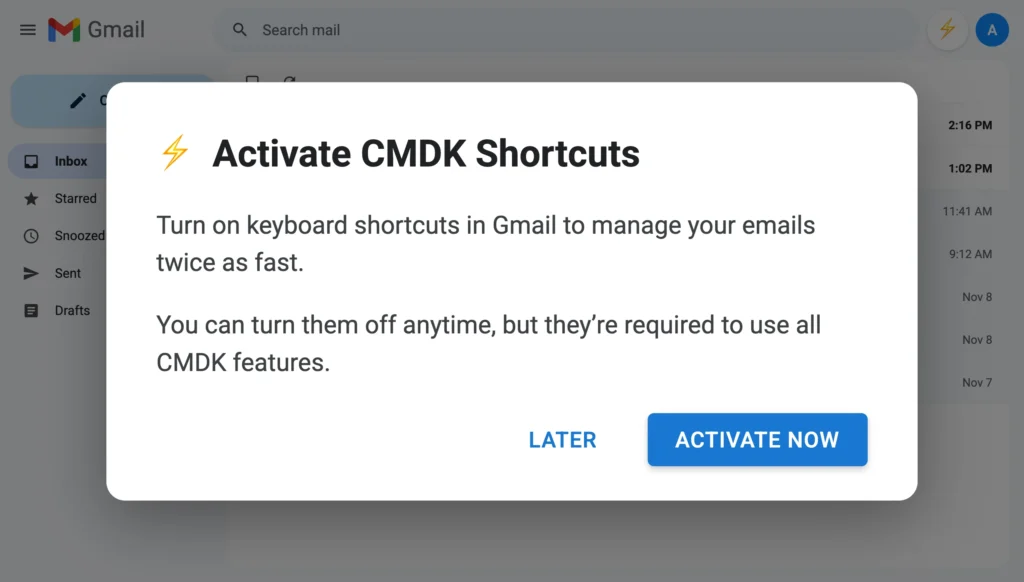
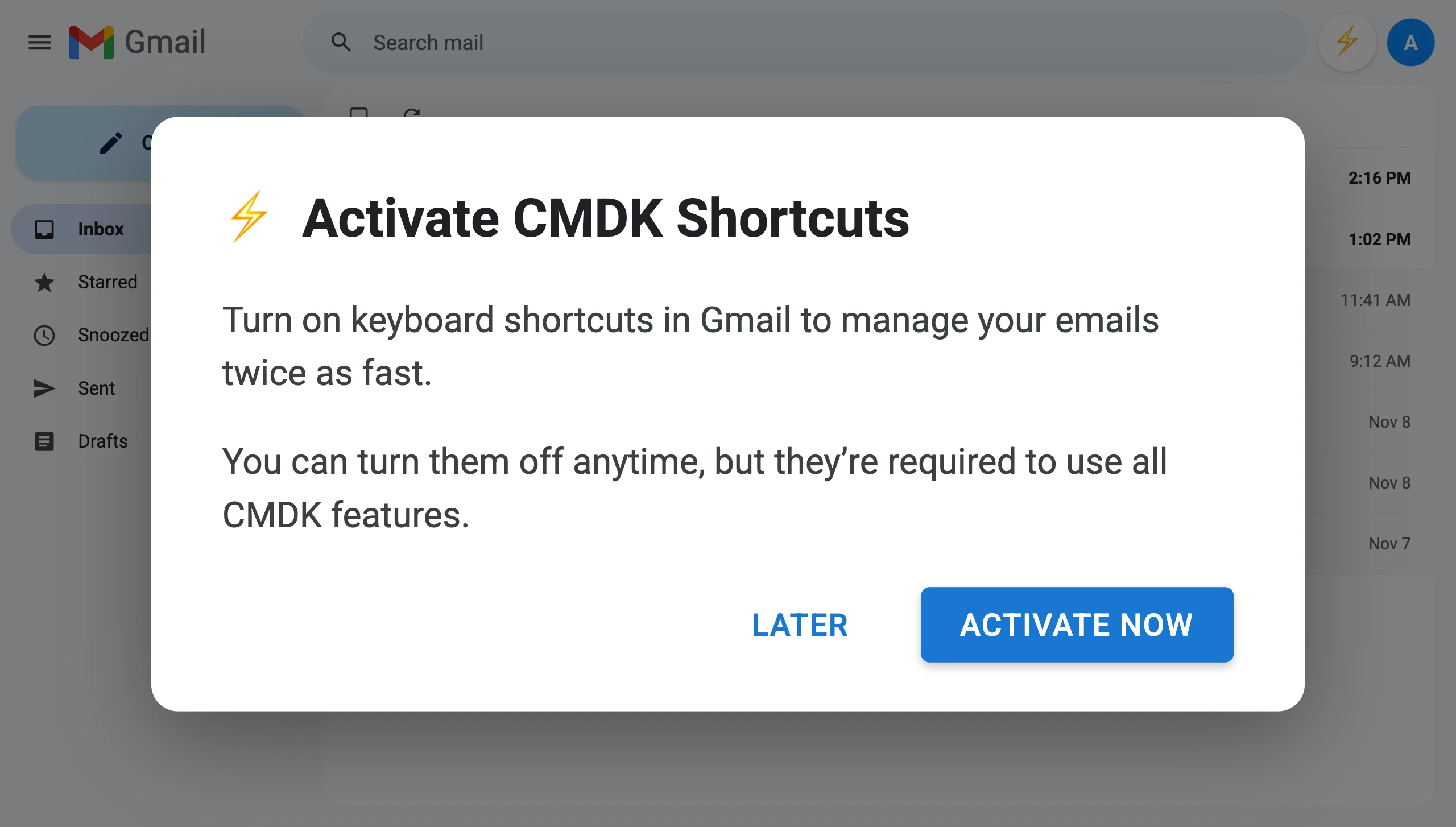
1. Turn on keyboard shortcuts ⚙️
You will be prompted by CMDK to turn on keyboard shortcuts if it’s not already turned on. You just have to consent to change and the app will take care of the rest.
2. Command Center to act on any email ⚡
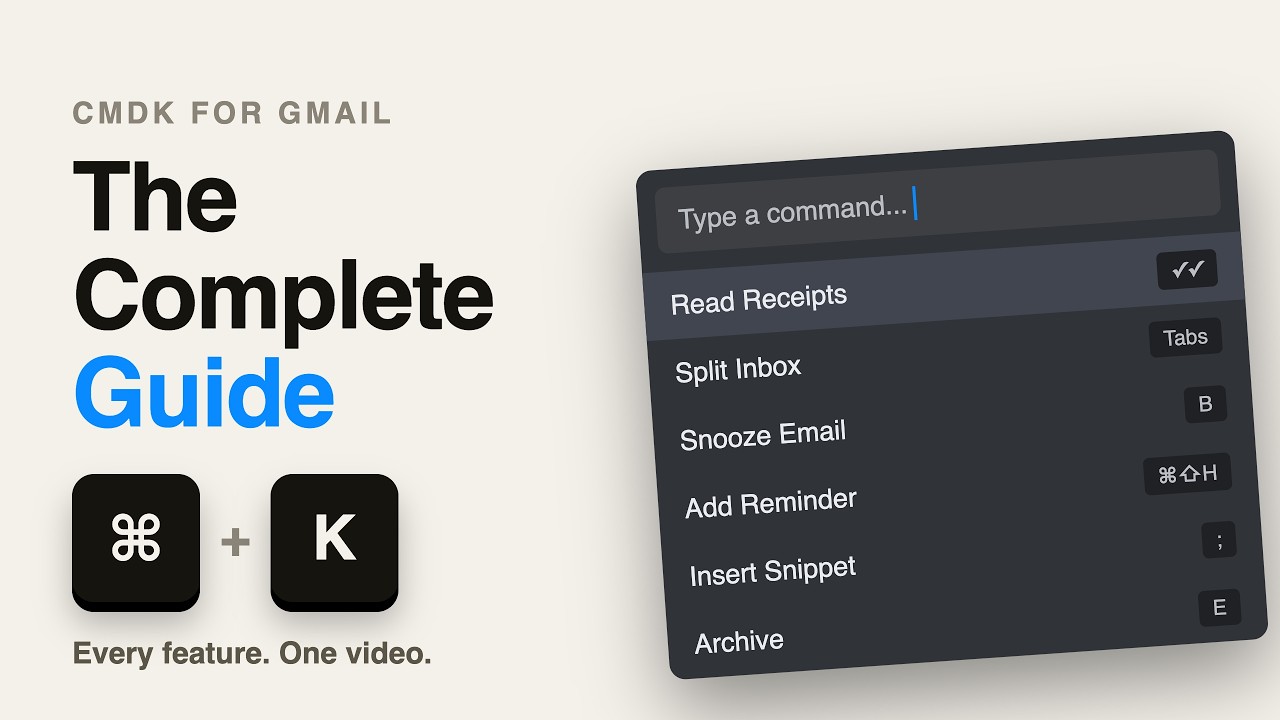
Hit ⌘ + K ( Ctrl + K on Windows) to bring up Command Center. Reply, Forward, Label, Mark Unread, Delete… and 30 other actions available right within the Command Center which you can use.
Launch Command Center and start typing.. what you want to do with your email.
3. Esc and Enter are your best friend
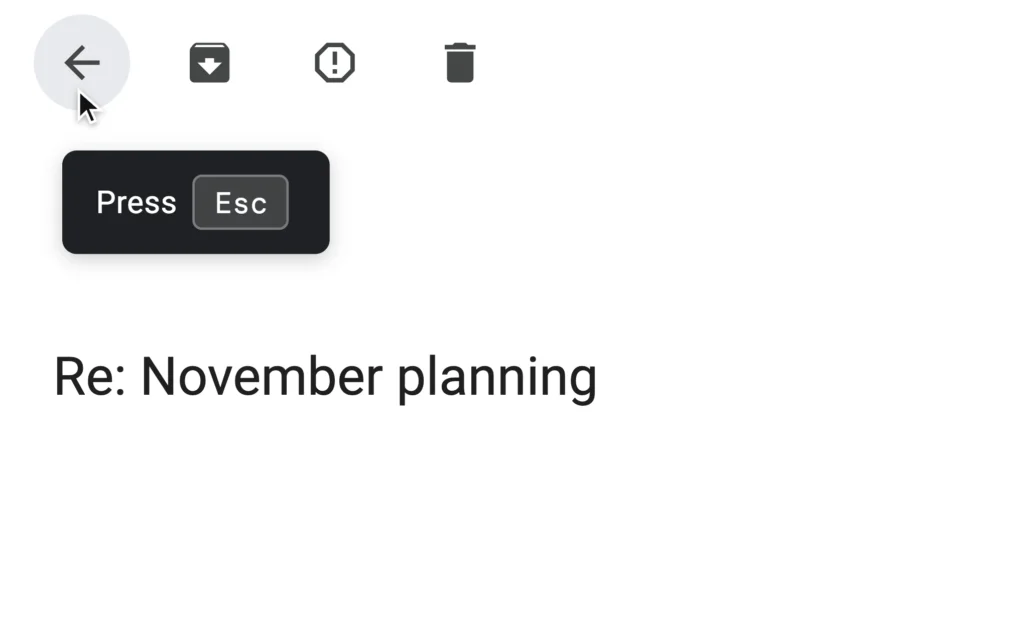
Use the Esc key to go back to previous page. Close popups. Or, close alerts and notifications.
Use the Enter key to open or reply to an email.
4. Run through your inbox 🧭
Use your up and down arrows to run through the inbox, and Enter to open an email. This works across all email folders. You can hit Esc to go back to the previous page.
Hit the Shift key to select multiple emails together.
When you are viewing an email, use the left and right keys to move between emails.

5. Switch to any email folder 🔃
Going to Sent Items, Starred, Labels, or Categories is now a quick command on CMDK.

6. Snooze and add Reminders in English ⏰
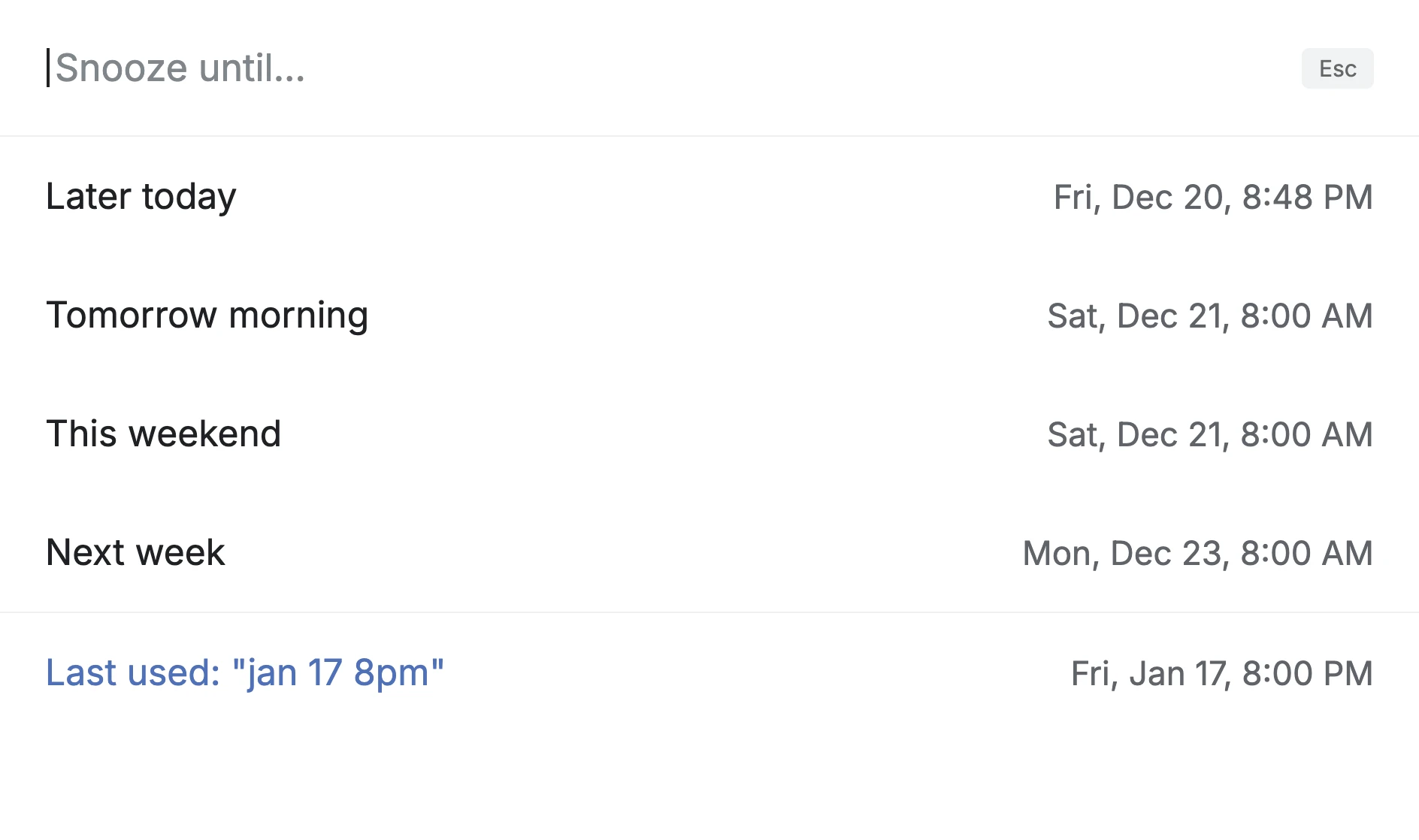
Hit B and type in when you want to see the email again in your inbox. Understands timezones, and phrases like
in 2 months.
7. Open links in any email 🔗
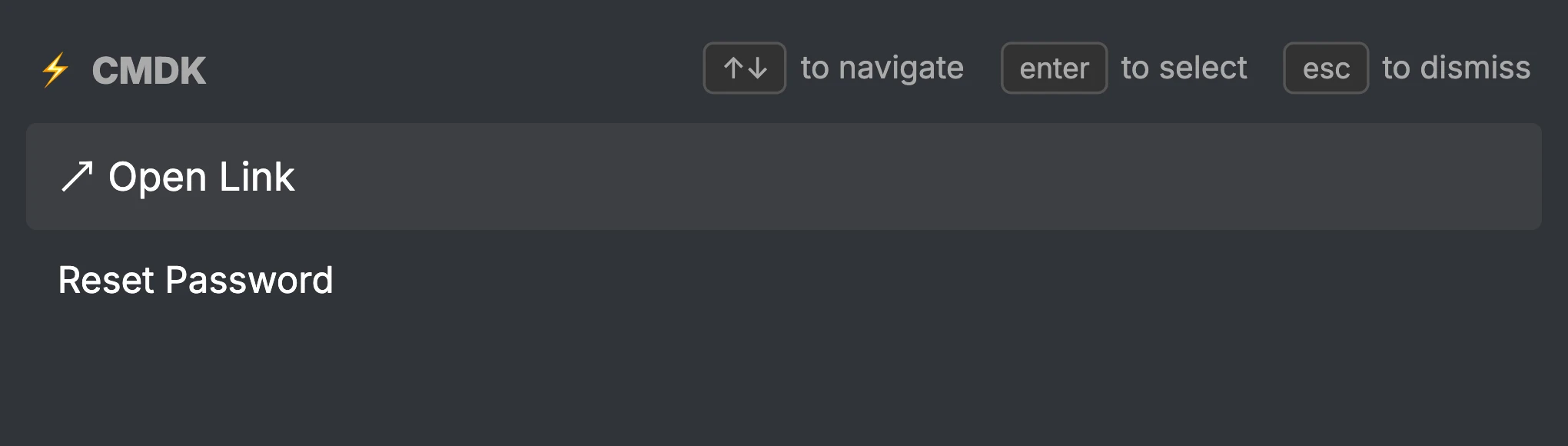
You can easily open links in emails using Open Link. This is extra handy for emails which only contain a link – password reset, account verification, or even opening documents from Google Drive.
Use Cmd+O or Ctrl+O to directly pull up the Open Link dialog.
8. RSVP, Open Attachments, and Unsubscribe 📅
Accepting (or declining) calendar invitations is now an easy command with CMDK. Similar actions are available for emails with attachments, and unsubscribing from those pesky promotional emails.

9. Learn keyboard shortcuts ⏎
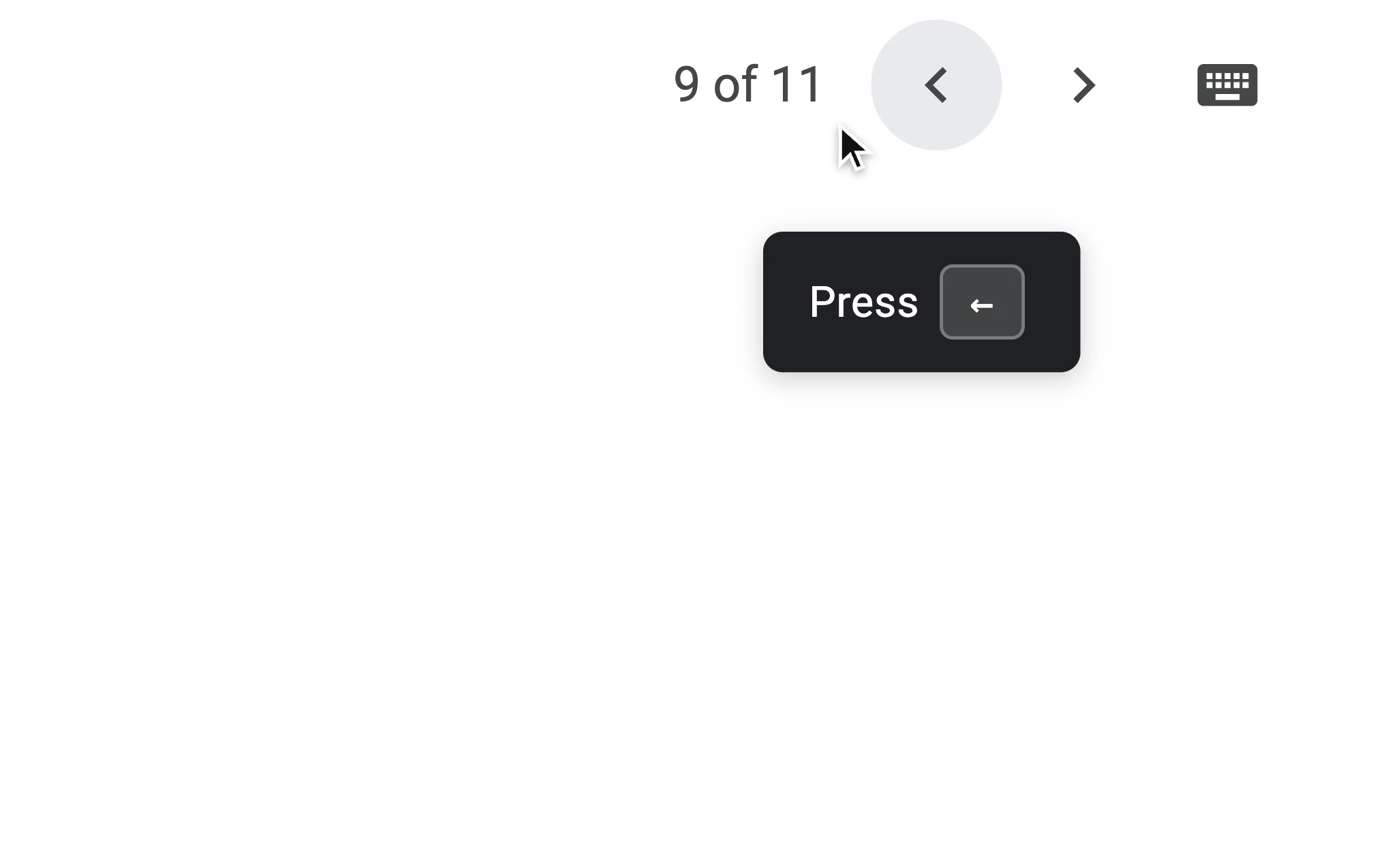
Learn the keyboard shortcuts for the email actions you frequently use, either from the Command Center or when you are about to click the button.
10. Nuke emails from anyone 🚫
You can instantly delete all current emails and block future emails from anyone by clicking on the 🚫 button in your toolbar.
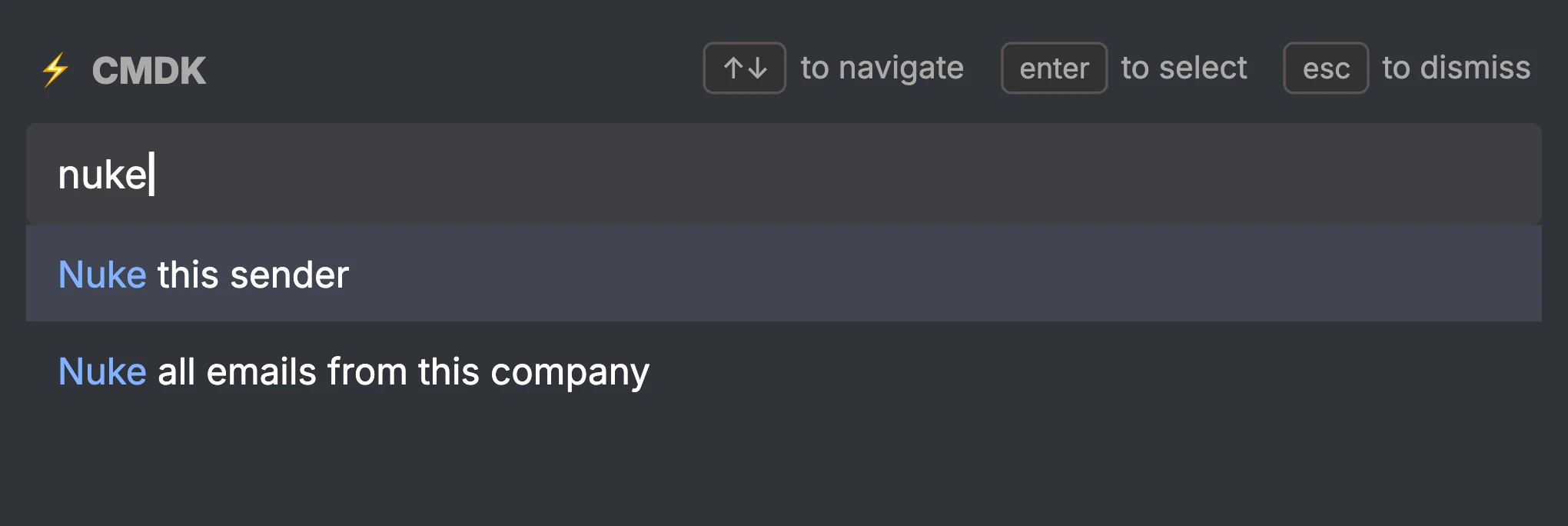
You can also block an entire company (instead of just one email sender) by using the Command bar. Hit Cmd/Ctrl+K and look for “Nuke emails from Company”. This is extra handy when companies use different email addresses to spam you.

1. Turn on keyboard shortcuts ⚙️
You will be prompted by CMDK to turn on keyboard shortcuts if it’s not already turned on. You just have to consent to change and the app will take care of the rest.
2. Command Center to act on any email ⚡
Hit ⌘ + K ( Ctrl + K on Windows) to bring up Command Center. Reply, Forward, Label, Mark Unread, Delete… and 30 other actions available right within the Command Center which you can use.
Launch Command Center and start typing.. what you want to do with your email.
3. Esc and Enter are your best friend
Use the Esc key to go back to previous page. Close popups. Or, close alerts and notifications.
Use the Enter key to open or reply to an email.
4. Run through your inbox 🧭
Use your up and down arrows to run through the inbox, and Enter to open an email. This works across all email folders. You can hit Esc to go back to the previous page.
Hit the Shift key to select multiple emails together.
When you are viewing an email, use the left and right keys to move between emails.
5. Switch to any email folder 🔃
Going to Sent Items, Starred, Labels, or Categories is now a quick command on CMDK.
6. Snooze and add Reminders in English ⏰
Hit B and type in when you want to see the email again in your inbox. Understands timezones, and phrases like
in 2 months.
7. Open links in any email 🔗
You can easily open links in emails using Open Link. This is extra handy for emails which only contain a link – password reset, account verification, or even opening documents from Google Drive.
Use Cmd+O or Ctrl+O to directly pull up the Open Link dialog.
8. RSVP, Open Attachments, and Unsubscribe 📅
Accepting (or declining) calendar invitations is now an easy command with CMDK. Similar actions are available for emails with attachments, and unsubscribing from those pesky promotional emails.
9. Learn keyboard shortcuts ⏎
Learn the keyboard shortcuts for the email actions you frequently use, either from the Command Center or when you are about to click the button.
10. Nuke emails from anyone 🚫
You can instantly delete all current emails and block future emails from anyone by clicking on the 🚫 button in your toolbar.
You can also block an entire company (instead of just one email sender) by using the Command bar. Hit Cmd/Ctrl+K and look for “Nuke emails from Company”. This is extra handy when companies use different email addresses to spam you.
1. Turn on keyboard shortcuts ⚙️
You will be prompted by CMDK to turn on keyboard shortcuts if it’s not already turned on. You just have to consent to change and the app will take care of the rest.
2. Command Center to act on any email ⚡
Hit ⌘ + K ( Ctrl + K on Windows) to bring up Command Center. Reply, Forward, Label, Mark Unread, Delete… and 30 other actions available right within the Command Center which you can use.
Launch Command Center and start typing.. what you want to do with your email.
3. Esc and Enter are your best friend
Use the Esc key to go back to previous page. Close popups. Or, close alerts and notifications.
Use the Enter key to open or reply to an email.
4. Run through your inbox 🧭
Use your up and down arrows to run through the inbox, and Enter to open an email. This works across all email folders. You can hit Esc to go back to the previous page.
Hit the Shift key to select multiple emails together.
When you are viewing an email, use the left and right keys to move between emails.
5. Switch to any email folder 🔃
Going to Sent Items, Starred, Labels, or Categories is now a quick command on CMDK.
6. Snooze and add Reminders in English ⏰
Hit B and type in when you want to see the email again in your inbox. Understands timezones, and phrases like in 2 months.
7. Open links in any email 🔗
You can easily open links in emails using Open Link. This is extra handy for emails which only contain a link – password reset, account verification, or even opening documents from Google Drive.
Use Cmd+O or Ctrl+O to directly pull up the Open Link dialog.
8. RSVP, Open Attachments, and Unsubscribe 📅
Accepting (or declining) calendar invitations is now an easy command with CMDK. Similar actions are available for emails with attachments, and unsubscribing from those pesky promotional emails.
9. Learn keyboard shortcuts ⏎
Learn the keyboard shortcuts for the email actions you frequently use, either from the Command Center or when you are about to click the button.
10. Nuke emails from anyone 🚫
You can instantly delete all current emails and block future emails from anyone by clicking on the 🚫 button in your toolbar.
You can also block an entire company (instead of just one email sender) by using the Command bar. Hit Cmd/Ctrl+K and look for “Nuke emails from Company”. This is extra handy when companies use different email addresses to spam you.
That’s it! You are now set to start using CMDK ⚡
You can email us at support@cmdk.email for feature requests and support. We use CMDK ourselves 🙌