
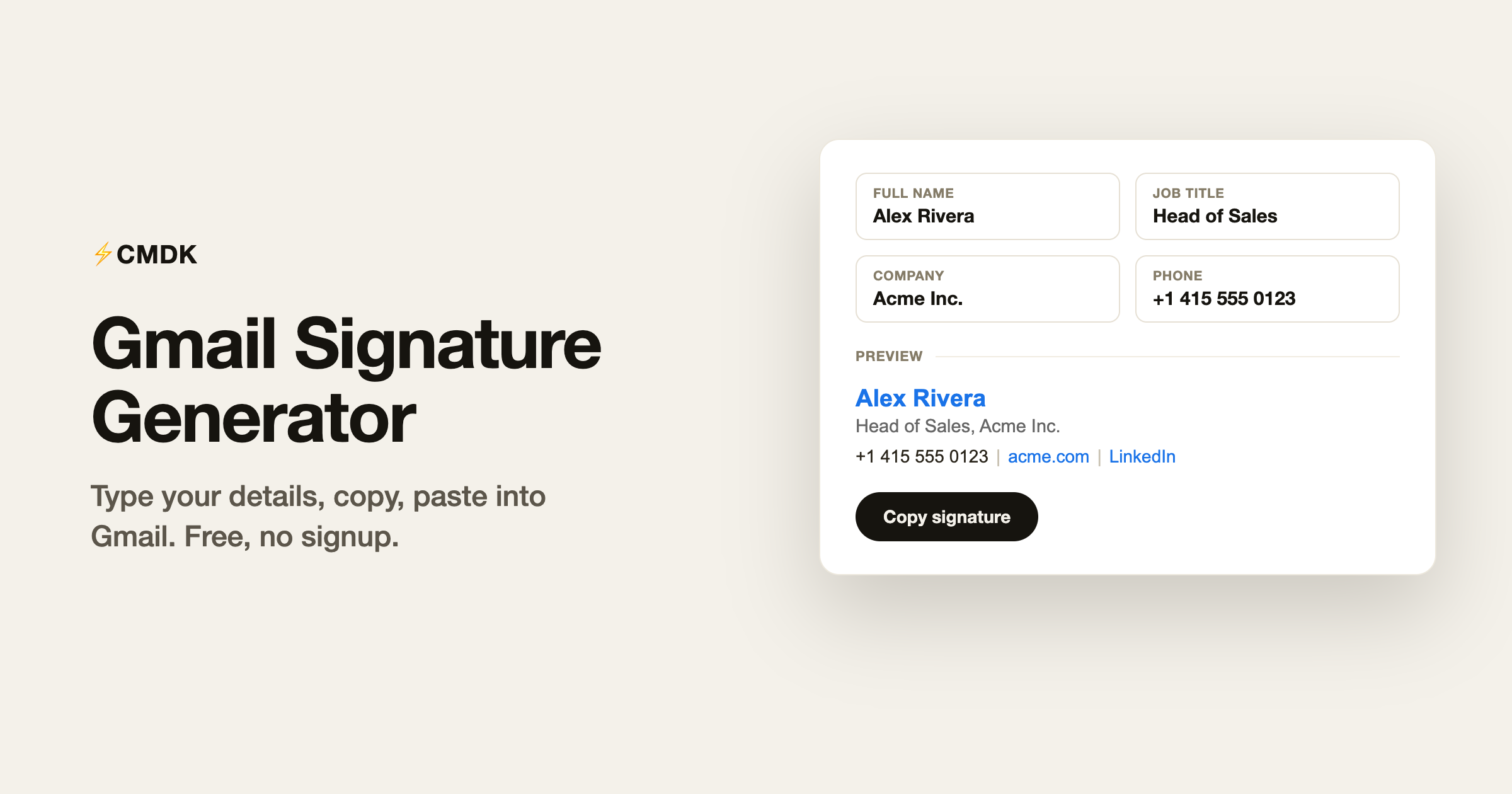
A good email signature is four lines: who you are, what you do, and one or two ways to reach you. Most signature generators bury that under photo uploads, banner ads, and a signup wall, then watermark the result.
This one does the four lines. Type your details, pick a layout, copy, and paste into Gmail. It runs entirely in your browser, so nothing you type is sent anywhere.
Build your signature
How to add your signature in Gmail
- Open Gmail and click the gear icon, then See all settings.
- On the General tab, scroll to Signature and click Create new.
- Name it (the name is only for you), paste your signature into the editor, and check the formatting survived.
- Under Signature defaults, choose it for new emails and replies.
- Scroll down and click Save Changes.
Gmail supports multiple signatures, so you can keep a full version for new emails and a shorter one for replies. Switch between them from the pen icon in the compose toolbar.
What belongs in an email signature
The signatures that work are the ones that answer a recipient’s next question and stop there:
- Name, formatted the way you want to be addressed
- Role and company, so the recipient can place you
- One or two contact methods, usually phone and website. Your email address is already on the email; leave it out.
- One link at most beyond the website, typically LinkedIn
Skip inspirational quotes, more than one logo, and long legal disclaimers unless your company requires them. Every extra line lowers the odds anyone reads the ones that matter. And test on a phone: a signature that renders as six stacked lines on mobile is too long.
Plain text or formatted?
Formatted signatures (the Stacked and Compact layouts above) look better in Gmail and most modern clients. Plain text has two advantages: it can never break in a client that strips formatting, and it reads as more personal, which matters in cold outreach where anything polished pattern-matches to marketing. If you send a lot of first-touch sales email, consider the plain layout; for everything else, formatted is the safe default.
Frequently asked questions
How do I change my signature in Gmail?
Go to Settings, See all settings, and scroll to Signature on the General tab. Click the signature you want to edit, make the change in the editor, then scroll down and click Save Changes.
Why is my Gmail signature not showing up?
The usual cause is signature defaults: Gmail lets you set a different signature (or none) for new emails and replies. Check both dropdowns under Signature defaults in settings. In replies, Gmail also hides the signature behind the three-dot “trimmed content” marker, so it is often there but collapsed.
Can I have multiple signatures in Gmail?
Yes. Click Create new under the Signature setting for each one. When composing, switch signatures from the pen icon in the toolbar at the bottom of the compose window.
How do I add an image or logo to my Gmail signature?
In the signature editor, click the Insert image icon and add the image from Drive, an upload, or a URL. Keep it small; large images get clipped by Gmail’s 10,000-character signature limit and can trigger the “message clipped” view for recipients.
Does this signature generator store my information?
No. It runs entirely in your browser with no server involved. Nothing you type is transmitted or stored, and reloading the page clears it.
If you spend serious time in Gmail, the signature is the least of it. CMDK adds read receipts, snippets that fill themselves in, and a command bar, so the rest of your email moves as fast as this generator.




