
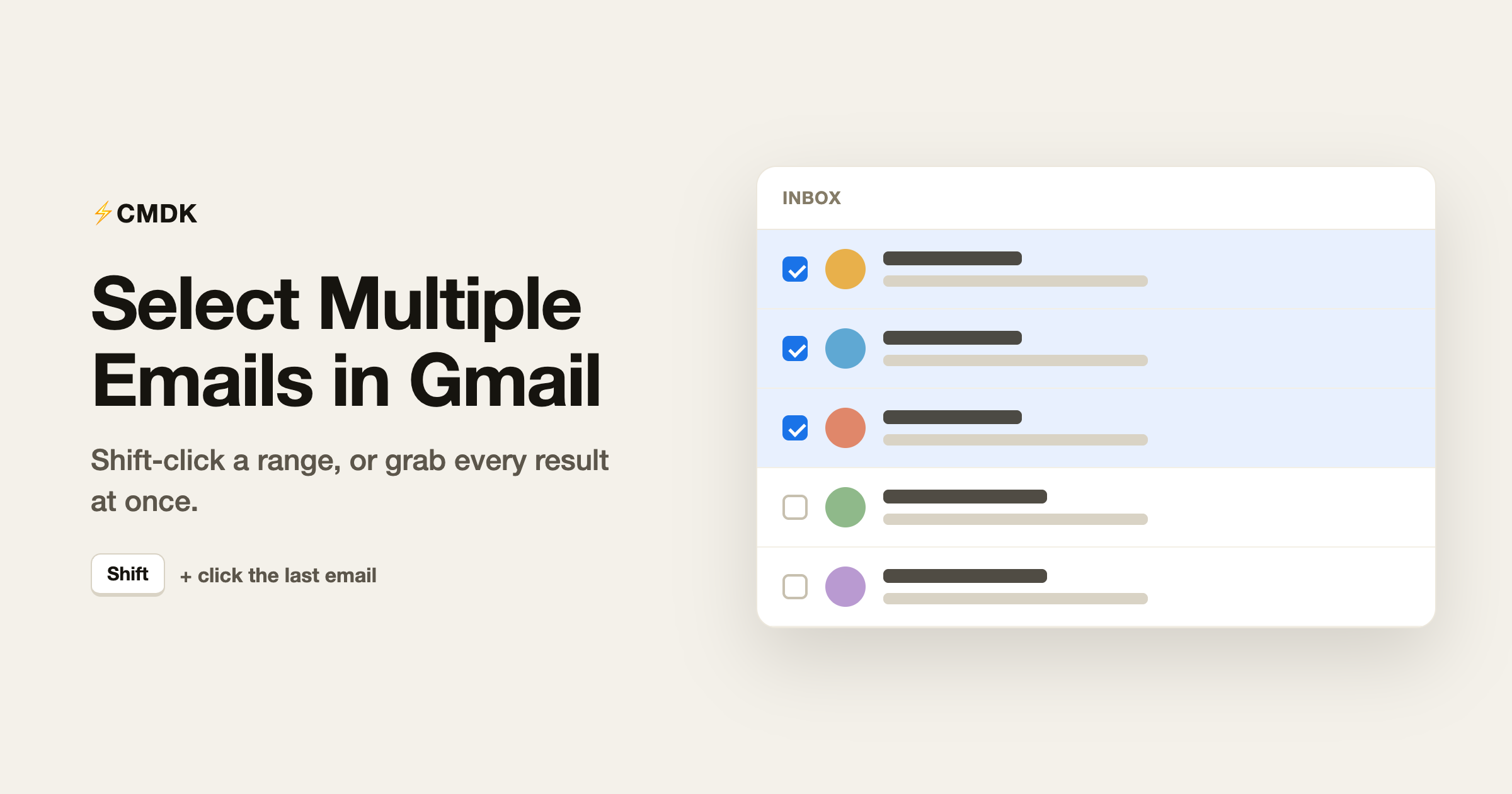
To select a run of emails in Gmail on the web, check the box next to the first one, then hold Shift and check the last one. Everything in between is selected. That single trick covers most of what people are looking for. The rest of this guide covers the other cases: grabbing a whole page at once, grabbing every result past the first 50, selecting by read or starred status, doing it from the keyboard, and doing it on the phone.
Select a range on desktop (the Shift-click method)
Each conversation in the list has a checkbox on the left. To pick a specific set:
- Check the box next to the first email in the range.
- Hold Shift.
- Check the box next to the last email in the range.
Gmail selects the first, the last, and everything between them. This is the fastest way to grab a block of adjacent emails, and it works exactly like selecting files in a folder.
For a handful of emails that are not next to each other, skip the Shift key and just check each box individually.
Select the whole page
The checkbox at the top left of the list, above the first email, selects every conversation on the current page. Gmail shows 50 conversations per page by default, so this selects those 50.
Next to that checkbox is a small dropdown arrow. It gives you one-tap presets:
- All and None
- Read and Unread
- Starred and Unstarred
So to select every unread email on the page, open that dropdown and choose Unread. To clear a selection, choose None.
Select more than 50 (every email in a label or search)
This is the step most people miss. The top checkbox only grabs the visible 50. When you use it, Gmail shows a line above the list:
All 50 conversations on this page are selected. Select all conversations that match this search.
Click that second link and Gmail selects everything, not just the page, whether that is 200 emails or 20,000. Combine it with search first to scope what “everything” means. For example, search from:[email protected], hit the select-all checkbox, then click “Select all conversations that match this search” to grab every email from that sender at once.
If your goal is a mass cleanup rather than just selecting, the full workflow (including the searches that isolate the right emails) is in our mass-delete guide.
To send a batch of emails on to someone else instead, that same selection feeds Gmail’s Forward as attachment option: see how to forward multiple emails in Gmail.
Deselect emails
- To clear the entire selection, click the top checkbox again, or open its dropdown and choose None.
- To drop one email from a selection, uncheck just that box; the rest stay selected.
- Pressing Escape does not clear a checkbox selection, so use None or the checkbox for a clean reset.
Select emails from the keyboard
If you would rather keep your hands off the mouse, turn on keyboard shortcuts first: Settings (gear icon), See all settings, General tab, Keyboard shortcuts on, Save.
Then, in the list:
jandkmove the cursor down and up between conversations.xselects (or deselects) the conversation the cursor is on.*thenaselects all.*thennselects none.*thenrselects read,*thenuselects unread,*thensselects starred,*thentselects unstarred.
So * u followed by an action hits every unread email on the page without touching a checkbox. The complete list of Gmail keys is on our shortcuts cheat sheet.
Select multiple emails in the Gmail app (iPhone and Android)
There is no Shift-click on mobile, so selection works by tapping:
- Tap the sender’s avatar (the round icon on the left of a message), or press and hold a message, to enter selection mode.
- Tap the avatar of each additional message you want. A checkmark replaces each avatar as it is selected.
- Act on them with the icons at the top (archive, delete, and so on).
On Android, the overflow (three-dot) menu in selection mode includes a Select all option to grab everything on screen. On iPhone, there is no select-all in the app, so you tap each message you want. For large cleanups, the desktop “select all conversations that match” route above is far faster than the phone.
Do it faster with CMDK
Gmail’s native selection is fine for the occasional block of emails. If you select and act on email all day, CMDK makes it keyboard-first:
- Multi-select a range: select one email, then hold Shift and press the Up or Down arrow to extend the selection line by line, the same motion as selecting files, without reaching for checkboxes.
- Select all:
Cmd + A(orCtrl + A) selects everything in the current view. - Select on hover: turn it on and Gmail selects whatever row your cursor is over, so single-key actions always hit the right email.
- Jump to the ends:
g glands the cursor on the first email andShift + Gon the last, so you can jump to the top or bottom of the list before selecting a range. - Select all and Deselect all are commands in the
Cmd + Kcommand bar, alongside every other action, so you can select a set and archive, label, or move it without leaving the keyboard.
FAQ
How do I select more than 50 emails in Gmail?
Click the checkbox at the top of the list to select the visible 50, then click the “Select all conversations that match this search” link that appears above the list. That selects every conversation in the current label or search, not just the first page.
Is there a keyboard shortcut to select emails in Gmail?
Yes, once keyboard shortcuts are turned on in Settings. Press x to select the conversation your cursor is on, or * then a to select all on the page. * then n deselects everything.
How do I select all unread emails in Gmail?
Click the dropdown arrow next to the select-all checkbox and choose Unread, or press * then u with keyboard shortcuts on. Both select only the unread conversations on the current page.
How do I select multiple emails in the Gmail app?
Tap the sender’s avatar or long-press a message to enter selection mode, then tap the avatar of each other message you want. Android has a Select all option in the three-dot menu; iPhone does not, so you tap each one.
How do I deselect emails in Gmail?
Click the top checkbox again to clear everything, choose None from its dropdown, or press * then n on the keyboard. To drop a single email, just uncheck its box.
Selecting the emails is only half the job; the point is acting on them. CMDK turns selection into keyboard motions, adds Cmd + K for every action, and lets you archive, label, or move a whole selection in one keystroke. Install it free.




