
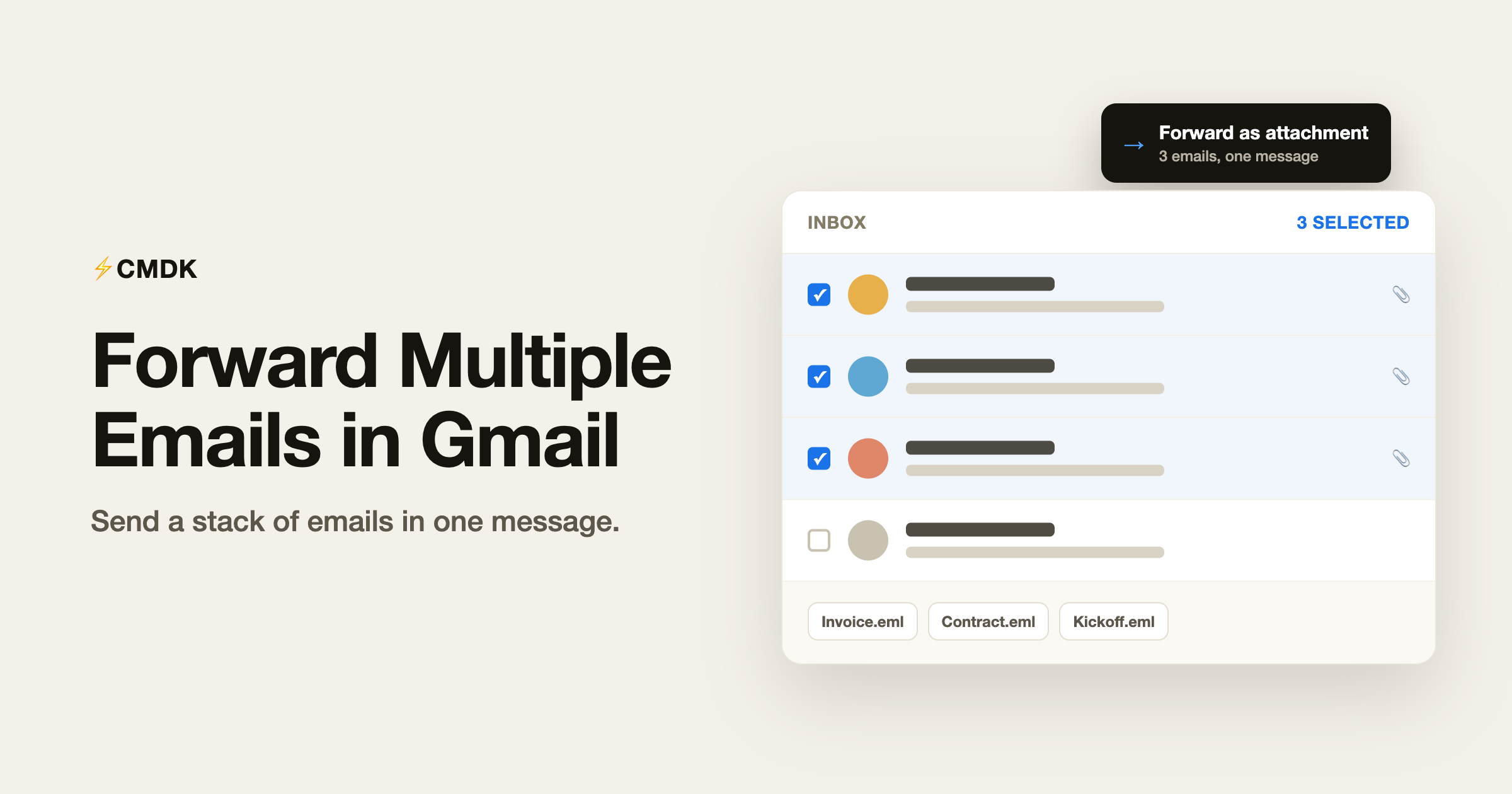
To forward several emails at once on the web, tick the checkbox next to each one in your list, click the three-dot More menu in the toolbar above the list, and choose Forward as attachment. Gmail opens one new message with every email you picked attached to it.
That covers the common case. Which method you actually want depends on whether the emails are separate messages or one thread, whether the recipient reads mail on a computer or a phone, and whether you are forwarding old mail or everything that arrives from now on. All four routes are below.
Method 1: Forward multiple emails as attachments
This is the only native way to send several separate emails in a single message.
- Open Gmail on a computer and go to the list containing the emails.
- Tick the checkbox to the left of each email you want to forward. To grab a run of them, tick the first, hold Shift, then tick the last. The other ways to select multiple emails work here too.
- In the toolbar above the list, click the three-dot More menu.
- Choose Forward as attachment.
- Add your recipients in the To field, write a subject and a short note explaining what you are sending.
- Click Send.
Each selected email arrives as a separate .eml attachment. Google puts no cap on how many you can attach, but the 25 MB message limit still applies: go over it and Gmail uploads the attachments to Google Drive and sends links instead.
There is a second way to do the same thing. Open a Compose window, then drag emails out of your list and drop them into the body of the draft. They attach as .eml files exactly as the menu route does, which is handy when you are already writing the message.
Two things that catch people out
Forward as attachment only appears from a list. If you have an email open, the option is not in that email’s More menu. Go back to the inbox, or to any label or search result, tick the boxes there, and use the toolbar menu above the list.
Your recipient needs a desktop mail client to open .eml files. They open fine in Apple Mail, Outlook and Thunderbird. On a phone, .eml attachments often will not open at all, and Gmail on the web opens them in a preview window rather than as normal mail. If you are sending to someone who lives on their phone, use method 3 instead.
Method 2: Forward a whole thread with Forward all
If the messages you want to send are replies inside one conversation, you do not need attachments. Gmail can forward the entire chain as one readable email.
- Turn on Conversation view if it is off: Settings (gear icon), See all settings, General, Conversation view on, Save Changes. Forward all does not exist without it.
- Open the conversation.
- In the toolbar at the top of the thread, click the three-dot More menu.
- Choose Forward all.
- Add recipients and click Send.
The difference between the two forward options inside a thread is worth knowing. Forward sends one message from the conversation. Forward all sends every message in it, quoted in order, so the recipient reads the history top to bottom with no attachments to open. For handing over a client conversation or escalating a support thread, this is the one you want.
Method 3: Forward them one at a time, quickly
Attachments are efficient for you and awkward for the recipient. When the emails need to land as normal, readable, searchable mail, forward them individually and make the repetition cheap instead.
Turn on Gmail’s keyboard shortcuts first: Settings, See all settings, General, Keyboard shortcuts on, Save Changes. Then the loop per email is:
- Press
jorkto move down or up the list. - Press
Enterto open the email, thenfto forward it. - Type the recipient, then press
Cmd + Enter(orCtrl + Enter) to send. - Press
uto get back to the list.
Narrow the list before you start so you are not hunting. A search like from:[email protected] has:attachment older_than:6m puts exactly the right emails in front of you, and our Gmail search operators guide has the full set. The rest of the keys are on the shortcuts cheat sheet.
Method 4: Auto-forward everything that arrives from now on
The three methods above move mail you already have. To keep a second address supplied with new mail, set up forwarding instead. Note that this is not retroactive: it only touches messages that arrive after you switch it on.
First, register the destination address:
- Settings, See all settings, Forwarding and POP/IMAP.
- Click Add a forwarding address and enter the address.
- Gmail emails a verification link to that address. Open it and click the link.
- Back in Gmail, refresh, return to the same tab, and select Forward a copy of incoming mail to. Keep Gmail’s copy in the Inbox unless you have a reason not to.
- Save Changes.
That forwards everything except spam. To forward only some of it, leave the setting off and use a filter instead:
- In the search box, click Show search options.
- Enter your criteria, for example a sender or a subject phrase.
- Click Create filter.
- Tick Forward it to and pick the verified address.
- Click Create filter.
One filter handles one destination address, so forwarding to three people means three filters. Gmail also shows a banner in your own inbox for the first week after you set forwarding up, which is a safety reminder rather than a fault. Our guide to Gmail filters covers the other actions you can attach to the same rule.
Forwarding multiple emails in the Gmail app
Both batch options are desktop-only. The Gmail app on iPhone and Android has no Forward as attachment and no Forward all, so you open each message, tap the three-dot menu on it, and tap Forward. For anything more than two or three emails, wait until you are at a computer.
Which method to use
| What you have | What to use |
|---|---|
| Several unrelated emails, recipient on a computer | Forward as attachment |
| Replies inside one conversation | Forward all |
| Recipient on a phone, or emails that must stay readable | Forward one by one with f |
| Mail that has not arrived yet | Forwarding address plus a filter |
Do it faster with CMDK
Gmail’s batch forwarding is either one awkward attachment bundle or a lot of clicking. CMDK attacks the second problem by taking the clicks out of each individual forward:
- Forward without opening the email. Press
Fon the email your cursor is hovering over, or on the one you have selected, and CMDK opens the forward for you. Gmail’s ownfneeds the conversation open first, which is the click you repeat most when you are working through a batch. - Select on hover. Turn it on and Gmail treats whatever row your cursor is over as the current email, so you can run down a list forwarding as you go without clicking a single checkbox.
Cmd + Kfor everything else. Forward, archive, label, snooze and the rest live in one command bar, so the emails you have finished with are gone in a keystroke rather than a menu.- Instant Copy and Quick Quote. When you would rather paste the substance of several emails into one message than attach them, these lift the body or the selected text of an email in one keystroke.
FAQ
Can you forward multiple emails at once in Gmail?
Yes. Tick the checkbox next to each email in your list, click the three-dot More menu above the list, and choose Forward as attachment. Every selected email is attached to a single new message as a .eml file.
Why is Forward as attachment missing from my menu?
Because you have an email open. Gmail only offers Forward as attachment from a list view, so go back to your inbox, a label or a search result, tick the checkboxes there, and use the three-dot menu in the toolbar above the list.
How do I forward an entire email thread in Gmail?
Open the conversation, click the three-dot More menu in the toolbar at the top, and choose Forward all. That sends every message in the thread quoted in one email. Conversation view has to be on in Settings, General, or the option does not appear.
How many emails can I forward at once?
Google sets no limit on the number of emails you can attach, but the message still has to fit inside Gmail’s 25 MB limit. Past that, Gmail uploads the attachments to Google Drive and the recipient gets links instead of files.
Can I forward multiple emails in the Gmail app?
No. Forward as attachment and Forward all are both web-only. In the app you forward one message at a time from its three-dot menu.
Will the recipient be able to open the forwarded emails?
On a computer, yes: .eml files open in Apple Mail, Outlook, Thunderbird and most other desktop clients. On a phone they frequently will not open, so forward the emails individually if you know your recipient reads mail there.
Batch forwarding is a Gmail chore precisely because every step needs the mouse. CMDK puts forward, archive, label and snooze on single keys that act on the email under your cursor, so working through a stack of them stops being a click marathon. Install it free.




