The Gmail privacy settings that matter most are three switches and one audit: ask before showing external images, turn off smart features if you don’t want Google’s AI processing your mail, review which apps can read your account, and use confidential mode for sensitive messages. Then, if you add extensions, pick ones that do their work in your browser instead of copying your email to their own servers. This guide covers both, with what each extension says it collects.
Updated November 18, 2026. Prices and store details were checked on the vendors’ own pages that day.
The 4 Gmail privacy settings to change first
| Setting | Where | What it does |
|---|---|---|
| Ask before displaying external images | Settings, See all settings, General, Images | Stops tracking pixels from loading until you click “Display images below” |
| Smart features | Settings, See all settings, General, Smart features | Stops Gmail using your mail for AI features and smart sorting |
| Third-party access | myaccount.google.com/connections | Lists every app that can read or send your Gmail, so you can remove the ones you no longer use |
| Confidential mode | The lock icon in the compose window | Sets an expiry date and blocks forward, copy and print for one message |
Images. Most senders count an “open” when a tiny image in the email loads. Gmail loads images through Google’s own proxy servers, so the sender sees a Google address instead of your IP address and location. The proxy does not hide the open itself: the first time the image loads, the sender’s tool still records it. Asking before displaying images is the only Gmail setting that stops that signal. The cost is that newsletters show up without pictures until you allow them.
Smart features. Turning these off also turns off things you may use, such as automatic tabs and package tracking. The full trade-off is in how to stop Gmail’s AI from reading your emails and how to turn off Gemini in Gmail.
Confidential mode has limits worth knowing before you rely on it: see Gmail confidential mode: how it works.
What “privacy-first” means for a Gmail extension
Every Gmail extension needs permission to read the Gmail page, because that is how it adds buttons and shortcuts. The difference is what happens next. A privacy-first extension does its work in your browser and does not upload your messages to its own servers or send them to an AI model. The descriptions below come from each developer’s privacy policy or store listing. Nobody has audited them, so treat them as the developer’s own claim.
1. Mailvelope: encrypt email with OpenPGP
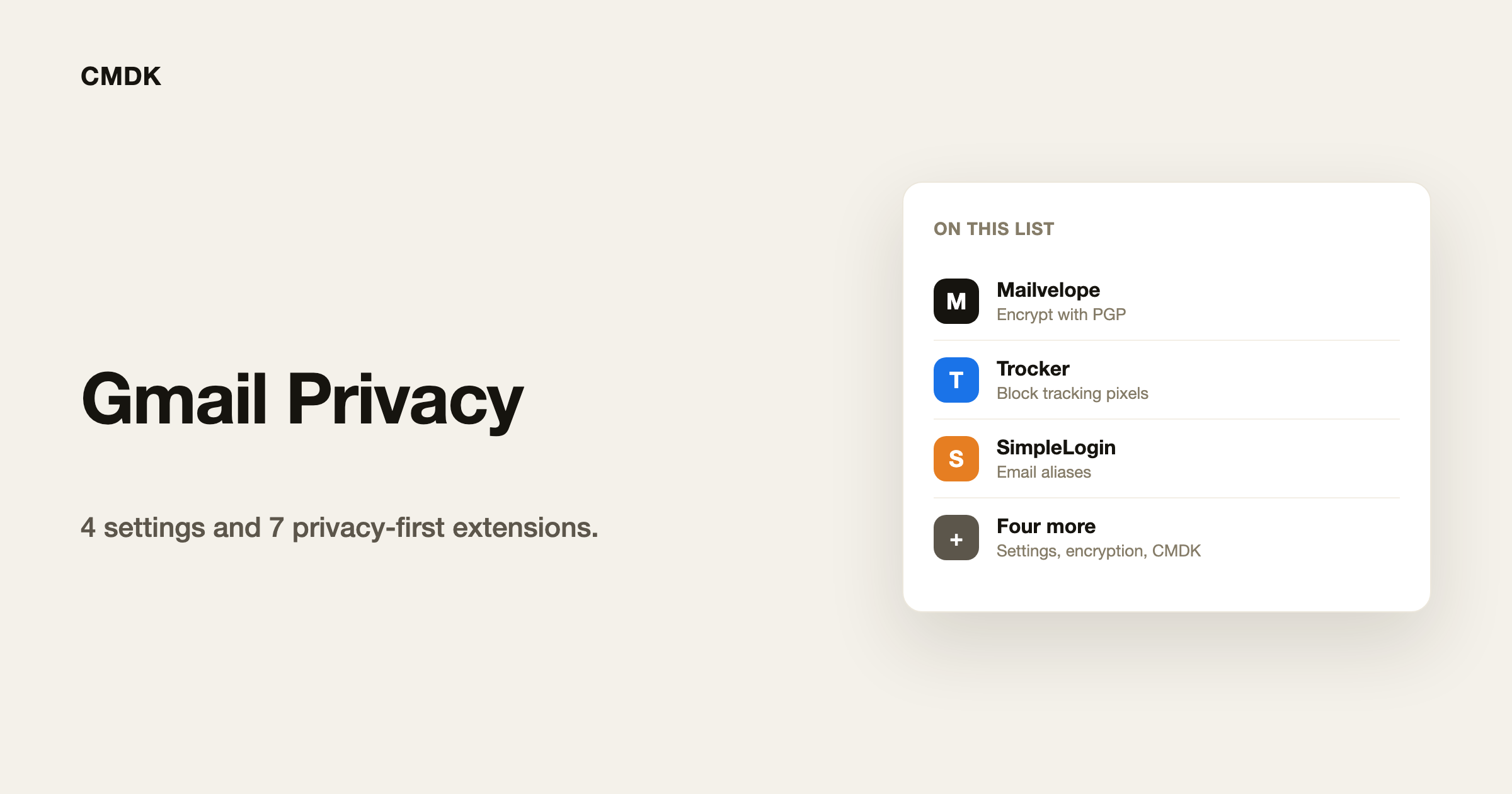
Mailvelope adds end-to-end OpenPGP encryption to Gmail in Chrome, Firefox and Edge. You write the message in Mailvelope’s secure editor inside Gmail, and only the encrypted text reaches Google. Its privacy policy says Gmail emails are never sent to a Mailvelope server.
- Best for: sending messages that even Google cannot read
- Price: free and open source for individuals; Mailvelope Business is a paid plan
- Downside: your recipient also needs PGP, and subject lines are not encrypted
2. FlowCrypt: PGP that also reaches people without PGP
FlowCrypt also brings PGP encryption to Gmail in Chrome. When your recipient has no PGP key, FlowCrypt sends them a password-protected message that expires after 90 days. Its privacy policy says it never has access to your email content or private keys.
- Best for: encrypted mail to people who have never heard of PGP
- Price: free for organizations under 100 users
- Downside: FlowCrypt now focuses on businesses, so plans for individuals are less clear
3. Trocker: block tracking pixels and tracked links
Trocker blocks tracking pixels and also flags links that are wrapped for click tracking, in Gmail and Outlook.com on Chrome and Firefox. It is free and open source, and its store listing says it does not collect or use your data.
- Best for: stopping read tracking without turning off all images
- Price: free
- Downside: it works from a list of known trackers, so a brand-new tracker can slip through. PixelBlock is a Chrome-only alternative that shows a red eye on tracked emails, but it was last updated in December 2025.
4. Simplify Gmail: a cleaner Gmail with tracker blocking
Simplify Gmail, made by a former Gmail designer, redesigns Gmail’s interface and includes tracker blocking. Its privacy policy says it does not transmit, collect or store any data, and that it uses no ads, analytics or cookies.
- Best for: people who want a calmer Gmail and tracker blocking in one install
- Price: paid after a one-month free trial
- Downside: tracker blocking is one feature inside a bigger redesign, so you take the new look too
5. DuckDuckGo Email Protection: strip trackers before mail reaches Gmail
DuckDuckGo gives you a free @duck.com address that forwards to your Gmail and removes trackers on the way. You can also create a new private address for each sign-up form, so a leaked address can be switched off.
- Best for: newsletters and shopping sign-ups
- Price: free
- Downside: it only cleans mail sent to your @duck.com addresses, and that mail passes through DuckDuckGo’s servers
6. SimpleLogin: email aliases from Proton
SimpleLogin, owned by Proton, creates aliases that forward to Gmail. When one starts getting spam, you turn it off. It says it does not use your data, track you or show you ads.
- Best for: keeping your real Gmail address out of databases
- Price: free for 10 aliases; Premium is $36 a year
- Downside: another company now sits in your mail path, and the free plan has a 10-alias cap
7. CMDK: Gmail speed without an AI reading your mail
CMDK is a Gmail extension for people who want Superhuman-style speed (a command bar, 80+ keyboard shortcuts, snooze, snippets and split inbox tabs) without handing their mail to an AI. CMDK has no AI model of its own, and it does not send the text of your emails to its servers.
Here is what it does send, so you can judge for yourself. When you turn on a read receipt for an email, CMDK stores that email’s subject line and the number of recipients, not their addresses, so it can tell you when it was opened. Read receipts themselves work with a tracking pixel, the same method described above, and only on emails you choose to track. CMDK also records which features you use, for product analytics. Full disclosure: we make CMDK.
- Best for: fast Gmail without AI processing of your mail
- Price: 15-day free trial, then $79 a year
- Downside: it is not an encryption or tracker-blocking tool; pair it with Mailvelope or Trocker for that
Which one should you install?
| You want to | Install |
|---|---|
| Send mail Google cannot read | Mailvelope or FlowCrypt |
| Stop senders seeing when you open their email | Trocker, or Gmail’s “Ask before displaying external images” |
| Keep your real address private | DuckDuckGo Email Protection or SimpleLogin |
| A cleaner Gmail that blocks trackers | Simplify Gmail |
| Faster Gmail without an AI reading your mail | CMDK |
Frequently asked questions
Can senders tell when I open an email in Gmail?
Usually yes. Most marketing and sales tools put a tracking pixel in each email, and Gmail loads it through Google’s proxy when you open the message. The sender doesn’t see your IP address, but their tool still logs an open. Turn on “Ask before displaying external images” or use a tracker blocker like Trocker to stop it.
Does Gmail hide my IP address from senders?
For images, yes. Gmail loads images through Google’s proxy servers, so a sender’s tracking pixel sees a Google address instead of yours.
Are Gmail extensions safe?
Each one needs permission to read the Gmail page in your browser. Check the developer’s privacy policy for whether it uploads your messages, prefer extensions that are updated regularly, and remove ones you no longer use from chrome://extensions.
Do privacy extensions read my email?
They can see the Gmail page in your browser, because that is how browser extensions work. The extensions above say they do not upload your email content to their servers. The two alias services, DuckDuckGo and SimpleLogin, are different: mail sent to an alias passes through their servers on its way to Gmail.
What is the most private way to use Gmail?
Ask before displaying images, turn off smart features, remove apps you don’t use from your Google account, and encrypt the messages that matter with Mailvelope or FlowCrypt.
Want a faster Gmail that keeps AI out of your inbox? Try CMDK.