CMDK (formerly Simplehuman) | Supercharge your Gmail

🚨 Simplehuman is now CMDK   |   New name. Same mission.  Read More.

Gmail Shortcuts Cheat Sheet: Every Shortcut on One Page

This is the complete list of Gmail keyboard shortcuts, grouped the way you use them: moving around, acting on email, composing, and selecting. Print the PDF, tape it next to your monitor for a week, and the ten shortcuts that matter will be muscle memory before it falls down.

Download the printable version here: Gmail shortcuts cheat sheet (PDF). One page, printer-friendly, no signup. There is also an extended edition (PDF) that adds the shortcuts the CMDK extension brings to Gmail, marked in blue so the two layers stay distinct.

Turn shortcuts on first

Gmail ships with keyboard shortcuts disabled. Before any of this works: open Gmail, click the gear icon, See all settings, scroll to “Keyboard shortcuts” on the General tab, select “Keyboard shortcuts on”, and save. The full walkthrough with screenshots is in our Gmail keyboard shortcuts guide.

A note on the ? key: once shortcuts are on, pressing ? anywhere in Gmail opens the built-in shortcut overlay. This page covers everything in it, plus the ones the overlay leaves out.

The ten to learn first

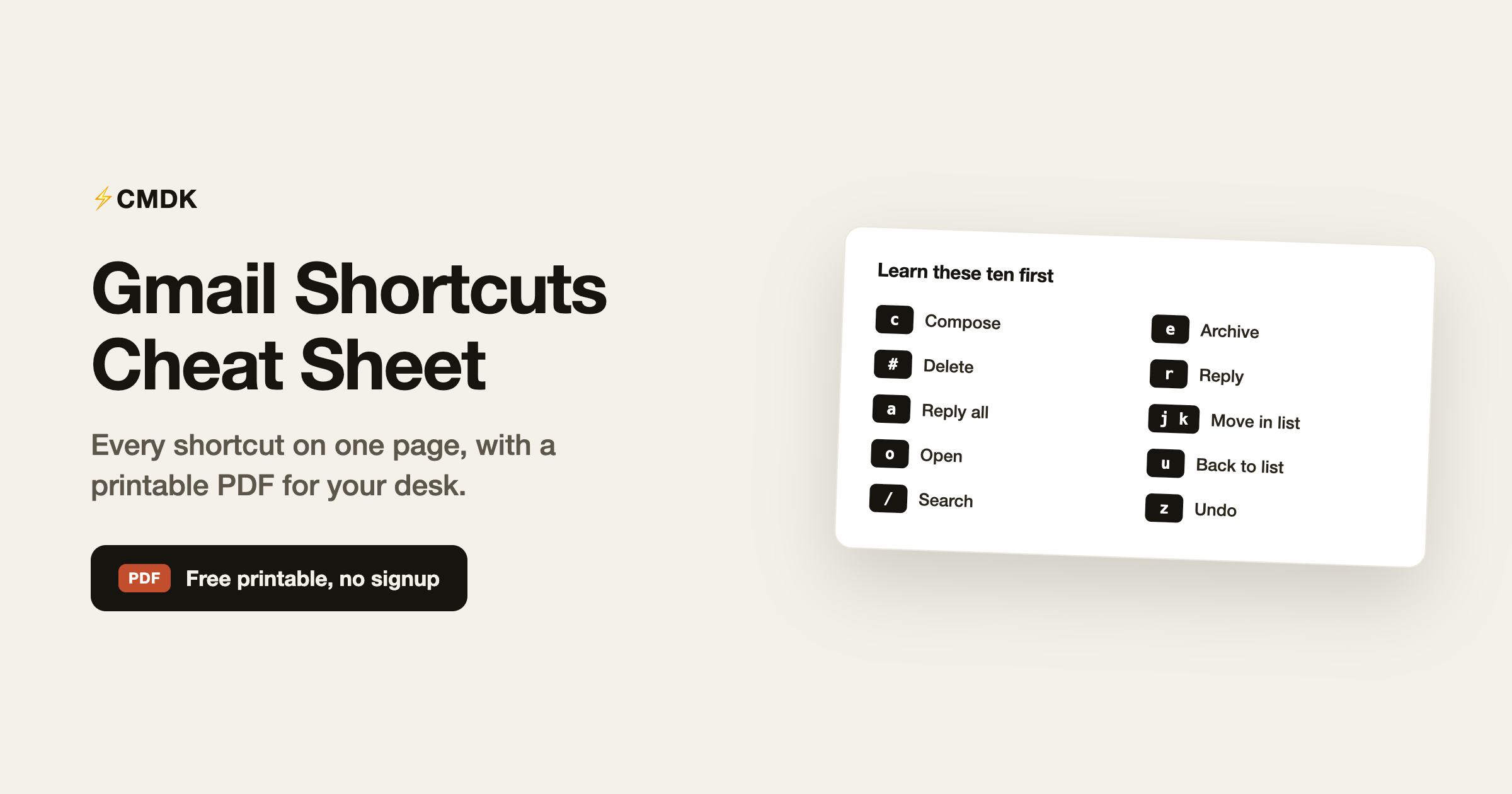
If you only build habits around ten, these repay the effort fastest:

  1. c – compose a new email
  2. e – archive the conversation
  3. # – delete the conversation
  4. r – reply
  5. a – reply all
  6. j / k – older / newer conversation in the list
  7. o or Enter – open the selected conversation
  8. u – back to the conversation list
  9. / – jump to the search box
  10. z – undo the last action

Navigation

  • j – move to the older conversation
  • k – move to the newer conversation
  • o or Enter – open the conversation
  • u – return to the thread list
  • n / p – next / previous message inside a conversation
  • ` “ – go to the next inbox section (tabs like Primary, Promotions)
  • ~ – go to the previous inbox section
  • / – put the cursor in the search box
  • ? – show the shortcut help overlay
  • Esc – leave an input field

Jumping between views (g then a key)

Press g, release it, then press the second key.

  • g then i – go to Inbox
  • g then s – go to Starred
  • g then t – go to Sent
  • g then d – go to Drafts
  • g then a – go to All Mail
  • g then k – go to Tasks
  • g then c – go to Contacts
  • g then n – go to the next page of the thread list
  • g then p – go to the previous page

Actions on email

  • e – archive
  • # – delete
  • ! – mark as spam
  • m – mute the conversation (replies skip your inbox)
  • s – star or unstar
  • b – snooze
  • z – undo the last action
  • Shift+i – mark as read
  • Shift+u – mark as unread
  • + or = – mark as important
  • - – mark as not important
  • l – open the label menu
  • v – move to a label or folder
  • . – open the “more actions” menu
  • ; – expand the entire conversation
  • : – collapse the entire conversation
  • Shift+t – add the conversation to Tasks

Replying and forwarding

  • r – reply
  • a – reply all
  • f – forward
  • Shift+r – reply in a new window
  • Shift+a – reply all in a new window
  • Shift+f – forward in a new window

Compose and send

  • c – compose
  • d – compose in a new tab
  • Ctrl+Enter (Windows) / Cmd+Enter (Mac) – send
  • Ctrl+Shift+c / Cmd+Shift+c – add Cc recipients
  • Ctrl+Shift+b / Cmd+Shift+b – add Bcc recipients
  • Ctrl+Shift+d / Cmd+Shift+d – discard the draft
  • Ctrl+k / Cmd+k – insert a link
  • Ctrl+Shift+7 / Cmd+Shift+7 – numbered list
  • Ctrl+Shift+8 / Cmd+Shift+8 – bulleted list
  • Ctrl+Shift+9 / Cmd+Shift+9 – quote
  • Ctrl+[ and Ctrl+] / Cmd+[ and Cmd+] – outdent and indent
  • Ctrl+\ / Cmd+\ – remove formatting

Not sure whether that Cc belongs in Cc at all? Here is when to use CC vs BCC.

Selecting conversations (star then a key)

Press x to select the current conversation. For bulk selection, press *, release, then:

  • * then a – select all conversations on the page
  • * then n – deselect everything
  • * then r – select read conversations
  • * then u – select unread conversations
  • * then s – select starred conversations
  • * then t – select unstarred conversations

Combine these with an action key for bulk moves: * then u, then Shift+i marks every unread email on the page as read. For clearing thousands of emails at once, see how to clean up Gmail.

The shortcuts Gmail does not give you

Native shortcuts stop at what Gmail itself can do. A few high-value actions have no key at all: there is no shortcut to open a specific label, no command palette, no one-key snippet insertion, and nothing for tools like read receipts. That is the layer CMDK adds: a Cmd+K command bar that makes every Gmail action searchable, plus keys Gmail forgot, all working alongside every shortcut on this page. The highlights:

  • Cmd+K – the command bar: type any action instead of memorizing it
  • Del – delete with the actual Delete key (native Gmail wants #)
  • Shift+E / Shift+S – mark read + archive, star + archive in one stroke
  • h – remind me if nobody replies (follow-up reminders)
  • Tab / Shift+Tab – move between split inbox tabs
  • Shift+Y / Shift+M / Shift+N – RSVP to calendar invites from the email
  • g then ! or # – jump to Spam or Trash, destinations native Gmail skips
  • g then 1 to 9 – switch to another Gmail account

All of these are in the extended cheat sheet PDF, marked in blue.

Frequently asked questions

Why are my Gmail keyboard shortcuts not working?

Almost always because shortcuts are turned off, which is Gmail’s default. Go to Settings, See all settings, General, find “Keyboard shortcuts”, select on, and save. If they still fail, check that your cursor is not inside a text field, and that a browser extension is not capturing the key first.

How do I see all Gmail shortcuts without leaving Gmail?

Press ? while shortcuts are enabled. Gmail overlays the full list. This page and the PDF cover the same list in a printable format, plus the two-key sequences the overlay compresses.

Can I customize Gmail keyboard shortcuts?

Yes. Enable “Custom keyboard shortcuts” on the Advanced tab of Gmail settings, then a “Keyboard Shortcuts” tab appears in settings where you can remap keys. Most people are better served learning the defaults, which work on every Gmail account they touch.

What is the Gmail shortcut to archive an email?

Press e with a conversation selected or open. To archive in bulk, select conversations first (x per conversation, or * then a for the whole page), then press e once.

Is there a printable Gmail shortcuts cheat sheet?

Yes, this page includes a free one-page PDF designed for printing, with no signup required. It groups the shortcuts by navigation, actions, compose, and selection, and marks the ten most useful ones to learn first.

Once these are muscle memory, the ceiling is Gmail itself: CMDK adds a command bar and shortcuts for everything Gmail left out, free for 15 days.

Related reading

Supercharge your Gmail

Install the extension in seconds to get to inbox zero faster

More from the Blog

gmail reminder

Gmail Reminders: How to Set Follow-Up Reminders That Actually Work

bulk unsubscribe gmail

How to Unsubscribe From Emails in Gmail (Bulk, the Easy Way)

be faster in gmail with Simplehuman

How to Use Keyboard Shortcut for “Archive” in Gmail and more with CMDK

superhuman price

Superhuman Price Too High? Here’s Why CMDK Delivers Better Value

How to Block and Delete All Emails from Annoying Senders

How to Block and Delete All Emails from Annoying Senders

Gmail Keyboard Shortcuts: A Friendly 2026 Guide to Moving Faster

Supercharge your Gmail

Simplehuman Logo Install CMDK

CMDK works on the desktop browser. Enter your email below, and we will send you a link to install CMDK when you are on your computer.