

Gmail can delete thousands of emails in one action, but the controls are buried. This guide covers the search-and-select method that clears whole categories at once, the searches worth running first, and the keyboard shortcuts that remove single emails without touching the mouse.
Delete, archive, and nuke still queue in Chrome with no internet. How to use Gmail offline covers the setup.
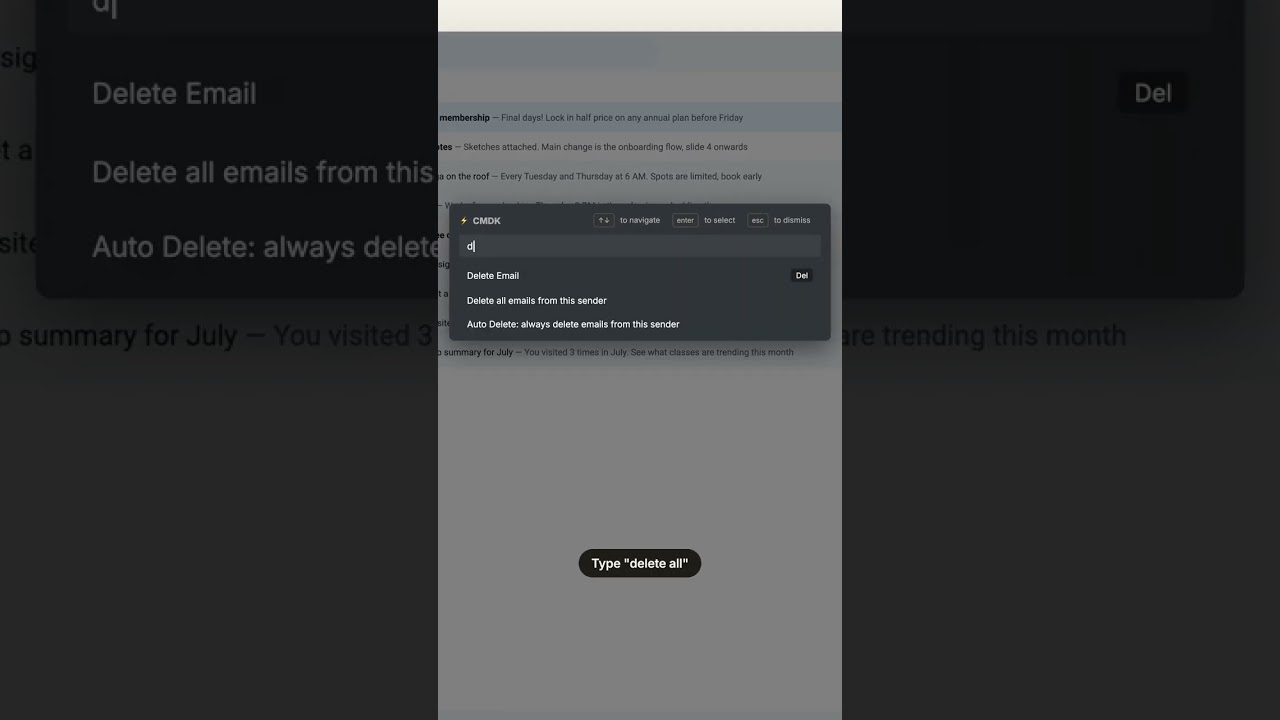
Prefer to watch? Clearing out every email from one sender takes a single command with CMDK:
The 3-step method to mass delete emails in Gmail
This section covers the core select-all method. For the complete playbook, including wiping one sender, purging unread mail, and freeing storage, see our guide on how to bulk delete emails in Gmail.
Deleting in bulk is a search problem. Instead of scrolling and checking boxes, you describe what you want gone, let Gmail find every match, and delete them all in one action.
Step 1: Search for what you want to delete. Use the search box at the top of Gmail with an operator that matches a whole category:
category:promotionsfinds marketing email in the Promotions tabolder_than:2yfinds everything older than two yearsfrom:noreplyfinds automated notificationsis:unread older_than:1yfinds old unread mail you were never going to openlabel:newslettersworks if you already sort with filters
Operators combine, so category:promotions older_than:6m deletes old promotions while keeping recent offers. The full list is in our Gmail search operators cheat sheet.
Step 2: Select every match. Click the select-all checkbox above the email list. Gmail selects only the visible page (50 conversations), then shows a line of text: “Select all conversations that match this search.” Click it. This is the step most people miss, and it is the difference between deleting 50 emails and deleting 15,000. For the other ways to pick emails (Shift-click a range, the keyboard, and the mobile app), see how to select multiple emails in Gmail.
Step 3: Delete. Click the trash icon once. Gmail moves every matching conversation to Trash, where it sits for 30 days before permanent deletion. If you need the storage back immediately, open Trash and click “Empty Trash now”.
Delete single emails with one key
For the day-to-day version of the same job, use your keyboard:
- Native Gmail: turn on keyboard shortcuts (Settings, then General, then Keyboard shortcuts on) and press
#(Shift+3) to delete the selected or open email. - With CMDK: the plain Del key (fn+Delete on Mac) deletes the email under your cursor. No checkbox, no Shift, no opening the email first. Hover and press.
If you clear email in batches every morning, the single-key version compounds fast. It pairs well with one-key archiving for the mail you want out of sight but not gone. Not sure which of those you want? Here is when to archive and when to delete.
How to bulk delete without losing anything important
The fear that stops most people is deleting something they will need. Three habits remove the risk:
- Preview the search first. Run the search and skim a page or two of results before selecting all. If the search catches anything you care about, tighten it (add a sender, a date range, or
-from:[email protected]to exclude someone). - Start with the safe categories. Promotions, social notifications, expired password resets, and delivery confirmations for packages that arrived years ago. Nobody has ever needed those again.
- Export before you purge. If a category feels risky, download it first with Google Takeout, then delete with a clear conscience.
Remember that Trash is a 30-day safety net. A mistake today is recoverable until next month.
Keep it clean after the big purge
A one-time cleanup decays unless something stops the refill. Three things prevent the buildup from coming back:
- Filters that delete or archive on arrival. A rule like “from this sender, skip the inbox” runs forever. Our Gmail filters guide has the recipes.
- Unsubscribe instead of deleting. Deleting a newsletter buys you a week; unsubscribing ends it. Bulk unsubscribe in Gmail clears dozens of lists in one sitting.
- Block the senders that will not stop. CMDK’s block button removes a sender’s entire history and keeps future mail out, one click per sender.
For the full end-to-end routine, see how to clean up Gmail step by step.
Ready to clear the backlog?
The search-and-select method above needs nothing installed and works today. If you want the faster keyboard-first version, with Del-key deletion, one-click sender blocking, and bulk unsubscribe built in, install CMDK from the Chrome Web Store. Questions or suggestions? Write to us at [email protected].
Frequently asked questions
How do I mass delete emails in Gmail?
Search for what you want to remove (for example category:promotions or older_than:2y), click the select-all checkbox above the email list, then click “Select all conversations that match this search” and press delete. Gmail deletes every match, not just the visible page.
What is the keyboard shortcut to delete an email in Gmail?
With Gmail keyboard shortcuts turned on, press # (Shift+3) to delete the selected or open email. With the CMDK extension installed, the plain Del key (fn+Delete on Mac) does the same thing, and works on hover without selecting first.
How do I delete all unread emails in Gmail?
Search is:unread, click the select-all checkbox, then click “Select all conversations that match this search” and delete. Add a date range like is:unread older_than:1y to keep recent unread mail.
How do I delete all promotions in Gmail?
Search category:promotions, select all conversations that match, and delete. To keep recent offers, use category:promotions older_than:6m instead.
Does mass deleting emails free up storage immediately?
No. Deleted emails sit in Trash for 30 days and count against your storage until then. Empty the Trash folder to free the space right away.




