
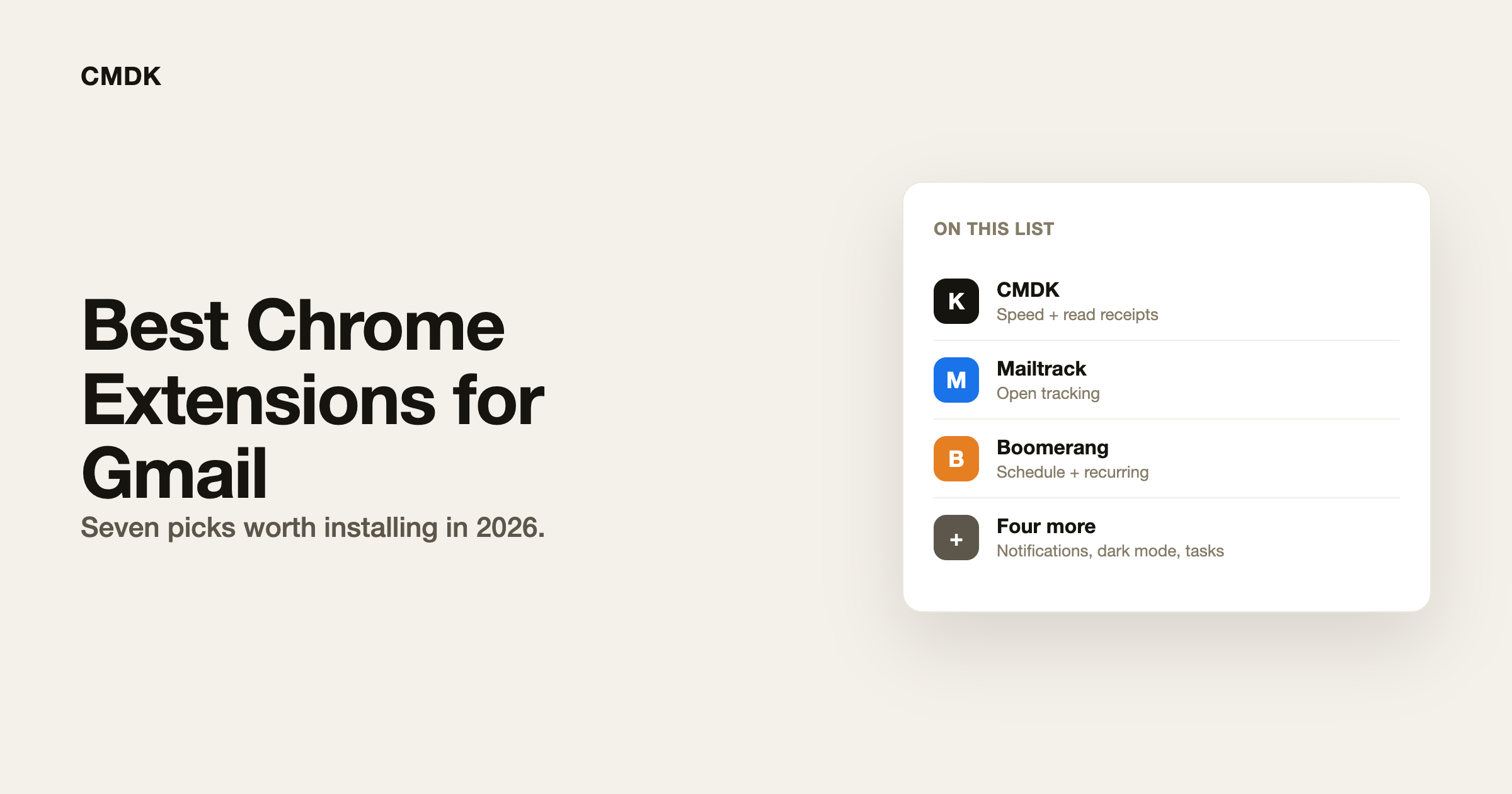
Chrome has the largest Gmail extension catalog of any browser. The problem is not finding an extension. It is knowing which ones are worth the toolbar space, the permission prompts, and the monthly bill. Every extension below is live on the Chrome Web Store and changes how you use Gmail in a specific way. They are ordered by how much they affect day-to-day inbox work.
On Firefox instead? See our best Firefox extensions for Gmail roundup. On Safari on a Mac? See our best Safari extensions for Gmail roundup for Mac App Store picks.
1. CMDK: speed, read receipts, and shortcuts in one install
CMDK turns Gmail into a keyboard-first inbox inside the browser tab you already use. You get a command bar (Cmd+K or Ctrl+K), 25+ shortcuts for reply, archive, delete, label and snooze, read receipts that show when your sent email is opened, natural-language snooze and follow-up reminders, snippets, split inbox tabs, and bulk unsubscribe. Nothing about your Gmail account changes. You stay on mail.google.com.
Full disclosure: we make CMDK. We list it first because it covers the most ground in one extension, and because it is the closest thing to Superhuman that runs inside Gmail without switching clients.
- Best for: speed, read receipts, snooze, snippets, and shortcuts together
- Price: 15-day free trial, then $69/year
- Get it: CMDK on the Chrome Web Store
2. Mailtrack: open tracking only
Mailtrack (now part of Mailsuite) is the best-known dedicated Gmail read-receipt extension. The free tier tracks unlimited opens but adds a visible “Sent with Mailtrack” line unless you pay for Premium. If you only need to know opened vs unopened and the signature does not bother you, it is hard to beat on price.
- Best for: free open tracking when you do not mind the Mailtrack footer
- Price: free with signature; Premium from about $36/year
- Compare: CMDK vs Mailtrack if you want invisible receipts plus inbox speed
- Get it: Mailtrack on the Chrome Web Store
3. Boomerang: schedule send and recurring messages
Boomerang was the original Gmail scheduling extension. It still does send later, recurring messages, inbox pause, and read-receipt credits on paid plans. Gmail now has native schedule send, so Boomerang makes the most sense if you rely on recurring emails or inbox pause.
- Best for: recurring sends and inbox pause
- Price: free tier with limits; paid plans from about $15/month
- Compare: CMDK vs Boomerang and our Boomerang for Gmail review
- Get it: Boomerang on the Chrome Web Store
4. Checker Plus for Gmail: notifications without opening Gmail
Checker Plus gives you desktop notifications for new mail and lets you read, reply, archive and delete without opening a Gmail tab. It handles multiple accounts and optional voice notifications. If your main problem is missing new mail while Gmail sits in a buried tab, this solves that.
- Best for: desktop notifications and triage without a Gmail tab
- Price: free, with an optional donation
- Get it: Checker Plus on the Chrome Web Store
5. Simplify Gmail: a cleaner Gmail layout
Simplify Gmail hides clutter in the Gmail UI: the sidebar promo blocks, some footer links, and other visual noise Google keeps adding. It is a layout extension, not a workflow tool. Pair it with a productivity extension rather than expecting it to replace one.
- Best for: a calmer Gmail interface without leaving Google
- Price: free tier; paid plans for more layout control
- Get it: Simplify Gmail on the Chrome Web Store
6. Dark Reader: real dark mode for Gmail
Gmail’s built-in dark theme is not true dark mode for every panel. Dark Reader generates a proper dark theme for Gmail and the rest of the web, with per-site brightness and contrast controls.
- Best for: dark mode on Gmail and every other site
- Price: free and open source
- Get it: Dark Reader on the Chrome Web Store
7. Todoist for Gmail: turn emails into tasks
Todoist for Gmail adds a button that turns the open email into a Todoist task with a link back to the thread. If your inbox is really a task queue, this keeps Gmail and your task list connected.
- Best for: sending actionable emails to Todoist in one click
- Price: free with Todoist account; paid Todoist plans for teams
- Get it: Todoist for Gmail on the Chrome Web Store
How to install a Chrome extension for Gmail
- Open the extension’s Chrome Web Store listing and click Add to Chrome.
- Confirm the permission prompt. Read what the extension can access before you accept.
- Reload Gmail (or open a fresh tab to mail.google.com) so the content script injects.
- Sign in or configure the extension from its Gmail sidebar icon or settings page.
You can run several of these together. A common stack is CMDK for speed and read receipts, Simplify Gmail for layout, and Checker Plus for notifications. Avoid installing three different tracking extensions at once. Duplicate pixels slow compose and confuse your sent folder.
Frequently asked questions
What is the best Chrome extension for Gmail productivity?
CMDK is the most complete productivity extension for Gmail on Chrome. It adds a command bar, keyboard shortcuts, read receipts, snooze, snippets, and split inbox tabs inside Gmail.
Are Gmail Chrome extensions safe?
Reputable extensions from known publishers with thousands of reviews are generally safe if you read the permission list. Stick to the Chrome Web Store (not sideloaded CRX files) and uninstall anything that adds unexpected compose footers or sends SMS alerts you did not ask for.
Can I use Gmail extensions on Edge or Brave?
Most Chrome Web Store extensions install on Chromium browsers that allow store extensions, including Microsoft Edge and Brave. CMDK supports Chrome and Edge from the same listing; Firefox uses a separate add-on.
Do I need a Google Workspace account for read receipts?
No. Native Gmail read receipts require Workspace with admin approval. Extensions like CMDK and Mailtrack add open tracking on personal @gmail.com accounts.
Want the biggest upgrade first? Install CMDK and press Cmd+K in Gmail.




