Does Gmail have read receipts?
Only on Google Workspace, and only if your admin turns them on. Personal @gmail.com accounts have no read receipts at all. On a work or school account, you can request a receipt, but the recipient is asked whether to send it and can say no. To see opens on a personal account, or without asking the recipient, you need an extension that adds open tracking to the emails you send.
How to request a read receipt in Gmail (Workspace)
This works only on a work or school account where your administrator has turned read receipts on.
- Open Gmail on your computer and click Compose.
- Write your email and add recipients.
- At the bottom right of the compose window, click More options (the three dots).
- Choose Request read receipt.
- Click Send.
When the recipient opens the email, they are asked whether to send a receipt back. If they decline, or their email app does not support read receipts, you get nothing.
If you are the admin
In the Google Admin console, go to Apps > Google Workspace > Gmail > User settings and open Email read receipts. Choose whether receipts can go to people inside your organization only, or to outside addresses too. The change can take up to 24 hours to reach everyone.
How to get read receipts on a personal Gmail account
A personal Gmail account has no Request read receipt option, so you need a tracking extension. It adds a tiny invisible image to each email you send, and when the recipient opens the email and their app loads images, the extension records the open. The recipient sees no prompt.
With CMDK, it takes a minute:
- Install CMDK and open Gmail.
- In a compose window, click the read receipt button in the toolbar to track that email.
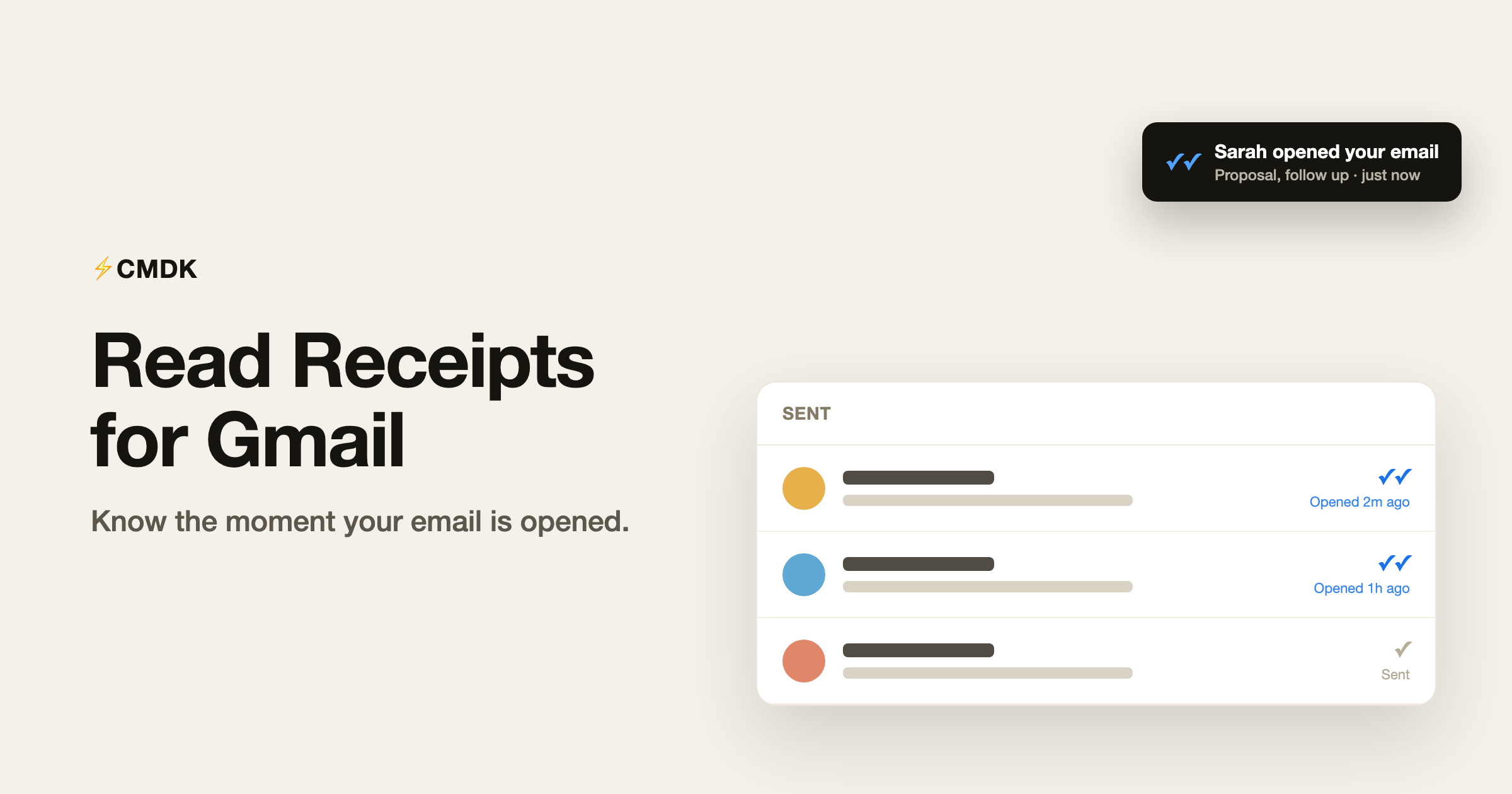
- Send as normal. One gray check means sent, and double blue checks mean opened.
You can also turn read receipts on for every email in CMDK settings and switch them off per email when you do not need them. Replies and forwards can be tracked too.
Here is the whole flow, from install to the first blue checks:

For desktop notifications, the four open types and how CMDK handles privacy, see CMDK’s email tracker for Gmail.
Gmail read receipts vs tracking pixels
| Gmail’s own read receipts | Tracking extension | |
|---|---|---|
| Accounts | Workspace only, when an admin allows it | Any Gmail account |
| Recipient asked? | Yes, and they can decline | No |
| What you learn | One receipt, if they agree to send it | Every open, with time and count |
| When it misses | Recipient declines, or their app does not support receipts | Recipient’s app blocks images |
Gmail read receipt tools compared
| Tool | Best for | Visible to recipient? | Typical cost | Deep dive |
|---|---|---|---|---|
| CMDK | Read receipts plus Gmail speed (Cmd+K, snippets, split inbox) | No branding on emails | $79/year, 15-day trial | CMDK read receipts |
| Mailtrack | Open tracking only | Free tier adds a “Sent with Mailtrack” line | Free tier / paid plans | CMDK vs Mailtrack |
| Boomerang | Scheduling plus read-receipt credits | No Mailtrack-style footer | Credit-based add-on | Boomerang review · CMDK vs Boomerang |
| cloudHQ Email Tracker | One app in a 90-extension suite | Labels, SMS/email alerts; trial paywalls reported | ~$8–10/mo cited in store reviews | CMDK vs cloudHQ |
| Streak | CRM pipelines inside Gmail | CRM-focused, not a simple receipt | Free CRM tier / paid seats | Overkill if you only wanted opens |
For scheduling and templates rather than tracking alone, see CMDK vs Right Inbox and CMDK vs GMass.
Coming from Superhuman or Mailtrack?
If you have used Superhuman, read statuses were probably part of your daily flow, and the idea of losing them is a big reason people hesitate to leave. CMDK gives you the same signal, with the checkmarks living right in your Gmail list instead of a separate app you have to migrate into.
If you have used Mailtrack, the difference is mostly about polish and scope. Mailtrack’s free tier stamps a “Sent with Mailtrack” line onto your emails. CMDK is silent by default, the checkmarks show in your inbox, and tracking is one feature inside a full Gmail toolkit (command bar, snippets, reminders, shortcuts) rather than a standalone add-on. Full comparison: CMDK vs Mailtrack. It also does not read or store your email content.
A few common questions
Does Gmail have read receipts?
Only on Google Workspace accounts, and only when an administrator has turned the feature on. Even then, the recipient is asked whether to send one. Personal Gmail accounts (the free gmail.com kind) have no read receipts. To see whether a message was opened on a normal Gmail account, you need a tracking tool such as CMDK, which adds open tracking to the emails you send.
Why don’t I see “Request read receipt” in Gmail?
Either you are on a personal Gmail account, which does not have the option, or you are on Workspace and your administrator has not turned read receipts on. If the admin just changed the setting, it can take up to 24 hours to appear.
Can I get read receipts on a regular @gmail.com account?
Yes, with an extension. Gmail itself shows no read status on a personal account. CMDK adds read receipts to any Gmail account, and the recipient is not asked to confirm anything.
Will it show false opens when I look at my own sent email?
No. CMDK filters out your own opens, so checking your sent mail does not mark it as read.
Can I track replies and forwards too?
Yes. The toggle appears in every compose window, so replies and forwards get tracked just like new emails.
See when your emails get read
A read receipt tells you whether to wait or to follow up. If they opened it twice this morning and have not replied, a nudge makes sense. If it is still unopened, it may be buried, so resend it or try another channel.
Install CMDK, open Gmail, and turn on the read receipt toggle on your next important email. The next time you send something that matters, you will not be left guessing.
Related reading
- Best Chrome extensions for Gmail
- CMDK vs Mailtrack
- CMDK vs cloudHQ
- CMDK vs Boomerang
- Boomerang for Gmail review
- Gmail email templates and snippets
- How to set reminders in Gmail
- How to know if someone blocked you on Gmail
- CMDK email tracker for Gmail
Boomerang also sells read receipts, on a credit system: see our full Boomerang for Gmail review.