The most private Boomerang alternative for Gmail is one that never asks Google for access to your mailbox. If what you use Boomerang for is snoozing emails and getting reminded when nobody replies, Gmail’s own snooze can do the work, and Snooze & Follow-up Reminders for Gmail adds the parts Gmail is missing without a sign-in.
This page compares the alternatives by one question: what can each tool see and keep? Disclosure: we make Snooze & Follow-up Reminders and CMDK, so weigh our picks with that in mind. Everything we say about Boomerang below comes from Boomerang’s own pages, linked inline.
What Boomerang does well
Boomerang has been around since 2010 and it is a capable product. Its main jobs:
- Send later: write now and send at a time you pick, even with your laptop closed.
- Bring an email back to your inbox later, or only if nobody replies.
- Inbox Pause holds incoming mail so it arrives on a schedule you set. Gmail has nothing like it.
- Recurring messages send the same email every week or month.
- Respondable, a writing coach, scores your draft as you type.
- Paid plans add read receipts and meeting scheduling.
If you rely on Inbox Pause or recurring messages, keep Boomerang. No option on this page replaces them. Our Boomerang review covers whether it is worth the price and whether it is safe to use, and CMDK vs Boomerang has the feature-by-feature comparison.
What Boomerang can access in your Gmail
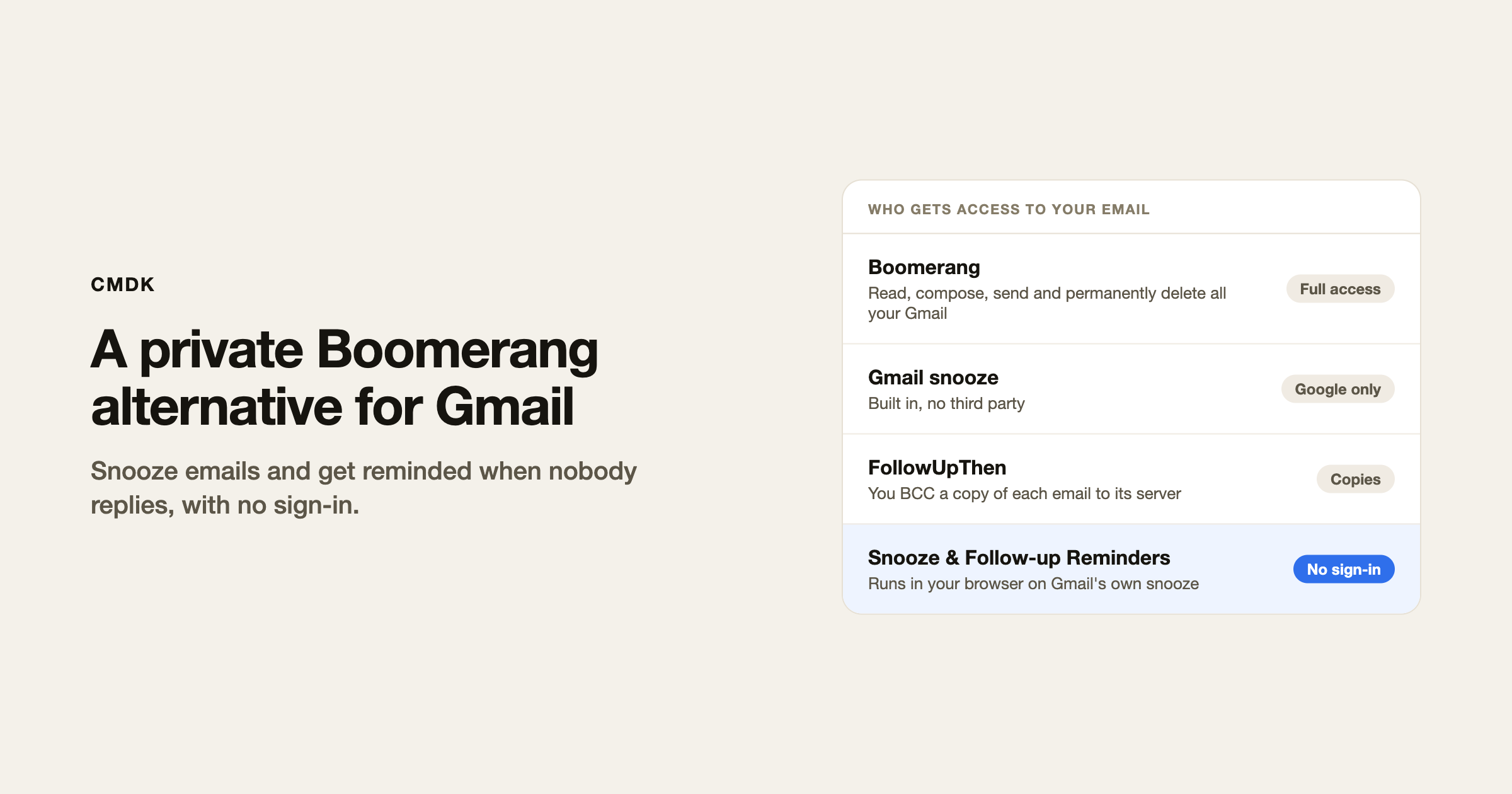
When you connect Boomerang, Google shows a consent screen. Boomerang’s Google Workspace Marketplace listing lists what it asks for:
- Read, compose, send, and permanently delete all your email from Gmail
- See, edit, download, and permanently delete your contacts
- See your primary Google Account email address
- See your personal info
Boomerang explains why in its help center: “we need access to the full email data to be able to move and send messages” (source). The same article says it stores only message headers (subject, sender, time) and not message bodies. Its product security page, last updated April 2024, says it signs in through Google OAuth, has no access to your password, passed Google’s OAuth verification and security assessment, and that its parent company Baydin completes SOC 2 Type II audits every year. Boomerang also says it does not sell user data (source).
The Baydin privacy policy, last modified March 5, 2019, describes more processing than the help center does. It says Boomerang collects “the contents and header information from the Communications you send and receive through the service.” For Send Later it says it will “store your Communications on our servers” and send them at the time you chose. It also says Boomerang uses machine learning to “analyze the contents of your Communications” for features like Respondable, and that you can turn that analysis off. The Chrome Web Store listing’s privacy section declares that Boomerang handles personally identifiable information and personal communications.
This is normal for the category. Any tool that sends an email for you at 7am while your laptop is closed has to do it from its own server, with permission to send as you. Features that run while you’re away need access to your mailbox. If you only need snoozing and reminders, you don’t have to make that trade.
The alternatives, by what they can see
1. Snooze & Follow-up Reminders for Gmail
Best for: snoozing emails and “remind me if no reply” with no account.
Snooze & Follow-up Reminders for Gmail is a Chrome extension made by CMDK. It covers two of Boomerang’s jobs:
- To snooze, press B on any email (or click the clock) and type when you want it back: “tomorrow 9am”, “friday 2pm EST”, “in 3 days”.
- For a follow-up reminder, click the clock in a new email and type when. If nobody replies by then, the email comes back to your inbox. A reply first cancels the reminder.
What it can see: there is no account and no sign-in, so Google never shows a consent screen and Snooze never gets access to your mailbox through Google. It runs inside Gmail in your browser and uses Gmail’s own snooze. It never stores your emails or sends their content anywhere. It does send usage analytics (which features you use, not what your emails say) and checks your license with our server. As with other Gmail extensions, Chrome’s install prompt says it can read and change data on mail.google.com, because it runs inside the Gmail page.
Because Gmail does the snoozing, emails you snoozed still come back on time if you uninstall the extension.
Price: 15 days free, then $29 once for life. No subscription. More on the Snooze page.
2. Gmail’s own snooze and Schedule send
Best for: free, with nothing to install.
Gmail already does two of Boomerang’s original jobs. Click the clock on any email to snooze it, and click the arrow next to Send for Schedule send. Both offer a few presets plus “Pick date & time”. Gmail’s Nudges setting (Settings, then General, then Nudges) can also bring back sent emails that got no reply.
What it can see: nothing new. Google already holds your email, and no third party is involved.
The limits: you pick dates from a calendar instead of typing them, and you can’t choose which sent emails get a follow-up reminder. Google decides which emails to nudge and when. Our guide to Gmail reminders covers the free options in detail.
3. CMDK
Best for: people who want snooze and follow-ups plus a faster Gmail overall.
CMDK is our full Gmail extension: a command bar, 80+ keyboard shortcuts, snooze and reminders in plain words, read receipts, split inbox tabs and snippets. It runs on Chrome, Edge, Brave, Firefox and Safari.
What it can see: CMDK runs locally in your browser and does not read or store the contents of your emails. You sign in with Google, but the sign-in asks only for your name and email address, not for access to your Gmail. Read receipts are the one feature that uses our server: for an email you choose to track, it stores that email’s subject and recipients so it can show you who opened it.
Price: from $9 a month, with a 15-day free trial. See current pricing.
4. FollowUpThen
Best for: reminders that work from any email app, not just Gmail.
You add an address like 3days@followupthen.com to the BCC line, and FollowUpThen emails you a reminder later. It needs no browser extension and no access to your mailbox.
What it can see: the email itself. To remind you, FollowUpThen receives a copy of every message you BCC. Its privacy policy says it encrypts message bodies, keeps them for the time needed to send the reminder (from about two weeks on free accounts to six months on Company accounts), then deletes the body and attachments. It keeps contact addresses from the To, CC and BCC fields indefinitely, and staff may view message content for technical support. That design suits a reminder service that works from any email app, and it means a copy of each reminded email leaves Gmail.
Which jobs each tool covers
| Job | Boomerang | Gmail built-in | Snooze | CMDK |
|---|---|---|---|---|
| Snooze an email to a time you choose | Yes | Yes, date picker | Yes, typed in plain English | Yes, typed in plain English |
| Remind me if nobody replies | Yes | Nudges only, Google picks | Yes | Yes |
| Send later | Yes | Yes (Schedule send) | No, use Gmail’s | No, use Gmail’s |
| Recurring messages | Yes | No | No | No |
| Inbox Pause | Yes | No | No | No |
| Read receipts | Yes, paid plans | No | No | Yes |
| Google account access it asks for | Read, send and delete all Gmail; contacts | None (it is Google) | None, no sign-in | Name and email address only |
| Stores email content on its servers | Headers only, per its help center; its 2019 policy describes storing Send Later emails | Google only | No | No |
| Price | Free plan with 10 credits a month, paid from $4.98 a month | Free | $29 once after 15 days free | From $9 a month |
What Snooze can’t do that Boomerang can
If you are switching, here is what you give up:
- It has no send-later of its own. Gmail’s Schedule send does that for free.
- It has no Inbox Pause, recurring messages, read receipts or writing coach.
- It runs on Chrome for now, plus Chromium browsers that install from the Chrome Web Store, like Brave. There is no Safari, Firefox or mobile version.
- Snooze times are typed in English. “Tomorrow 9am” works; other languages don’t yet.
- Gmail’s keyboard shortcuts must be on, because Snooze uses Gmail’s own B shortcut. The extension offers to turn them on.
- It reminds you but doesn’t write or send the follow-up. You write the next email yourself.
- A license covers one computer at a time. Paste your license code on a new computer to move it there.
How to check what any Gmail tool can access
Whatever you pick, two places show what a tool can reach:
- In your Google Account, go to myaccount.google.com/connections. It lists the apps you signed into with Google and the access each one has. Remove any you no longer use; uninstalling an extension does not remove this access.
- In Chrome, open chrome://extensions, click Details on an extension and check Site access. A Gmail extension needs mail.google.com. Be wary of one that asks for all sites.
Our post on Gmail privacy settings covers the rest of your account.
Frequently asked questions
Is there a Boomerang alternative that doesn’t need access to my Gmail account?
Yes. Snooze & Follow-up Reminders for Gmail has no sign-in, so it never asks Google for access to your mailbox. It runs inside Gmail in your browser and uses Gmail’s own snooze, and it never stores your emails or sends their content anywhere. Gmail’s built-in snooze and Schedule send also need no third party.
Does Gmail have a free Boomerang alternative built in?
Partly. Gmail can snooze emails and schedule sends for free, and Nudges can bring back some sent emails that got no reply. You can’t choose which emails get a follow-up reminder, and you can’t type a time like “friday 2pm”.
Will my snoozed emails come back if I uninstall Snooze?
Yes. Snooze uses Gmail’s own snooze, so emails you already snoozed come back on time after the extension is removed.
Can Snooze send emails later like Boomerang?
No. Use Gmail’s Schedule send for that, which is free. Snooze handles snoozing and follow-up reminders.
How do I remove Boomerang’s access to my Gmail?
Cancel any scheduled sends you still need, then go to myaccount.google.com/connections, select Boomerang and remove its access. Uninstalling the extension alone does not revoke it.
The short version
If you want Boomerang’s snooze and “remind me if no reply” without giving a company access to your mailbox, install Snooze & Follow-up Reminders for Gmail: 15 days free, then $29 once. If you want snooze and follow-ups plus keyboard shortcuts, read receipts and split inbox tabs, try CMDK free for 15 days. If you need Inbox Pause or recurring messages, stay with Boomerang.