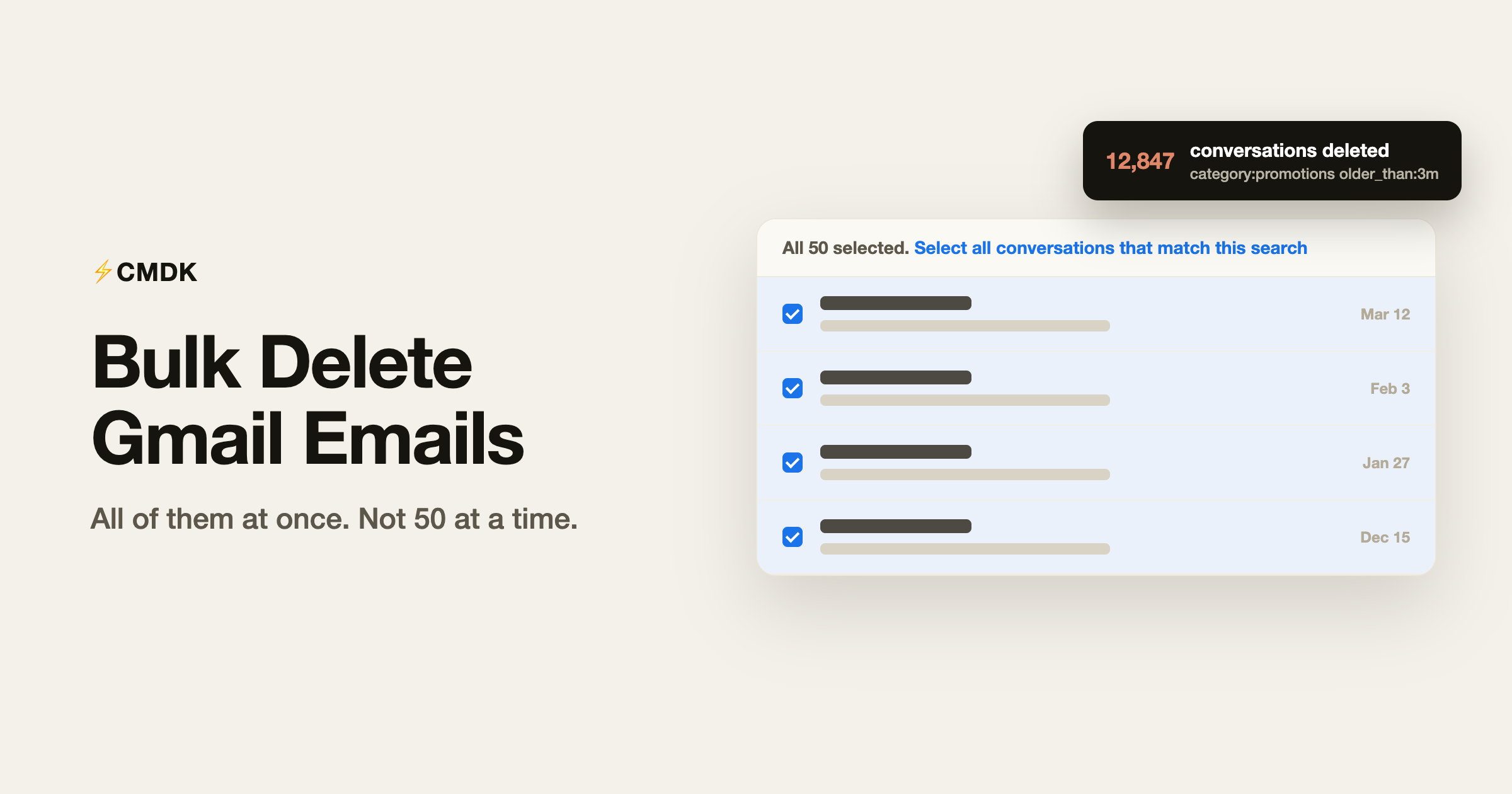
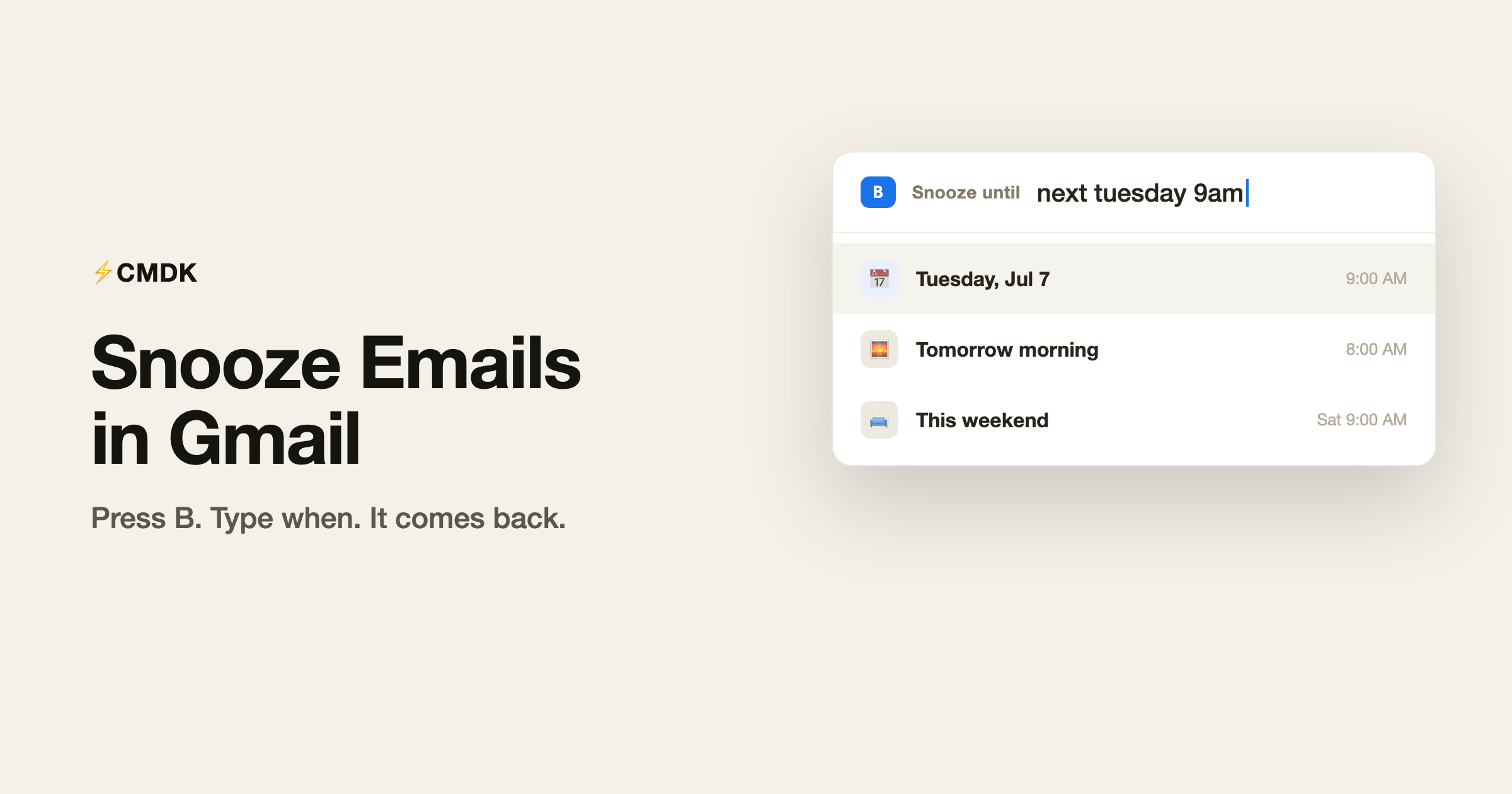
Quick answer: To snooze an email in Gmail, hover over it in your inbox, click the clock icon, and pick when it should come back. With keyboard shortcuts on, press B instead. Gmail only offers presets or a date picker; Snooze & Follow-up Reminders for Gmail lets you type the time instead, like ‘thursday 4pm’, for $29 once.
What snooze does in Gmail
Snooze takes an email out of your inbox and brings it back to the top at the time you choose, marked unread, as if it had just arrived. Until then it waits in the Snoozed folder.
How to snooze an email on desktop
- Hover over the email in your inbox and click the clock on the right. In an open email, the clock is in the toolbar.
- Choose Later today, Tomorrow, This weekend or Next week, or click Pick date & time.
- To snooze several emails, tick them and click the clock at the top.
How to snooze an email on iPhone and Android
Open the email, tap the three dots at the top right, then Snooze, and pick a time. You can also set a swipe action to Snooze in the app’s settings.
The Gmail snooze keyboard shortcut
Press B on a selected or open email. Keyboard shortcuts must be on first: Settings, See all settings, General, Keyboard shortcuts on, then Save Changes.
Where do snoozed emails go?
Click Snoozed in the left sidebar (under More if you can’t see it), or search is:snoozed. Each email shows when it will come back.
How to unsnooze an email
Open the email from the Snoozed folder and click Unsnooze at the top. It goes back to your inbox right away.
Can you change Gmail’s default snooze times?
No. Gmail’s presets are fixed (8 AM for Tomorrow, for example), and there’s no setting to change them. The workaround is to type the time: with Snooze & Follow-up Reminders, press B and type ‘tomorrow 7:30am’ or ‘in 2 hours’.
Can you snooze a sent email?
Yes. Open it from Sent and snooze it like any other email; it returns to your inbox at that time, whether or not anyone replied. If you only want it back when nobody answers, set a follow-up reminder instead: in Snooze & Follow-up Reminders, click the clock in a new email and type ‘friday’. A reply clears the reminder.
How to snooze to any time by typing it
- Install Snooze & Follow-up Reminders for Gmail. It’s free for 15 days with no card, then $29 once, and works in Chrome.
- Press B on any email.
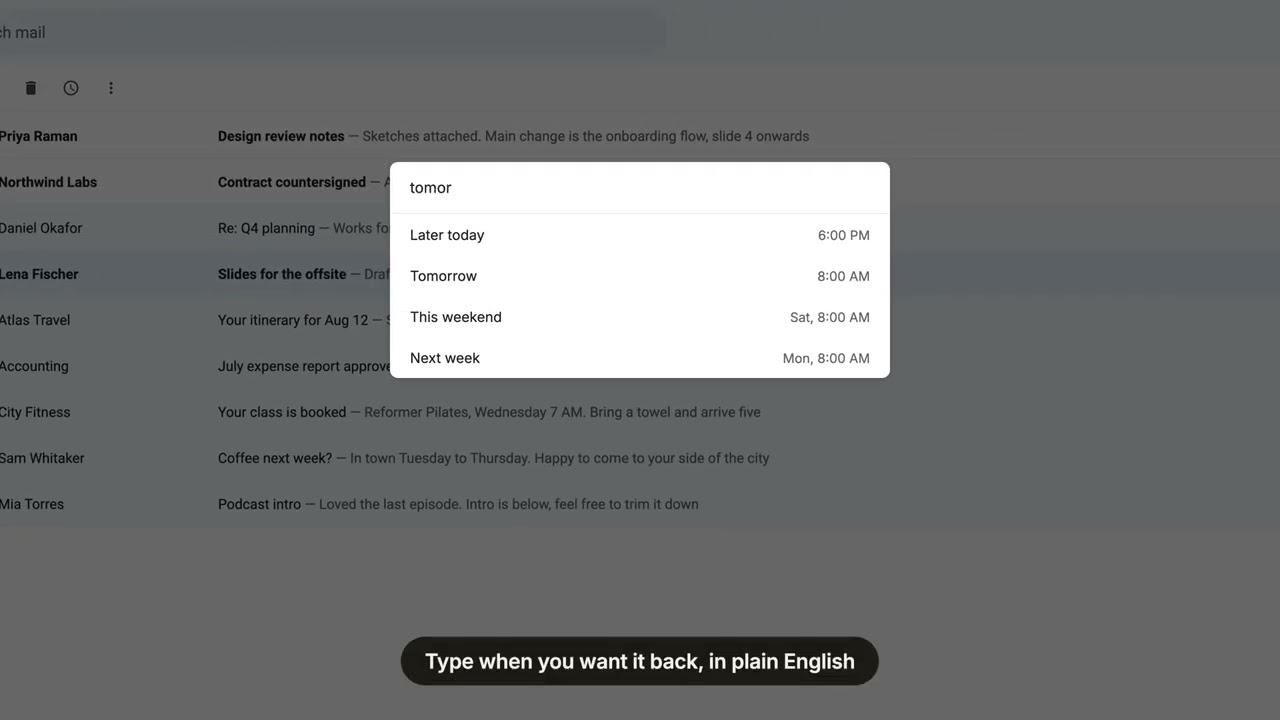
- Type when you want it back: ‘monday 9am’, ‘in 3 days’, ‘friday 2pm EST’. Press Enter.
It runs on Gmail’s own snooze, so snoozed emails still come back on your phone and even if you remove the extension. It needs no account, and it never stores your emails or sends their content anywhere.
Here it is in 29 seconds, shown in CMDK, which has the same typed snooze:
Coming from Superhuman?
Superhuman’s Remind Me (H) works the same way: type a time. Snooze & Follow-up Reminders gives you that in Gmail. If you also miss the rest of Superhuman, CMDK adds 80+ keyboard shortcuts, a command bar and read receipts, and includes snooze.
FAQ
What does snooze mean in Gmail?
It hides an email until a time you choose, then puts it back at the top of your inbox.
Do snoozed emails come back on all devices?
Yes. Snooze is saved in your Gmail account, so the email returns on desktop and in the app.
Why is the snooze button missing?
On the web, it only shows when you hover over an email or open it. In some layouts it sits under the three-dot menu.
To press B and type the time, try Snooze & Follow-up Reminders for Gmail free for 15 days. To get the same snooze along with 80+ keyboard shortcuts, read receipts and a command bar, install CMDK.
Related reading