
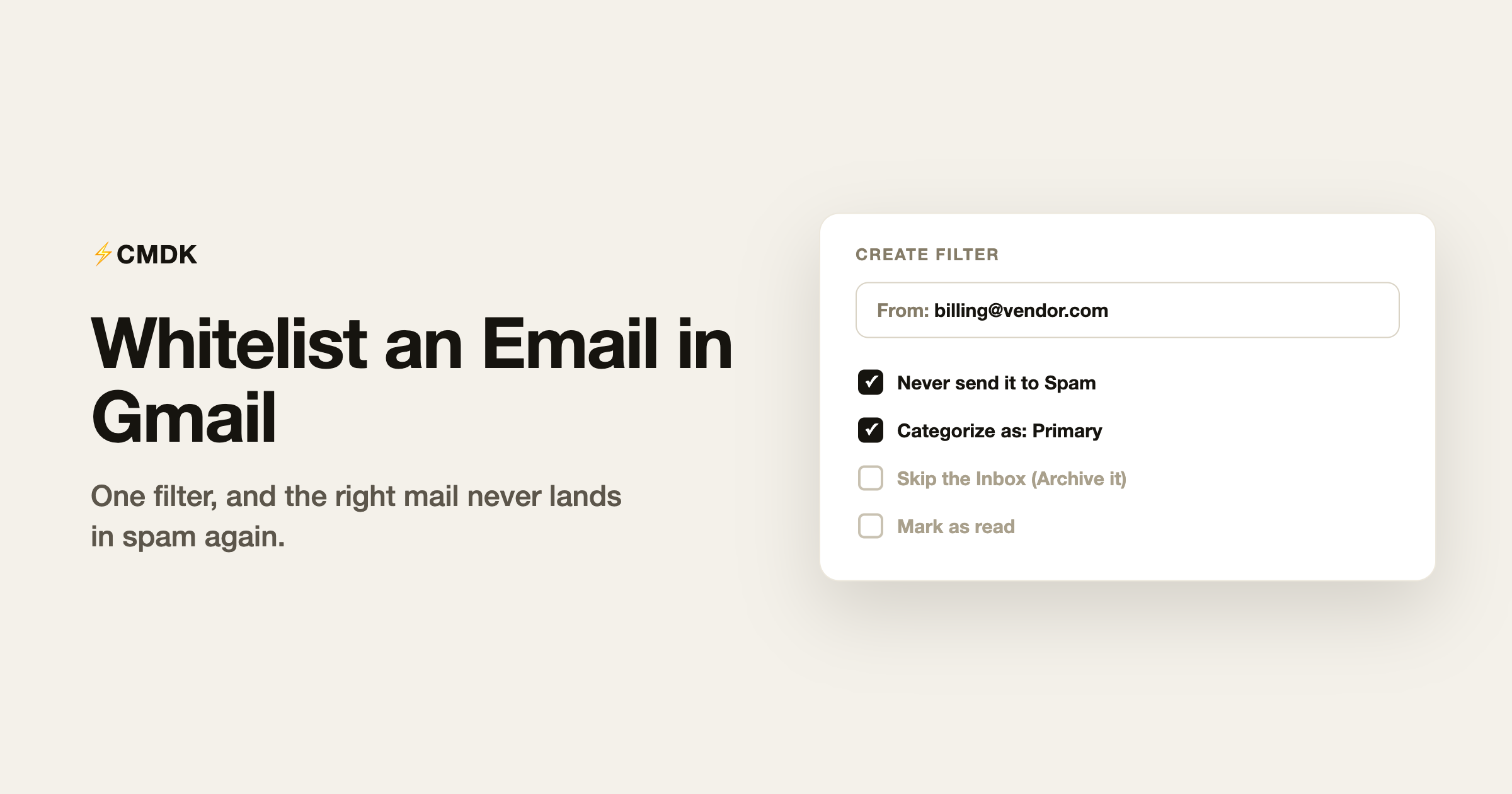
Gmail has no button labeled “whitelist.” What it has is a filter option called “Never send it to Spam,” which does exactly what a whitelist does: it guarantees mail from a sender always reaches you, no matter what the spam filter thinks. Setup takes about a minute, and it is the fix for invoices landing in spam, a client whose replies keep vanishing, or a newsletter you actually signed up for.
Here are the three methods, from strongest to lightest.
Method 1: a filter with “Never send it to Spam”
This is the real whitelist. It overrides Gmail’s spam filtering for the sender permanently.
- Click the search options icon (the sliders) on the right side of Gmail’s search bar.
- In the From field, type the address to whitelist, for example [email protected].
- Click Create filter.
- Tick “Never send it to Spam”. Optionally also tick “Categorize as: Primary” so it skips the Promotions tab too.
- Click Create filter to save.
From now on, mail from that address cannot be spam-foldered. Manage or edit these later under Settings, See all settings, Filters and Blocked Addresses.
Whitelist a whole domain
Same steps, but in the From field enter just the domain with an @ in front: @yourcompany.com. Every address at that domain is covered, which is the right move for your employer, your school, or a client organization whose many senders keep tripping the filter. Do not whitelist consumer domains like @gmail.com; that covers every stranger on Gmail too.
You can also whitelist several senders in one filter: @client-a.com OR @client-b.com OR [email protected]. The same OR syntax works across Gmail’s search operators if you want the filter to match more precisely than a bare address.
Method 2: add the sender to your contacts
Gmail strongly deprioritizes spam-filtering mail from people in your contacts. It is not an absolute guarantee like a filter, but it is often enough for individual people (as opposed to automated senders):
- Hover over the sender’s name in any email from them.
- In the profile card that appears, click the person-with-plus icon (“Add to contacts”).
That is the whole process. This method has a bonus: contacts also get better treatment in Gmail’s importance ranking, so their mail is more likely to land in Primary.
Method 3: mark it “Not spam” and train the filter
When something legitimate is already sitting in your spam folder:
- Open the Spam folder from the left navigation (it may be under More).
- Select the email.
- Click “Not spam” at the top.
The message moves back to your inbox and Gmail records the correction. One click only nudges the filter; if the same sender keeps getting caught, stack Method 1 on top. The reverse workflow, getting junk out of your inbox for good, is the subject of our guide to stopping spam emails.
Which method when
- A newsletter, invoice sender, or automated notification keeps hitting spam: Method 1, the filter.
- A person you correspond with: Method 2, contacts, and escalate to a filter only if needed.
- One-off rescue from the spam folder: Method 3, then watch whether it recurs.
- Your whole company or a client org: Method 1 with the @domain form.
One warning: whitelists are permanent
A “Never send it to Spam” filter keeps working after you stop caring about the sender, and spammers occasionally spoof whitelisted addresses precisely because they bypass filtering. Review your filter list once or twice a year (Settings, Filters and Blocked Addresses) and delete the ones that no longer earn their place. If your inbox has accumulated years of subscriptions and filters, the broader cleanup workflow is in How to Clean Up Gmail.
FAQ
How do I whitelist an email address in Gmail?
Create a filter: open the search options in Gmail’s search bar, put the address in the From field, click Create filter, and tick “Never send it to Spam”. That guarantees delivery to your inbox regardless of spam scoring.
Can I whitelist an entire domain in Gmail?
Yes. Use @company.com (with the leading @) in the filter’s From field, and every sender at that domain is whitelisted. Reserve this for organizations you trust; never whitelist shared consumer domains.
Does adding someone to Gmail contacts whitelist them?
Effectively for most cases: Gmail rarely spam-filters contacts, and their mail ranks higher in importance. For automated senders like invoices or alerts, use a “Never send it to Spam” filter instead, which is absolute.
Why does Gmail keep sending legitimate email to spam?
Common causes: the sender’s domain has weak authentication (SPF/DKIM), the message resembles bulk mail, or many recipients marked similar mail as spam. You cannot fix the sender’s setup, but a whitelist filter overrides the verdict on your end.
Whitelisting gets the right mail in; the other half is keeping the wrong mail out and moving through what remains quickly. CMDK adds one-key triage, bulk unsubscribe, and a command bar to Gmail. Install it free.




