
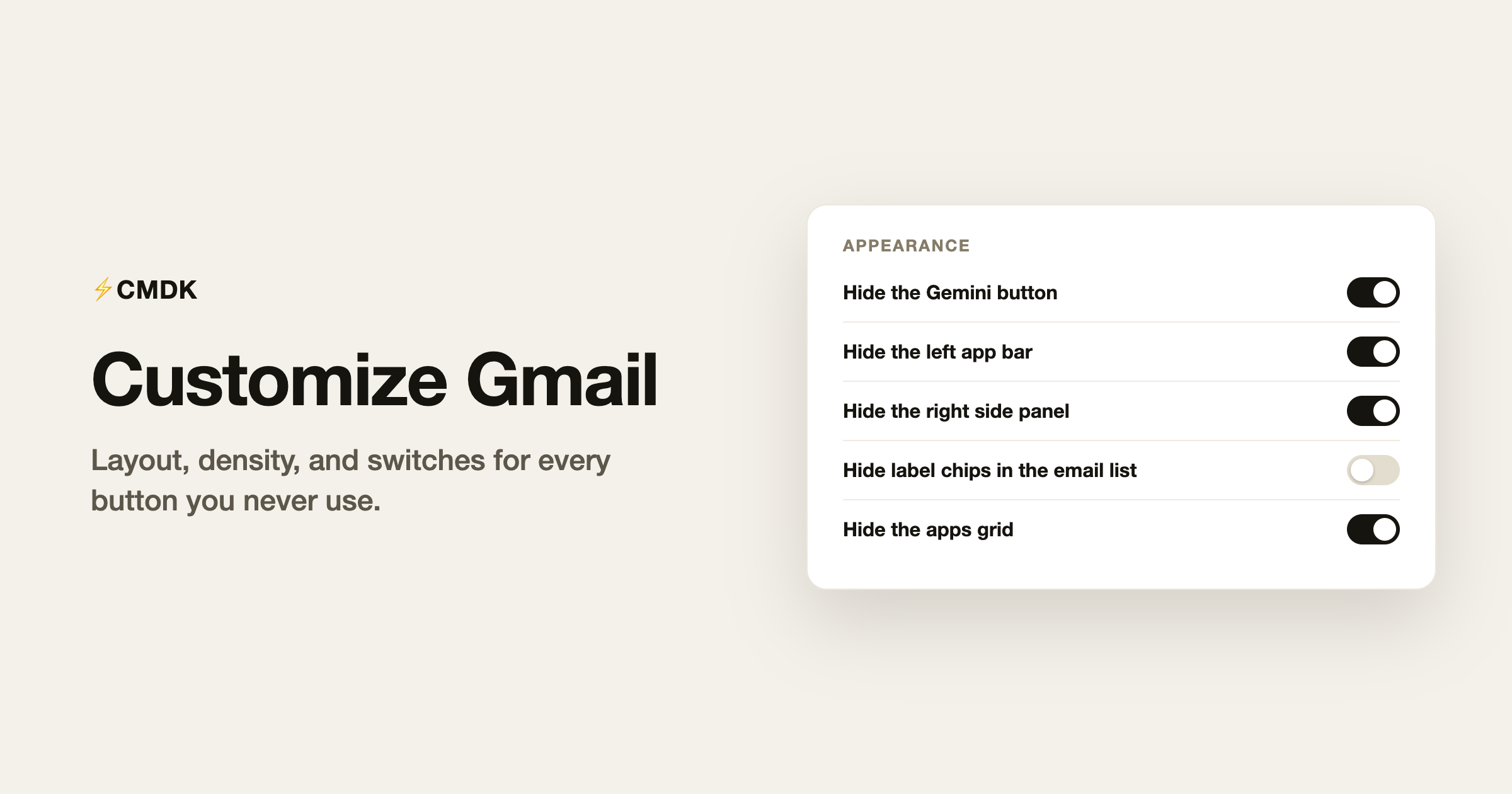
Gmail’s interface carries a lot you may never use: a Meet rail, a Chat status chip, Gemini buttons, label pills, an apps grid, an Upgrade pill. Google gives you settings for some of it, and for the rest the interface is what it is, unless you change what your browser renders.
This guide covers both layers: everything Gmail lets you customize natively, then the parts it does not, and how to clean those up too.
The native settings worth changing
Inbox type. Gear icon, See all settings, Inbox tab. Default splits mail into category tabs (Primary, Promotions, Updates); Priority Inbox sorts important and unread first; Multiple Inboxes shows several searches side by side. If your inbox feels chaotic, this setting is usually why.
Density. Gear icon, then pick Default, Comfortable, or Compact. This controls row spacing in the email list (text size has its own settings). Compact fits noticeably more email on screen.
Reading pane. Gear icon, scroll to Reading pane, choose Right of inbox or Below inbox. You read email next to the list instead of leaving it, the layout most desktop email apps default to.
Theme. Gear icon, View all under Theme. Dark mode lives here too.
Default text style. For emails you write: Settings, General tab, Default text style. For everything about text size, including the emails you read, see our full guide to changing font size in Gmail.
Left navigation. Drag the divider under the Compose button to resize the label list, and click More to collapse rarely used folders. That is the extent of Gmail’s native sidebar control.
That is roughly where native customization ends. Everything below the line needs a different approach.
Hiding what Gmail will not let you hide
CMDK is a Gmail extension whose Appearance section is a panel of independent toggles, each removing one piece of Gmail’s interface from view. Nothing changes in your Google account; the toggles only change what your browser displays, and flipping one back off restores the element instantly.
What you can switch off, by group:
Gmail’s AI. The Gemini button in the top bar, the AI Overview card above emails, the Help me write button in compose, and Gemini reply suggestion chips. Each has its own toggle, so you can keep the parts you use. There is a dedicated walkthrough in our guide to turning off Gemini in Gmail.
Labels. Hide label chips in the email list, shorten nested label paths (show “Acme” instead of “Clients/Acme”), collapse the label list under More, or hide the Labels section from the sidebar entirely. Labels keep working in search and move-to either way.
The frame. Hide the Mail/Chat/Meet app bar on the far left edge, and the Calendar/Keep/Tasks strip on the right. These two recover the most horizontal space; with both gone, Gmail is just your email.
The top bar. Hide the status chip, the Help button, the Upgrade pill, the Studio button, the Google apps grid, even CMDK’s own button. Plus a compact logo option that crops the Gmail lockup to just the M icon.
Reading text size. A slider from 14 to 22 pixels that scales only the text of emails you read, with the rest of the interface untouched. Details in the font size guide.
Setup: install CMDK, open its settings, click Appearance, and flip toggles until Gmail looks right. Every rule is built to fail open, so if Gmail changes its markup, the worst case is an element reappearing until the selector is updated. Nothing can break your Gmail.
A sensible minimal setup
If you want a clean starting point rather than twenty decisions, this combination removes the most noise while losing nothing you use daily:
- Native: Compact density, reading pane on the right, dark or light theme to taste.
- CMDK: hide the left app bar, right panel, apps grid, status chip, and Upgrade pill.
- CMDK: hide all four Gemini elements if you do not use Gmail’s AI.
- CMDK: hide label chips, keep the Labels section.
The result keeps Compose, search, your inbox, and every email exactly where they were, minus the parts that were only ever decoration.
Customization only goes so far
A cleaner interface makes Gmail nicer to look at; it does not make you faster at email. If that is the actual goal, the bigger wins are keyboard shortcuts, snippets for repeated replies, and a split inbox that separates what needs action from what does not. CMDK covers those too, which is why the Appearance panel ships in an extension rather than as its own product.
FAQ
What is the best Gmail setup for a founder?
A founder’s inbox mixes investors, customers, hiring and product alerts, so the setup that works is separation plus speed. Create filters that label investor, customer and hiring email, and use a split inbox so each stream sits in its own tab instead of one pile. Turn on keyboard shortcuts in Settings and archive with E instead of letting read mail accumulate. Save snippets for the replies you send every week, such as intro requests and hiring follow-ups, and use read receipts on fundraising email so you know which investors opened your update. Gmail covers filters and shortcuts natively; CMDK adds the split inbox tabs, snippets and read receipts.
What is the best Gmail setup for a product manager?
A product manager’s Gmail fills with tool notifications, stakeholder threads and meeting invites, so the goal is separating human email from automated email. Create filters that route notifications from your ticketing, design and analytics tools to labels that skip the inbox, then review those labels once or twice a day instead of on arrival. Keep real conversations in the inbox, turn on keyboard shortcuts to move through threads quickly, and save templates for recurring updates such as release notes and status summaries. A split inbox that shows people and tools in separate tabs is the highest-impact single change.
What is the best Gmail setup for a VC or investor?
An investor’s inbox is deal flow, so treat it like a pipeline. Create filters that label cold pitches so you can review them in one daily batch, and keep email from portfolio companies, LPs and co-investors in the primary view. Saved reply templates cover most responses: a polite pass, a diligence checklist and a double opt-in intro. Enable Send and Archive in Settings so replied threads leave the inbox immediately, and use read receipts on time-sensitive emails to see whether a founder or LP has opened them. Gmail’s filters handle the routing; a tool like CMDK adds split inbox tabs, snippets and read receipts on top.
How do I change the layout of Gmail?
Gear icon, See all settings, Inbox tab for the inbox type; the gear’s quick menu for density and reading pane. For layout changes Gmail does not offer, like removing the Meet rail or right side panel, a browser extension like CMDK can hide those elements without touching your account settings.
How do I make Gmail look cleaner?
Start with Compact density and a reading pane. Then hide what you never click: CMDK’s Appearance section can remove the Gemini buttons, the left app bar, the right panel, the apps grid, and the Upgrade pill, each with its own toggle.
Can I customize Gmail without an extension?
Partly. Inbox type, density, reading pane, theme, and default text style are all native settings. What you cannot do natively is hide interface elements like the Chat rail, the Gemini button, or the right side panel; those need an extension that changes what your browser renders.
Is it safe to hide Gmail interface elements?
Hiding is a display-level change in your browser; your Google account settings, mail, and data are untouched. With CMDK, each toggle is reversible instantly, and if Gmail updates its interface the hidden element simply reappears until the extension catches up.
If Gmail’s interface has more buttons than your actual workflow needs, CMDK lets you switch each one off in its Appearance settings, and speeds up everything you keep. Install it free and make Gmail yours in a couple of minutes.




