
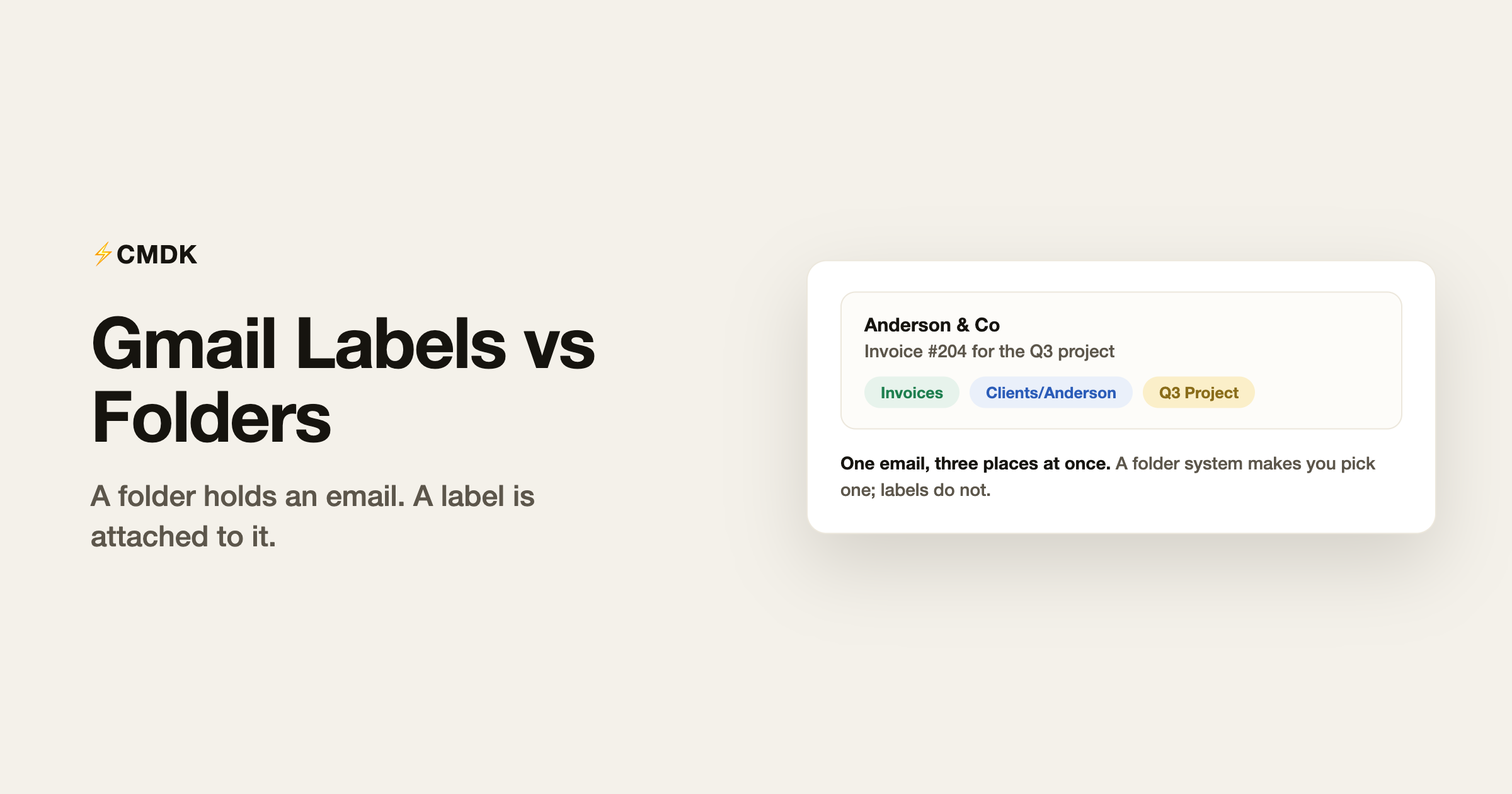
Gmail does not have folders. It has labels, which look like folders in the sidebar and behave like folders when you click them, until the moment an email needs to be in two places at once, which is where the two systems diverge and where most confusion starts.
Watch labels, filters, and split inbox tabs in under three minutes:
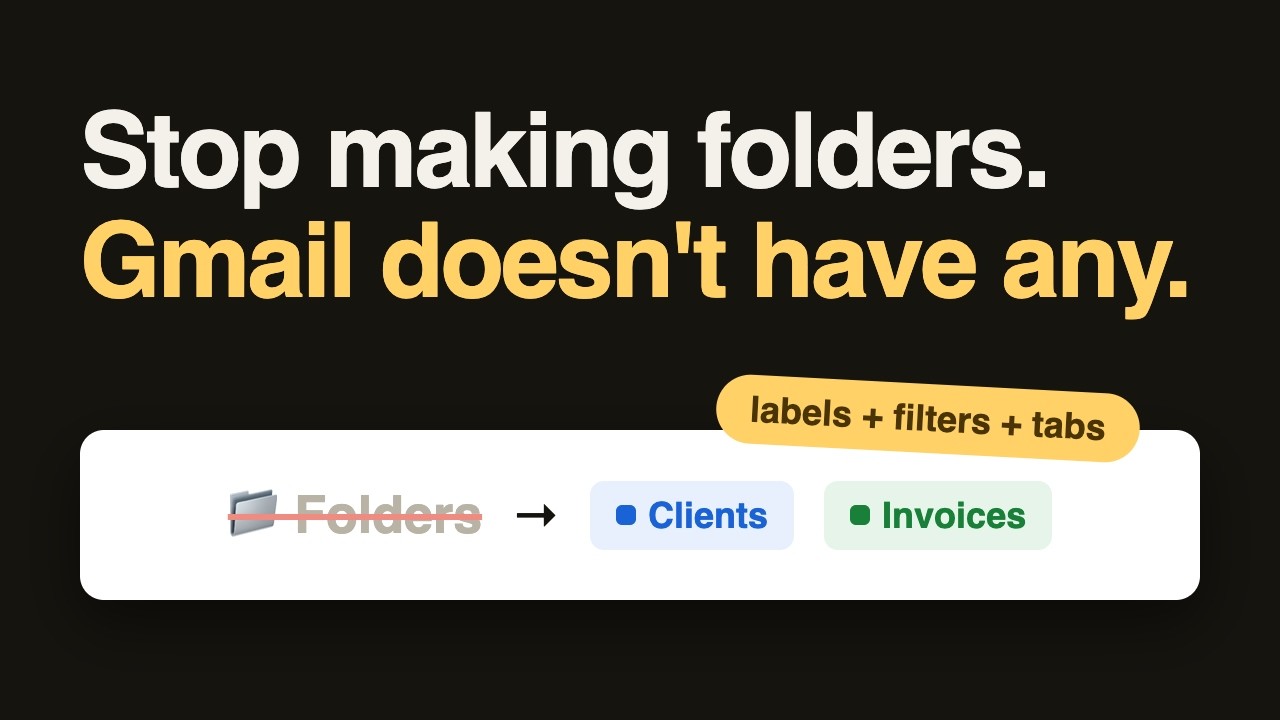
The difference in one line: a folder contains an email, a label is attached to it. An email lives in exactly one folder, but can carry any number of labels.
Why the difference matters
Say a client email is both about invoicing and about the Anderson project. In a folder system (Outlook, most desktop mail apps), you choose: file it under Invoices or under Anderson, and remember your choice later. In Gmail, you apply both labels, and the email appears under both, without being duplicated. Click either label in the sidebar and it is there.
The other consequence: removing a label never deletes the email. Strip every label off and the message still exists in All Mail. In a folder system, deleting the folder usually takes the contents with it; in Gmail, deleting a label just removes that tag from its emails. Nothing is lost either way, which is the same principle behind archive vs delete: Gmail is built so that organizing actions are never destructive.
Even the inbox is a label under the hood. Archiving an email just removes its Inbox label; that is the entire mechanism.
How to use labels
Create one. In the left navigation, scroll down and click “Create new label” (it may hide under More). Or Settings, See all settings, Labels tab, where every label can also be shown or hidden from the sidebar.
Apply one. Select or open an email, click the label icon (the tag) in the toolbar, tick the labels you want. Keyboard: press l, type the first letters, Enter.
Nest them. When creating a label, tick “Nest label under” and pick a parent. Clients/Acme and Clients/Anderson keep the sidebar tidy. Nesting is cosmetic: a nested label is still just a label, and searching label:clients-acme works the same.
Color them. Hover over a label in the sidebar, three-dot menu, pick a color. Two or three colors for the labels that matter carry meaning at a glance; twelve colors carry nothing.
Automate them. The real power move: filters that label mail on arrival. Search options, define the match (from your client’s domain, say), Create filter, “Apply the label,” and optionally “Skip the Inbox” for mail you want filed but not fronted. Precise matches use Gmail’s search operators, and the filter does the filing forever.
Move to vs label as
The toolbar has both, and the pair is Gmail translating folder-thinking into label-actions:
- Label as attaches a label; the email also stays wherever it is (usually the inbox).
- Move to attaches the label AND archives the email out of the inbox, which is exactly what “moving to a folder” felt like in Outlook.
If you are fresh from a folder system, Move to will feel natural. It is also the reason “my email disappeared”: it went where you moved it, out of the inbox, findable under the label or in All Mail.
When labels are the wrong tool
An honest caveat: elaborate label taxonomies are mostly a habit imported from the folder era. Gmail’s search is fast enough that from:anderson has:attachment finds the contract faster than clicking through Clients/Anderson ever will. Labels earn their keep for a handful of ongoing contexts you check as places: Receipts, Team, Newsletters via filter. A filing ritual applied to every email just recreates folder-era busywork.
If your sidebar has grown labels you no longer use, prune them, and if you want the label system out of sight entirely, CMDK’s appearance settings can hide label chips in the email list, shorten nested paths, or collapse the whole Labels section, without deleting anything.
FAQ
Are Gmail labels the same as folders?
No. A folder holds an email in one place; a label is a tag, and one email can carry many labels at once. Clicking a label in the sidebar shows everything tagged with it, which is why labels feel like folders in daily use.
Can one Gmail email have multiple labels?
Yes, any number. That is the core advantage over folders: an email about an invoice for a project can carry both the Invoices and the project label, and appears under both.
If I delete a Gmail label, do the emails get deleted?
No. Deleting a label removes the tag from every email that carried it; the emails stay in your account, findable in All Mail and by search.
How do I make Gmail labels work like folders?
Use “Move to” instead of “Label as”. Move to applies the label and removes the email from the inbox in one step, which reproduces the move-to-folder behavior of Outlook and Apple Mail.
Labels file your mail; the rest of the workflow is moving through it fast. CMDK adds one-key labeling and triage, a Cmd+K command bar, and appearance controls for the label UI itself. Install it free.




