
When your Gmail tells you that you are running out of space, your first instinct might be to start deleting thousands of old emails. You might spend an hour clicking through old newsletters or bank statements from years ago. However, deleting plain text emails is often a waste of time if you are trying to save your storage. The real reason your inbox is full is likely hiding in a few dozen emails that have large files attached to them.
Why One Big File is Worse Than a Thousand Emails
Not all emails are created equal when it comes to storage space. A standard email that only contains text is incredibly small. You could have thousands of these messages and they would barely make a dent in your 15GB limit. The real space hogs are attachments.
Think about an email that contains a short video clip from a family party or a high resolution PDF for a work project. One single video file can take up more space than five thousand regular text emails combined. If you have twenty or thirty of these large files sitting in your “Sent” folder or your “Inbox” from three years ago, they are acting like heavy weights sitting in your storage. Finding and removing just a handful of these big files is much more effective than deleting every single text message you have ever received. It is the fastest way to get back your space without losing your actual conversation history.
The Search That Finds Them: has:attachment larger:10M
Gmail has a built-in size filter, and it is the whole trick. Type this into the Gmail search box:
has:attachment larger:10M
That returns every email carrying an attachment bigger than 10 megabytes, usually a short and very revealing list. Adjust the number to widen or narrow the net:
larger:25Mfinds only the true monsters (Gmail’s own sending limit is 25 MB, so these mostly arrived from elsewhere)larger:5M older_than:1yfinds big files you have not touched in a year, the safest deletions of allhas:attachment larger:10M in:sentchecks your Sent folder, where large files you shared with others quietly pile up
Write the size as 10M or 10MB; both work. Sort matters less than you would think because the list is short. If you want to build more precise searches like these without memorizing syntax, our Gmail search operators cheat sheet and free query builder covers every operator Gmail supports.
There is also a no-search option: Google’s storage manager has a “Large items” section that lists your biggest emails and files across Gmail, Drive, and Photos, with one-click review and delete.
Quickly Deciding What to Keep and What to Trash
Once you have your list of large emails, you need to go through them to see what is actually important. Often, these large files are things you have already saved elsewhere. Maybe it is a video you already uploaded to social media or a work presentation that is now out of date.
The best way to do this is to look at the date and the sender. If you see a massive file from five years ago that was just a draft of a project, you probably do not need it anymore. If you see a large photo that someone sent you, you can download it to your computer and then delete the email to save your Gmail space. By focusing only on these large items, you only have to make twenty or thirty decisions instead of thousands. It makes the process of cleaning your inbox feel much less overwhelming.
Mass Deletion with a Single Keyboard Stroke
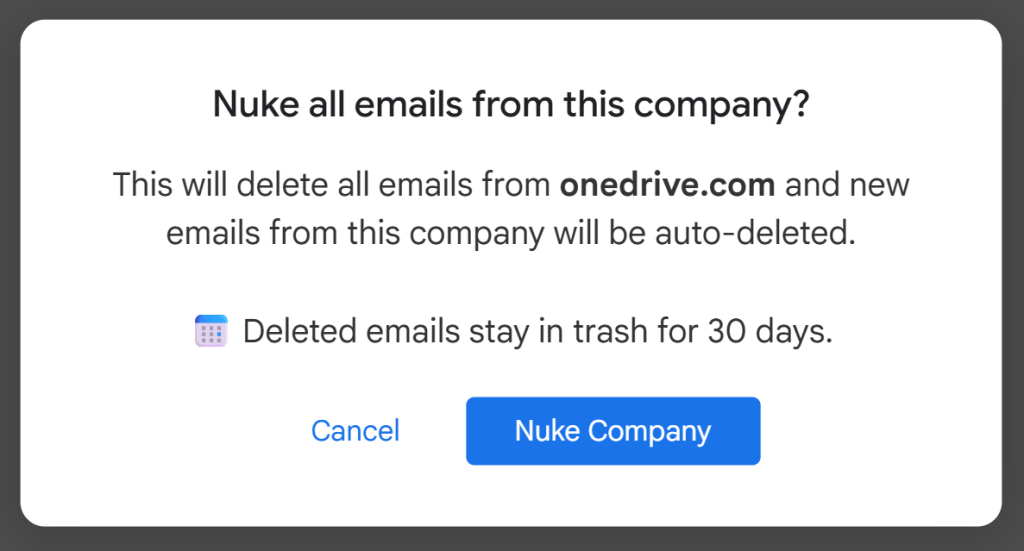
Even when you have a list of large files, the actual act of deleting them in regular Gmail can be slow. Usually, you have to click a tiny checkbox for every single email, move your mouse up to the trash icon, and then click again. If you have a hundred large files to get rid of, that is a lot of clicking and dragging that wears out your hand.
CMDK makes this incredibly fast by allowing you to use standard keyboard commands that Gmail usually does not support for bulk actions. Once you have used the Command Bar to find your large files, you can simply hit Cmd+A on a Mac or Ctrl+A on a Windows computer. This instantly selects every single large email on the screen. Once they are all highlighted, you just hit the delete key. In two seconds, you have removed dozens of massive files that were clogging up your storage. It turns a boring chore into a fast and satisfying task that you can finish before your coffee gets cold.
Starting Fresh Without Losing Your History
The best part about focusing on large attachments is that you can fix your storage problem without actually losing your messages. Many people are afraid to delete emails because they might need to look up a conversation or a piece of information later.
By only deleting the big files, you keep the text of the emails. You still have the history, the dates, and the names of the people you talked to. You are simply removing the heavy junk that was attached to those notes. This allows you to clear the red warning bar and get your Gmail working again while keeping your digital memories safe. Once those big files are gone, your 15GB of space will suddenly feel much larger. You can go back to sending and receiving mail without the constant worry of your inbox being full.
Frequently asked questions
How do I find emails with large attachments in Gmail?
Type has:attachment larger:10M into the Gmail search box. It returns every email with an attachment over 10 MB. Change the number to any size you like, or add older_than:1y to target old files only.
What does larger:10M mean in Gmail search?
It is a size filter: larger:10M matches emails whose total size exceeds 10 megabytes. You can write 10M or 10MB, and combine it with other operators like in:sent or older_than:2y.
Does deleting large attachments free up storage immediately?
Not immediately. Deleted emails sit in Trash for 30 days and still count against your quota until then. Open Trash and click “Empty Trash now” to reclaim the space right away.
Can I delete just the attachment and keep the email?
Gmail has no built-in way to strip an attachment from a message. The practical workaround is to forward the email to yourself without the attachment (or copy the text you need), then delete the original.
Related reading
Auto-archive or auto-delete emails from a sender




