Here is the default Gmail rhythm. You open an email, deal with it, archive it, and Gmail drops you back to the inbox list. You scan the list, find the next thing, open it, deal with it, and bounce back to the list again. That trip back to the list happens after every single email, and it adds up to a lot of wasted scanning.
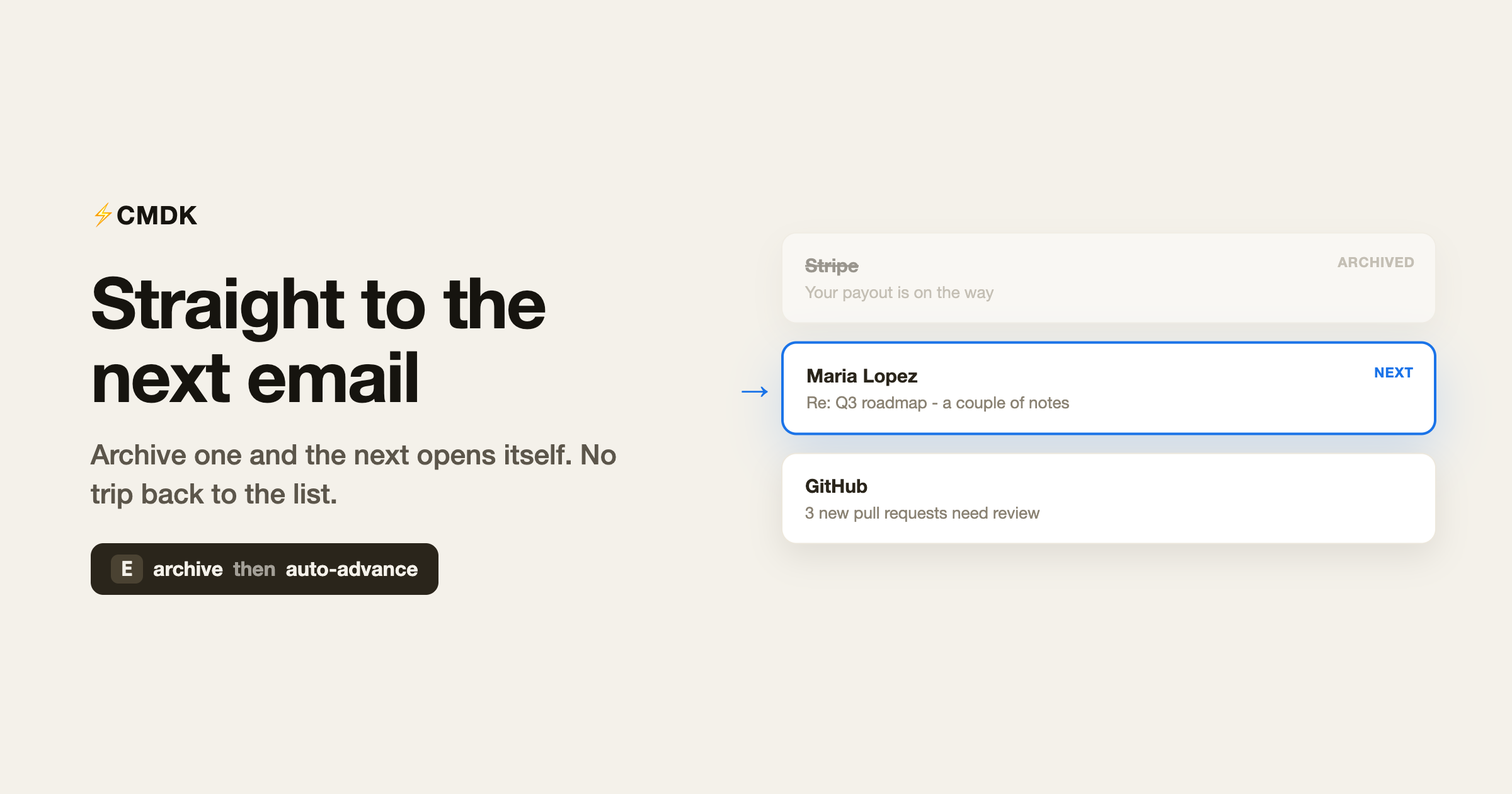
Auto-advance fixes it. Instead of returning to the list, Gmail takes you straight to the next conversation, so you move through your inbox one email at a time without ever stopping at the menu in between.
What auto-advance actually changes
With auto-advance on, archiving or deleting an open email does not send you back to the inbox. It opens the next email automatically. You stay in “reading one message” mode and just keep flowing forward: read, clear, read, clear.
It is a small change in behavior with a big effect on speed, because the slow part of triaging email is not reading or deciding. It is the constant context switch between a single message and the full list.
Turning it on with CMDK
Auto-advance is most powerful when you pair it with keyboard shortcuts, because then you never touch the mouse at all. CMDK is built around that combination.
When you turn on faster shortcuts in CMDK, it also makes sure Gmail’s auto-advance behavior is working for you, so the two line up out of the box. From there the loop is:
- Open an email (or just hover and act on it).
- Archive with
Eor delete withDel/#. - Gmail advances to the next email on its own.
- Repeat until the inbox is clear.
No clicking back to the list, no hunting for the next item. You hold one or two keys and the inbox empties in front of you.
Why it makes you noticeably faster
Power email users almost all share this habit: they process the inbox like a stack, top to bottom, without detouring to the list between items. Auto-advance is what makes that possible, and keyboard shortcuts are what make it fast.
Put together, you stop “checking” email and start clearing it. Many people find it is the single change that makes a real dent in how long the inbox takes each day.
Common questions
What is auto-advance in Gmail?
It is the behavior where, after you archive or delete the email you are reading, Gmail opens the next conversation automatically instead of returning you to the inbox list.
Why is my Gmail auto-advance not working?
Auto-advance only kicks in when you act on an email while you are reading it, and it pairs best with keyboard shortcuts turned on. CMDK turns on faster shortcuts and the auto-advance behavior together so the flow works without extra setup.
Which keys clear an email so it advances?
Use E to archive or Del (or #) to delete the open email. Gmail then moves you to the next one.
Does this work on hovered emails too?
Yes. With CMDK you can act on the email you are hovering or have open, so you can blow through a list without selecting each one first.
Is auto-advance free in CMDK?
Yes. Faster shortcuts and the auto-advance flow are part of CMDK’s core experience.
Stop visiting the inbox list
The inbox list is a menu, not a destination. Auto-advance lets you skip it and move through your mail in a straight line, and keyboard shortcuts let you do it at speed.
Install CMDK, turn on faster shortcuts, and clear your next batch of email one keystroke at a time. You will wonder why you ever went back to the list.