Gmail AI (Gemini) is built into your inbox now, but reaching it is its own little chore. You move the mouse to the corner, find the right icon, click, and wait for the side panel to slide open before you can ask anything. For something you might do a dozen times a day, that is a lot of clicking.
CMDK gives Gmail AI a keyboard shortcut. Press one key on the email you are reading and the assistant opens, ready for your question.
What “Ask AI” does
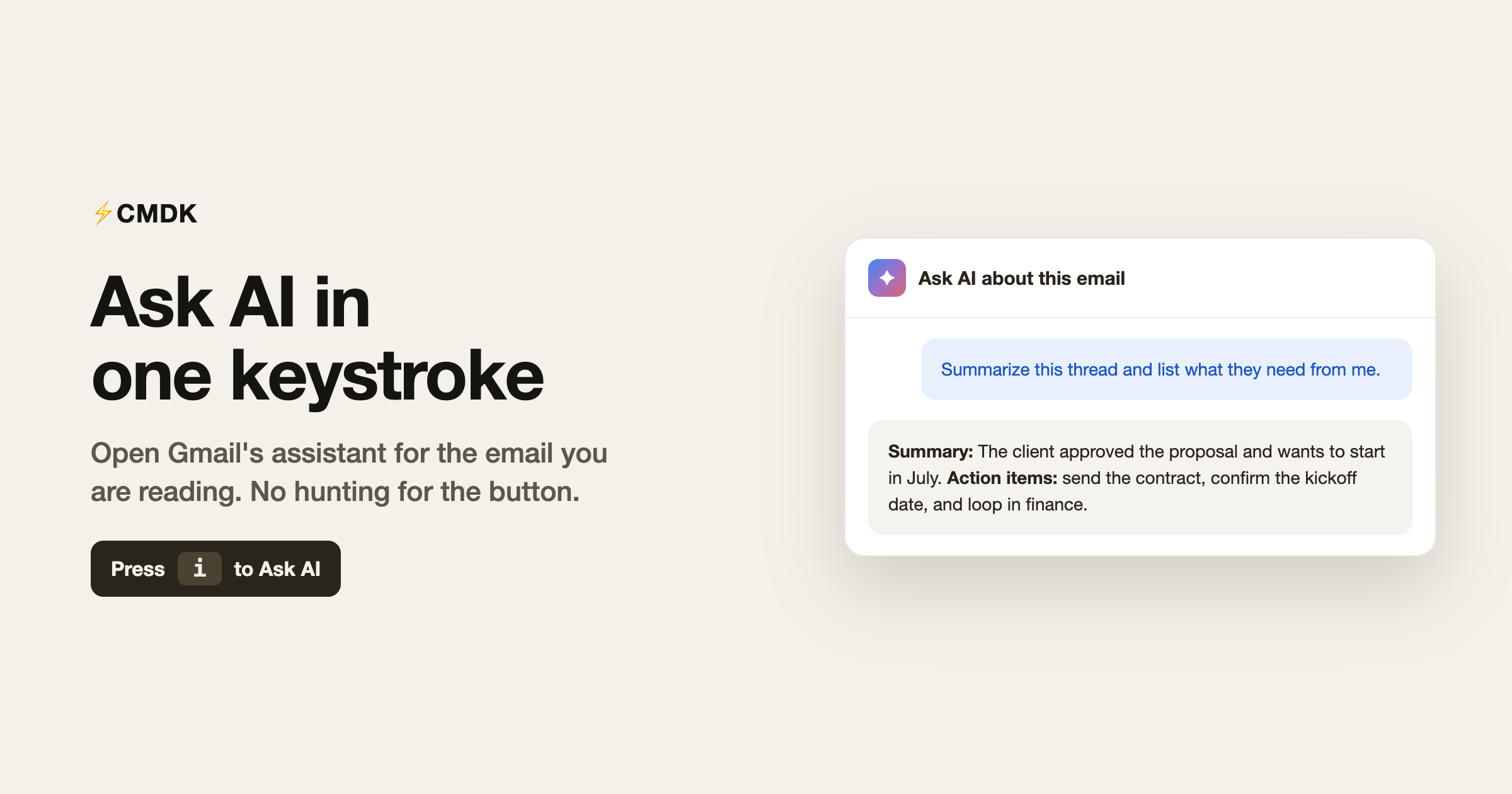
Ask AI is a fast path to Gmail’s own Gemini side panel. While you are reading a thread, one keystroke opens the assistant in context, so you can summarize a long thread, draft a reply, pull out action items, or ask anything about what is in front of you, without leaving the email or reaching for the mouse.
It is the same Gmail AI you already have. CMDK just removes the friction of getting to it.
How to use it
Open the email you want help with, then press:
ito open the AI assistant for that email.
The Gemini panel opens and you can start typing your question right away. You can also trigger it from the command bar: press Cmd + K (Mac) or Ctrl + K (Windows) and run Ask AI.
Why a shortcut matters here
AI is only useful in email if it is faster than doing the thing yourself. The moment “ask the assistant” means traveling to a corner of the screen and clicking, half the speed is gone and you stop bothering. A single key keeps it instant, so reaching for AI becomes a reflex instead of a detour, exactly when you are staring at a thread you would rather not read end to end.
Where it helps
- Long threads you want summarized before you reply.
- Dense updates where you just need the decisions and action items.
- Drafting a first pass at a reply you can then edit.
- Quick questions about what an email is actually asking for.
Common questions
How do I use Gmail AI?
Gmail AI is the Gemini assistant built into Gmail. With CMDK installed, press i while reading an email to open it instantly for that thread, then ask it to summarize, draft a reply, or pull out action items. You can also run Ask AI from the command bar with Cmd + K or Ctrl + K.
How do I open Gmail’s AI with a keyboard shortcut?
With CMDK installed, press i while reading an email and the Gemini assistant opens for that thread. You can also run Ask AI from the command bar with Cmd + K or Ctrl + K.
Is this CMDK’s own AI or Gmail’s?
It opens Gmail’s built-in Gemini assistant. CMDK provides the one-key shortcut to reach it instantly in the context of the email you are reading.
Does it work on the email I am currently viewing?
Yes. Pressing i opens the assistant for the current email, so your question already has the right context.
Do I need anything beyond CMDK?
You need access to Gmail’s AI assistant on your account. CMDK adds the shortcut that opens it.
Is Ask AI free in CMDK?
Ask AI is part of CMDK’s paid plan. You can try CMDK and use the full feature set before deciding.
Make AI a keystroke, not a click
The fastest tool is the one you can reach without thinking. Give Gmail’s assistant a shortcut and you will actually use it.
Install CMDK, open a thread you would rather not read line by line, and press i. The assistant is waiting.