Gmail will not BCC an address on every email you send. There is no setting for it.
Updated September 25, 2026.
How do you auto BCC in Gmail?
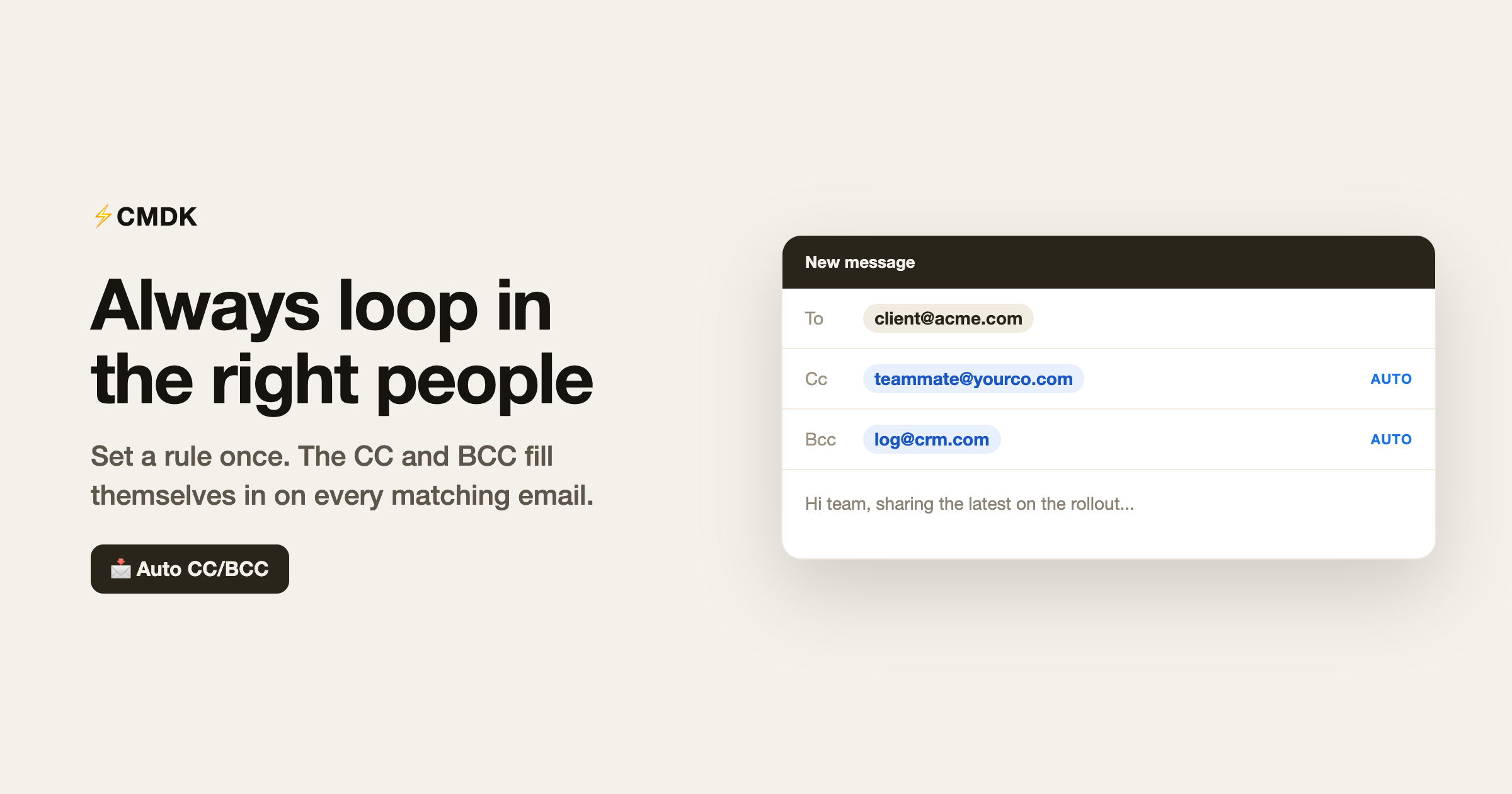
Gmail has no auto BCC setting, so the address is added only if you type it. In CMDK, open settings, choose Auto CC/BCC, turn on Enable Auto CC/BCC, and add a rule with the address under BCC Addresses. That address is then added on new emails and on replies. Forwards are skipped. Remove it on one draft and it stays off for that draft only.
Which address should an auto BCC rule use?
Put the address that has to be on the mail even when you forget to type it. For a CRM, use the logging address from HubSpot, Salesforce, or Pipedrive, under BCC Addresses. For a copy of every send, use an archive mailbox. If the rule should skip mail inside your company, turn on Skip if ALL recipients are from… and enter your domain.
When should you auto CC instead of auto BCC?
Use CC Addresses when that person should be visible on the message, such as a manager on mail to one client. Turn on Only copy if sending to any of… and enter the domain or the address. BCC Addresses is the field the recipient does not see. Which field a person belongs in is covered in CC vs BCC.
How do you add the rule?
Open CMDK settings, choose Auto CC/BCC, turn on Enable Auto CC/BCC, and click + New Rule. Enter the address, leave New emails and Replies on, and click Add Rule. You can keep several rules on at once. The same Enable Auto CC/BCC switch turns the feature off for every inbox.
- Open CMDK settings and choose Auto CC/BCC.
- Turn on Enable Auto CC/BCC.
- Click + New Rule.
- Enter the address under BCC Addresses, or under CC Addresses if they should be visible.
- Leave New emails and Replies checked. Both are on for a new rule.
- Optional: turn on Skip if ALL recipients are from… and enter your domain, so internal mail is left alone.
- Click Add Rule.
Can you remove the auto BCC on one email?
Yes. The address appears in the CC or BCC field before you send, so you can delete that one chip. CMDK does not put it back on that draft. The rule still runs on the next email. A forward never gets the address, so a thread you pass along does not pick up your CRM or your manager.
If the message has already gone out, Gmail’s Undo Send is the only recall, and it is narrow. Here is how to recall an email in Gmail.
FAQ
Can Gmail automatically BCC me on every email?
Gmail has no setting for that. Add your address under BCC Addresses in an Auto CC/BCC rule and it is added on new emails and replies. Forwards are skipped. Use that same BCC Addresses field for a CRM logging address when the hidden copy should go to the CRM.
Does auto BCC in Gmail work on replies?
Yes, unless you turn off Replies on that rule. New emails and Replies are both on when you create a rule. Forwards are never included.
Can one rule auto CC and another auto BCC?
Yes. Each rule has its own CC Addresses and BCC Addresses, and several rules can be on at the same time.
How do I skip auto BCC on internal email?
On the rule, turn on Skip if ALL recipients are from… and enter your domain. Mail where every recipient is on that domain does not get the address.
Set the address once in CMDK. The next new email and the next reply include it.
Related reading
Which field a recipient belongs in is explained in CC vs BCC: what each means and when to use which.