Not every annoying sender deserves the block hammer. The newsletter you still want to keep but never need in your face. The receipts from a store you order from monthly. The notification address that is useful in the archive but useless in the inbox. You do not want to unsubscribe or block them. You just want their mail to stop landing on top of everything else.
CMDK gives you two clean ways to do that: auto-archive or auto-delete future emails from a sender, set up in a single command.
Auto-archive vs auto-delete vs the heavier options
CMDK has a few sender tools, and picking the right one matters:
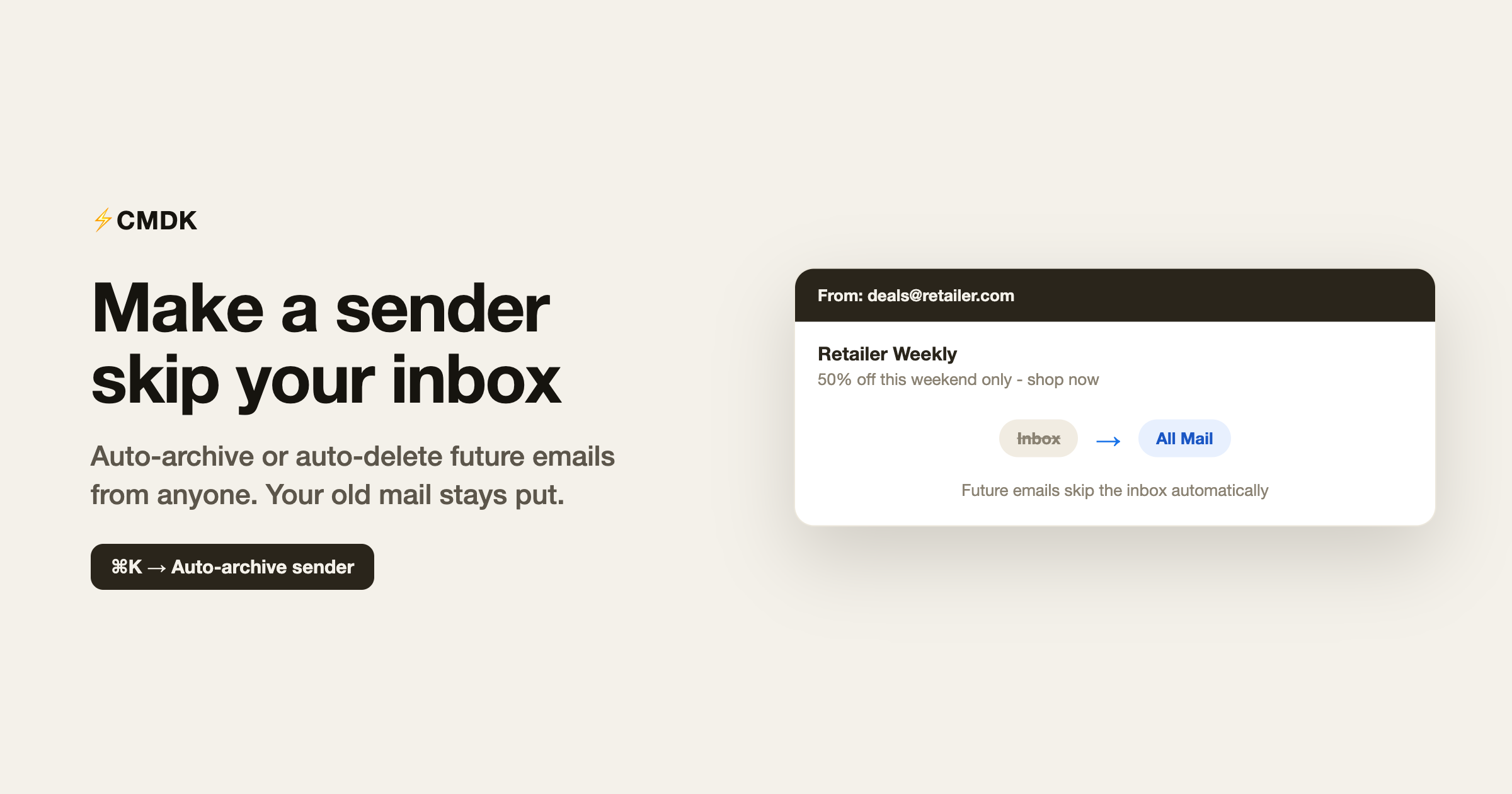
- Auto-archive sender: future emails from this sender skip the inbox and go straight to All Mail. Nothing is lost, they are just out of your face. Your existing emails are untouched.
- Auto-delete sender: future emails from this sender are deleted automatically. They sit in Trash for 30 days, then go for good. Existing emails are untouched.
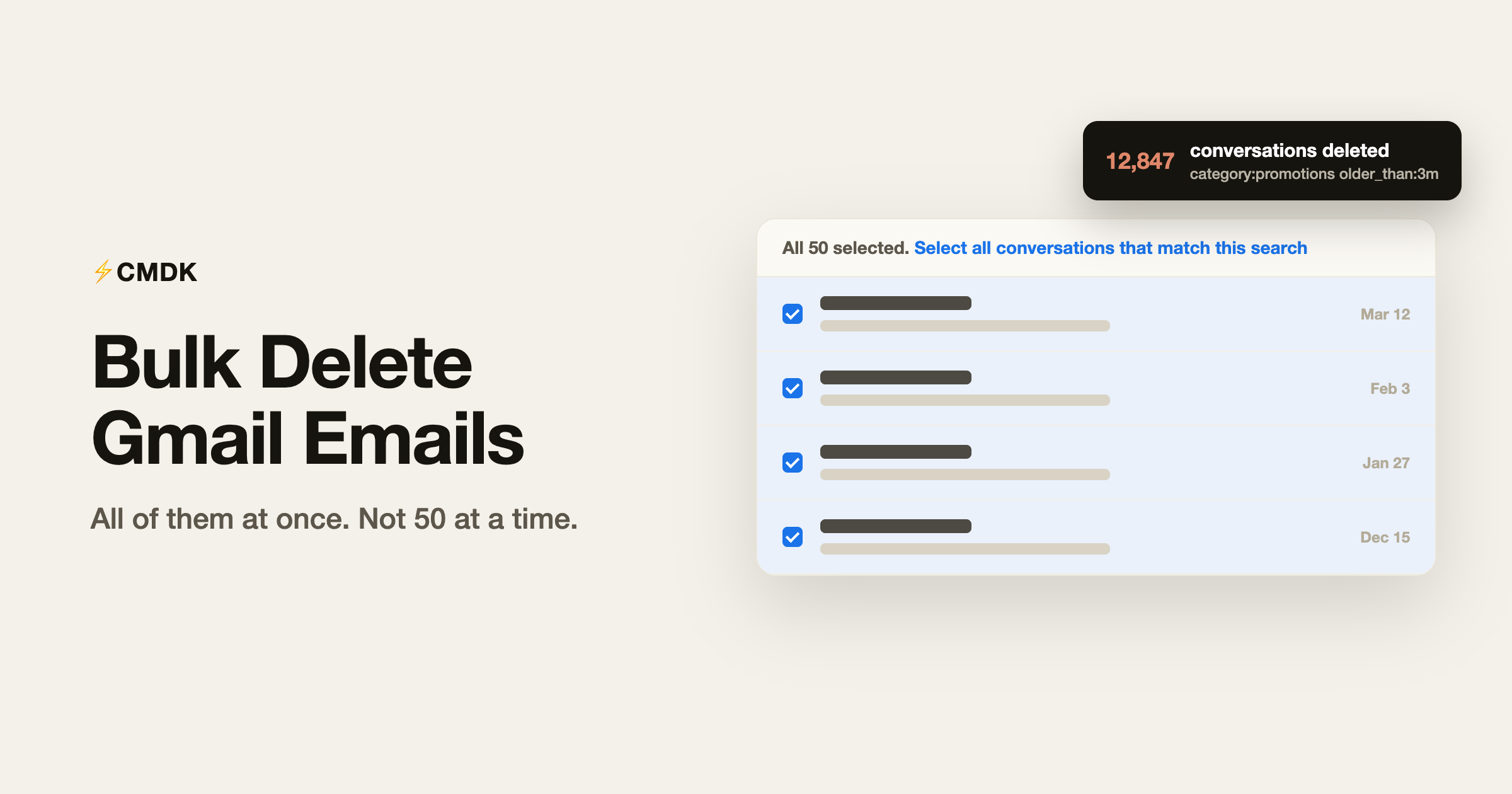
- Archive all / Delete all from sender: these act on the emails already in your inbox, clearing the backlog in one go.
- Nuke / Block: the full hammer, which blocks the sender and removes their mail. Use this for true spam.
Auto-archive and auto-delete are the calm middle ground: they handle what arrives next without blocking the sender or touching what is already there.
How to set it up
- Open an email from the sender, or hover it in the list.
- Open the command bar with
Cmd + K(Mac) orCtrl + K(Windows). - Run Auto-archive sender or Auto-delete sender.
- Confirm in the dialog. CMDK creates a Gmail filter that applies to future mail only.
From then on, anything new from that sender quietly skips your inbox (archive) or goes to Trash (delete), and you never think about them again.
Why “future only” is the right default
The thing people get wrong with filters is blasting them across their whole mailbox and burying things they meant to keep. CMDK’s auto-archive and auto-delete deliberately apply to future emails only. Your existing mail stays exactly where it is, so setting up a rule is safe and reversible in spirit: you are shaping what comes next, not rewriting your history.
If you also want to clear the pile that is already there, that is what Archive all / Delete all from sender are for, and you can run them separately.
Good candidates
- Newsletters you keep but do not read on arrival.
- Receipts and order confirmations worth archiving for search later.
- Automated notifications from tools and services.
- Senders you are done with but do not need to block outright (use auto-delete).
Common questions
How do I make emails from a sender skip my inbox in Gmail?
Open one of their emails, press Cmd + K or Ctrl + K, and run Auto-archive sender. Future emails from them will bypass the inbox and land in All Mail.
What is the difference between auto-archive and auto-delete?
Auto-archive keeps future emails but moves them out of the inbox to All Mail. Auto-delete sends future emails to Trash (where Gmail keeps them for 30 days). Both leave your existing emails alone.
Does this affect emails already in my inbox?
No. Auto-archive and auto-delete apply to future mail only. To clear what is already there, use Archive all or Delete all from sender.
Is this the same as blocking?
No. Blocking (and Nuke) is the heavy option for spam. Auto-archive and auto-delete just route future mail without blocking the sender, so you can still find or reach them.
Are these features free?
Auto-archive and the archive tools are part of CMDK’s core feature set. Treat auto-delete with care, since it removes future mail.
Quiet the inbox without the block hammer
Most inbox clutter is not spam, it is mail you half-want from senders you do not want on top. Route it once and let it handle itself.
Install CMDK, open an email from a sender who keeps cluttering things up, and run Auto-archive sender. The next one will never reach your inbox.