
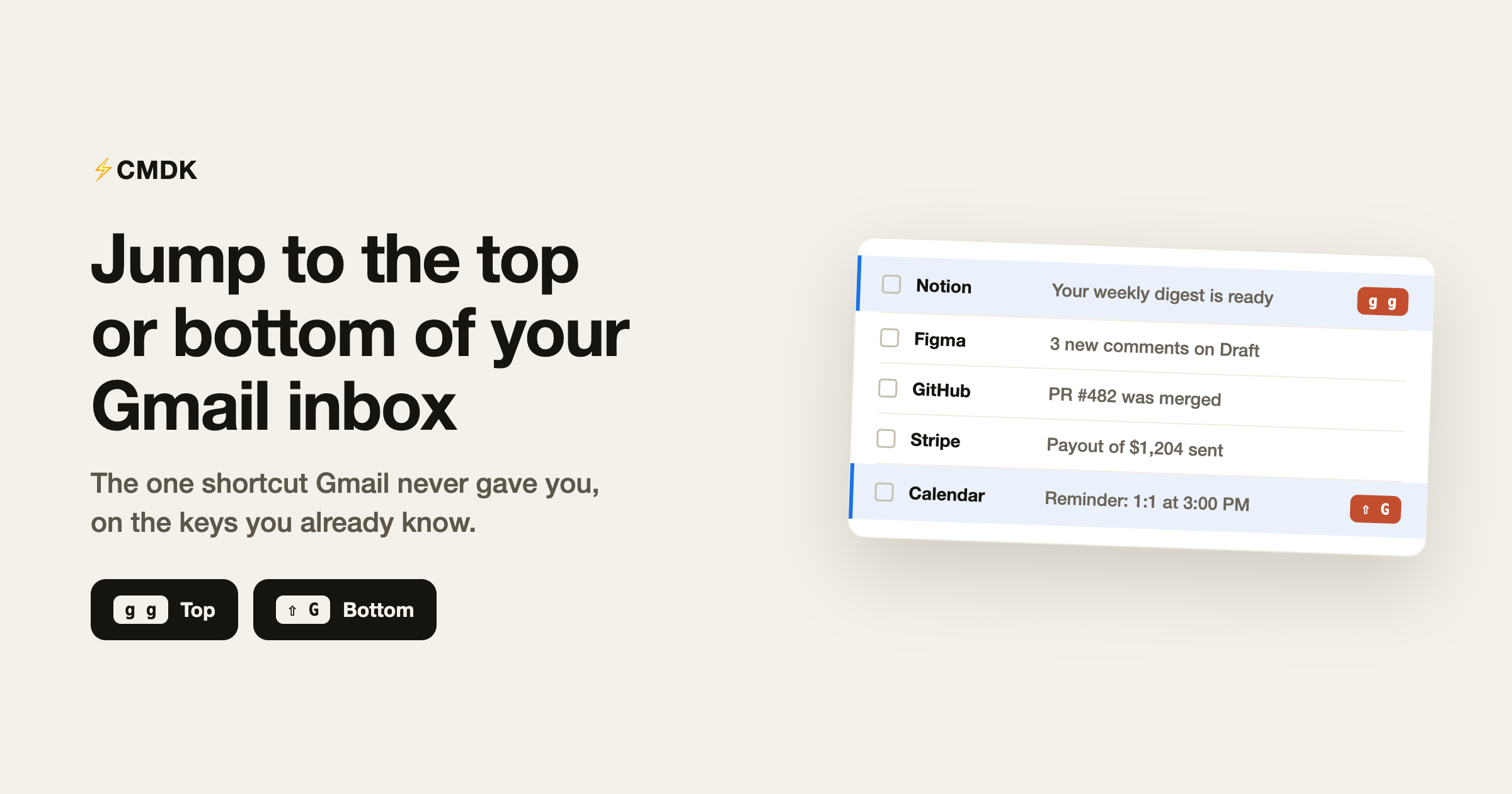
Gmail gives you j and k to step one email at a time, but no single key to jump to the very first or very last email in a list. So the honest short answer is: Gmail has no native shortcut for it. What you do have are a few workarounds, and one keyboard shortcut you can add. This guide covers both, and it also clears up a common mix-up between “the bottom of the page” and “my oldest emails,” which are two different things.
First, what “top” and “bottom” mean here
Gmail shows your mail in pages of 50 (or up to 100, if you raise it in Settings). So there are two things people mean by “go to the bottom”:
- The bottom of the current page: the last email visible in the list you are looking at right now. This is a navigation job, moving the cursor to the last row.
- The oldest email in the whole mailbox: the final page of everything. This is a pagination job, jumping past every page to the last one.
They need different tools. The sections below are split the same way.
Jump to the bottom or top of the current page
The native option: scroll the page
With no dedicated shortcut, the built-in way to reach the ends of the current page is to scroll:
- Spacebar scrolls down a screenful.
- Shift + Spacebar scrolls up a screenful.
Make sure your cursor is not sitting in a checkbox or the search box first, or the spacebar will not scroll. This moves the view, but it does not move Gmail’s blue cursor, so j, k, and Enter still act from wherever the cursor was, not from what is now on screen.
The keyboard shortcut Gmail is missing
If you want a real key that lands the cursor on the first or last email, that is exactly the gap CMDK fills. With the extension on:
gthengjumps to the first email on the page.- Shift +
Gjumps to the last email on the page.
Both move Gmail’s own keyboard cursor, so once you land, j and k keep stepping from there, e archives, and Enter opens, all without touching the mouse. It works in the normal list and in split or preview view, where the list stays on screen next to an open email. If you have ever used gg and G in a text editor or on other keyboard-first tools, this is the same motion, now in Gmail.
Jump to your oldest (or newest) emails
If “bottom” really means “the first email I ever received,” you do not want the current page, you want the last page. Gmail has a hidden control for this, and it does not need an extension:
- Open the list you want. All Mail in the left sidebar gives you the complete history, including archived mail. (Click More to reveal it if it is hidden.)
- Look at the message count in the top right, above the list. It reads something like 1-50 of 5,124.
- Hover over that count. A small menu drops down with Newest and Oldest.
- Click Oldest to jump straight to the last page. Your very first emails are at the bottom of that page. Choose Newest to come back to the top.
This is a page jump, not a sort, so within that last page messages still run newest to oldest. To move one page at a time instead, turn keyboard shortcuts on and use g then n for the next page and g then p for the previous page.
For pulling out old mail by date rather than by page, a search like older_than:5y or before:2020/01/01 is faster than paging. Those and the rest of the filter operators are in our guide to Gmail search operators.
Turn on keyboard shortcuts first
Every keyboard tip above needs Gmail’s shortcuts switched on, and they are off by default:
- Click the gear icon, then See all settings.
- On the General tab, find Keyboard shortcuts and select Keyboard shortcuts on.
- Scroll down and click Save Changes.
Once they are on, j and k move the cursor, Enter opens, and gg and Shift + G (with CMDK) jump to the ends. The full set of keys, native and added, is on our Gmail shortcuts cheat sheet.
Do it without leaving the keyboard
Jumping to the top or bottom is one small piece of working Gmail by keyboard. CMDK adds the shortcuts Gmail leaves out and puts every action a keystroke away:
gthengand Shift +Gland the cursor on the first or last email on the page.Cmd + K(orCtrl + K) opens a command bar with every action, so you can jump, then archive, label, snooze, or move without reaching for the mouse.- Multi-select by holding Shift and pressing the arrow keys, the same way you select a range of emails.
You can turn each shortcut on or off in the extension’s settings, so the keys stay out of your way until you want them.
FAQ
Is there a keyboard shortcut to go to the bottom of the Gmail inbox?
Not in Gmail itself. Gmail’s j and k only step one email at a time, and the spacebar scrolls the page without moving the cursor. To land the cursor on the last email with one key, add a shortcut with an extension like CMDK, which maps Shift + G to the last email and g then g to the first.
How do I get to my oldest emails in Gmail without scrolling?
Open All Mail, hover over the message count in the top right (for example “1-50 of 5,124”), and click Oldest. Gmail jumps to the last page, where your earliest emails sit at the bottom. Click Newest to return.
What is the difference between going to the bottom of the page and the oldest email?
The bottom of the page is the last email in the list you are viewing right now. The oldest email is on the final page of the whole mailbox. Scrolling or Shift + G handles the page; the message-count Oldest menu handles the mailbox.
Why do the spacebar and Shift + spacebar sometimes not scroll?
The focus is probably in a checkbox, the search box, or a button. Click an empty part of the list first, then the spacebar scrolls down and Shift + spacebar scrolls up.
Do these shortcuts work in the Gmail mobile app?
No. Keyboard shortcuts, the message-count menu, and CMDK are all desktop-web features. On the phone you scroll.
Getting to the ends of a long list should not need the mouse. CMDK adds the top and bottom shortcuts Gmail never had, plus a Cmd + K command bar for every other action, so you can fly through your inbox from the home row. Install it free.




