Gmail canned responses are saved replies you insert instead of retyping the same email. Gmail renamed them Templates, and they still sit in settings: a few clicks, and no way to fill in a name or a date. The intro, the pricing line, the scheduling link, the polite follow-up.
Watch the whole workflow, from creating a snippet to inserting it in a reply:
CMDK adds snippets to Gmail that drop into your draft with a single keystroke, fill in the recipient’s name and today’s date automatically, and can even set the subject line and CC list for you.
What a snippet is
A snippet is a reusable chunk of email you save once and reuse forever. A full reply, a single paragraph, a closing line, a meeting link. Instead of digging through old sent mail to copy-paste, you give each snippet a short name and pull it up the moment you need it.
The difference between a snippet and Gmail’s built-in template is speed and smarts. Snippets open from inside the message you are writing, and they personalize themselves as they land.
How to drop in a snippet
There are two ways, and both keep your hands on the keyboard:
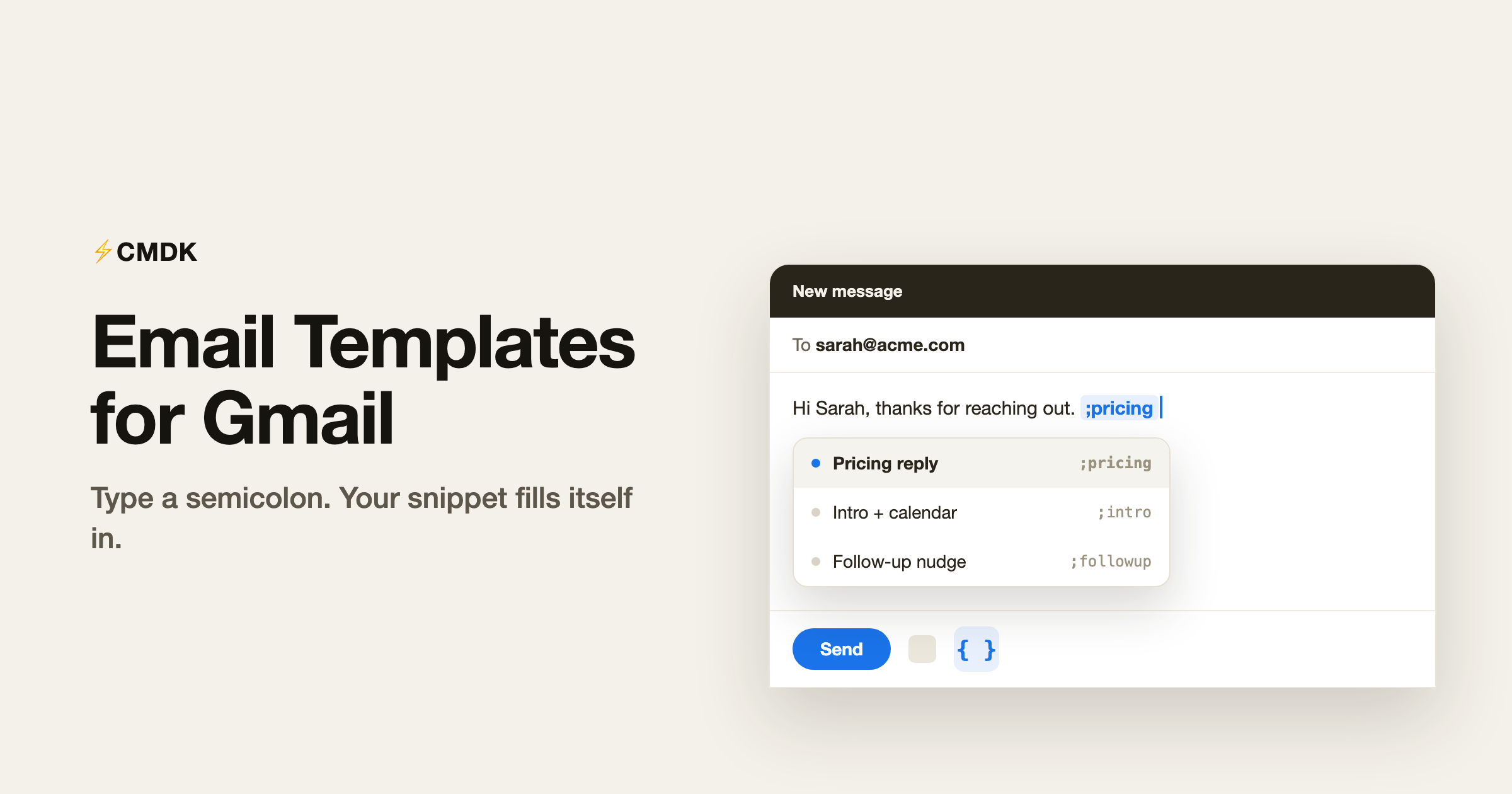
- Type a semicolon. In any compose window, type
;followed by a few letters of the snippet name. A dropdown appears and filters as you type. Hit Enter and the snippet drops in at your cursor. - Click the
{ }button. Every compose toolbar gets a snippets button. Click it to browse and insert without typing the trigger.
Because the semicolon trigger reads what you type right in the body, you never leave the draft or open a separate window. You think of the reply you need, type ;pric, and your pricing snippet is in.
Snippets that personalize themselves
This is where snippets stop being copy-paste and start saving real time. Drop variables into a snippet and CMDK fills them in at the moment you insert:
- Names and contact details:
{first_name}and{full_name}pull from the recipient, so “Hi {first_name},” becomes “Hi Sarah,” automatically. - Dates:
{date}inserts today. You can offset and format it too, like{date+3d}for three days out or{date:MMMM DD}for a written-out date. Handy for “I will follow up on {date+1w}.” - Clipboard:
{clipboard}drops in whatever you last copied, so you can paste a link or order number without switching focus. - Custom placeholders: write anything in braces, like
{company}or{amount}, and CMDK leaves a highlighted blank. After inserting, your cursor jumps straight to the first blank so you can fill it and tab to the next.
So one “intro” snippet can greet the right person, reference the right date, and still pause for the one detail only you know.
More than just text
A snippet in CMDK can carry the whole setup of an email, not only the body:
- Subject line: save a subject with the snippet so it fills the subject field too.
- CC and BCC: auto-add the people who always need to be looped in.
- Auto read receipt: flip on tracking for snippets you want to know got opened.
- Auto follow-up reminder: set a snippet to remind you if there is no reply.
That turns a snippet into a one-keystroke version of an entire workflow, not just a block of words.
A better version of canned responses
Gmail has its own canned responses, now tucked into Settings under the name Templates. You enable them in the advanced settings, save a block of text, and paste it into a reply from a menu. They work, but they are static: no personalization, no subject line, no CC, and a few clicks every time you want one.
CMDK snippets are canned responses that fit how you actually work. They insert with a semicolon instead of a menu, they fill in the recipient’s name and today’s date, and they can carry the subject line, CC list, and a follow-up reminder along with the text. If you have been hunting for better canned responses in Gmail, this is the upgrade: the same “save it once, reuse it forever” idea, without the limitations.
Who gets the most out of snippets
- Sales: outreach, pricing, and follow-up templates that still feel personal because the name and date are real.
- Support: consistent, accurate answers to the questions you field every day.
- Recruiting: intro, scheduling, and rejection notes that go out fast and on-brand.
- Founders and freelancers: the dozen emails you write constantly, sent in seconds instead of minutes.
Coming from Superhuman or a text expander?
If you used snippets in Superhuman, this is the same muscle memory: a quick trigger, a personalized block of text, on with your day. CMDK keeps it inside Gmail rather than asking you to switch your whole email client.
If you have leaned on a general text expander, the difference is that CMDK snippets understand email. They know the recipient, so {first_name} actually works. They can set the subject, CC, and follow-up, which a plain expander cannot reach. And they live in the same toolkit as your read receipts, reminders, and shortcuts, so there is one less app to manage.
A few common questions
How do I create a snippet?
Open CMDK’s snippets settings to write and name your snippets, including the body, subject, and any CC or BCC. You can also save a snippet straight from a compose window you have already written.
What is the fastest way to insert one?
Type ; in the compose body followed by part of the snippet name, then press Enter. No mouse, no menu.
Are these the same as Gmail’s canned responses?
They do the same job, faster. Gmail’s canned responses (its Templates feature) paste a fixed block of text from a menu. CMDK snippets insert with a keystroke, personalize the name and date, and can set the subject, CC, and a follow-up reminder, so you get canned responses without the limitations.
Can snippets fill in the recipient’s name automatically?
Yes. Use {first_name} or {full_name} and CMDK pulls the name from the people you are emailing when you insert the snippet.
Do snippets work in replies, not just new emails?
Yes. The trigger and the { } button work in any compose window, including replies and forwards.
Is this part of the free plan?
Snippets are part of CMDK’s paid plan. You can try CMDK and use the full feature set before you decide.
Write it once, send it forever
The best email template is the one you can reach without breaking your train of thought. Type a semicolon, pick the snippet, watch the name and date fill in, and send.
Install CMDK, open Gmail, and turn your most-typed email into a snippet. The next time you reach for it, it is one keystroke away.
Sending bulk mail from Sheets? That is a different job: CMDK vs GMass.
Related reading
- Read receipts for Gmail
- Auto CC/BCC in Gmail
- A command bar for Gmail
- Canned responses examples: 12 templates you can copy
- Sales email templates: cold outreach and follow-ups
- Customer service email templates
- Invoice email templates: from first send to final notice
- Recruiting email templates: outreach to offer
- Out of office message examples: 15 templates and a generator