Snoozing is one of the best habits for a calm inbox: if an email is not for right now, send it away and have it come back when it is. Gmail has a snooze button, but using it means reaching for the mouse, opening a menu, and picking from a short list of preset times or clicking through a tiny calendar. Do that twenty times a day and the friction adds up.
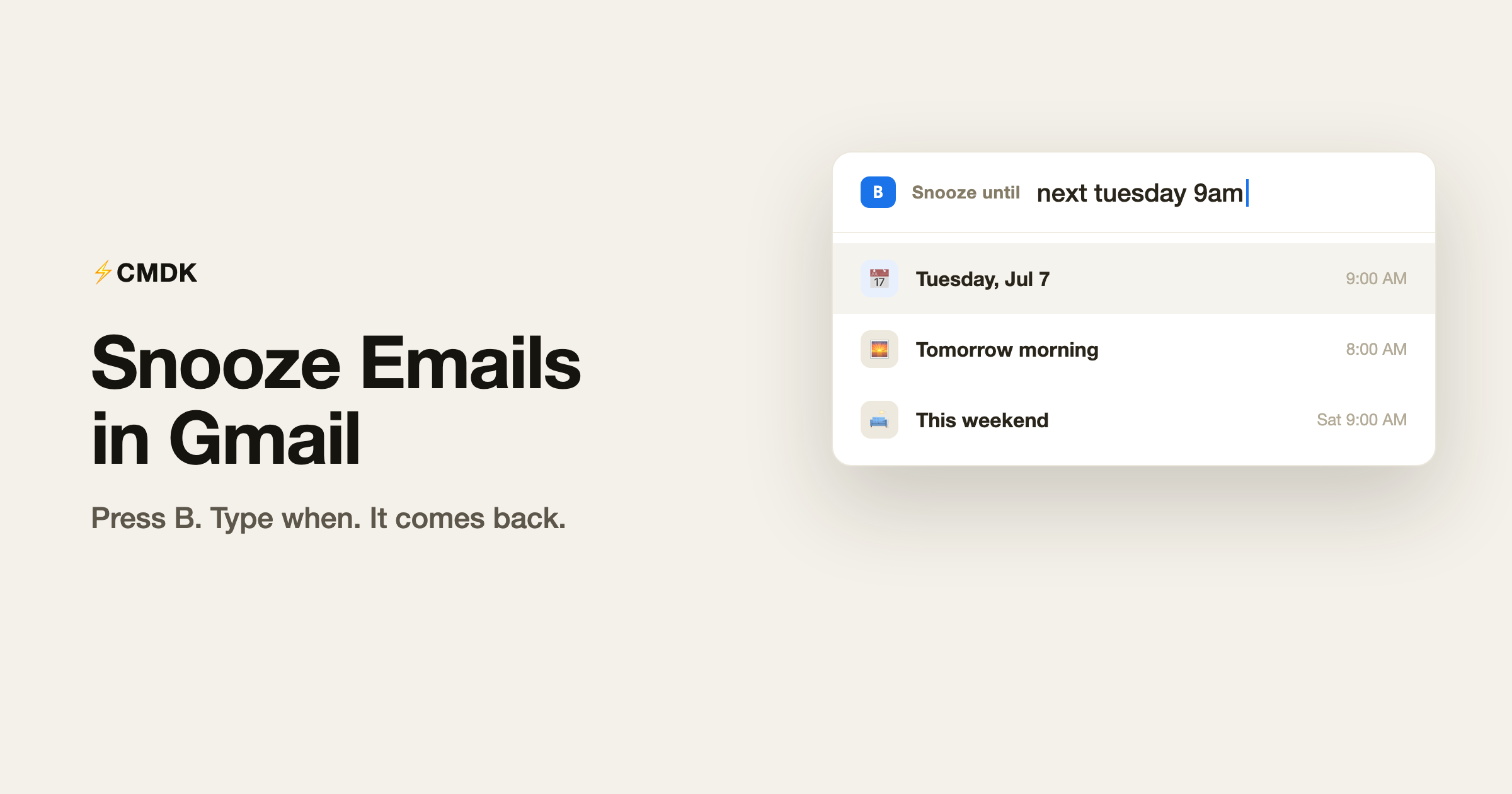
CMDK makes snoozing instant. Press one key, type when you want the email back in plain English, and it is gone until then.
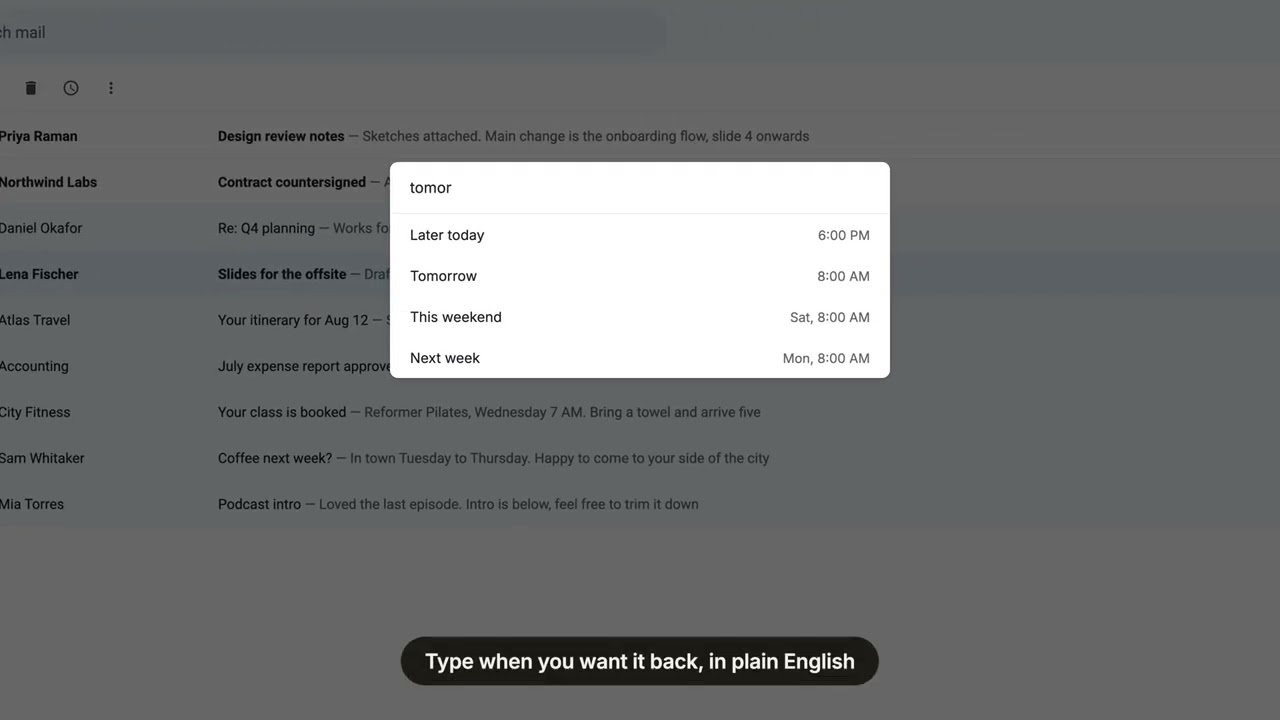
Here is the whole thing in 29 seconds:
A quick reminder of what snooze does
Snoozing an email removes it from your inbox and brings it back to the top at a time you choose. Nothing is deleted, nothing is lost. It is the simplest way to deal with “not now” without letting things pile up or slip through the cracks.
The problem with Gmail’s built-in snooze
Gmail’s snooze works, but it is built for the mouse:
- You hover, find the clock icon, and click.
- You get a handful of preset times like “Tomorrow” and “This weekend.”
- Anything specific means clicking into a date picker and tapping out the day and time.
It is fine occasionally. As a daily habit on a busy inbox, it is slow.
How CMDK snooze works
CMDK puts snooze on the keyboard and lets you say exactly when.
- In your inbox, hover over or select an email and press B.
- A snooze bar appears. Type a time in plain language: “tomorrow 9am”, “next tuesday”, “in 3 days”, “monday 2pm”.
- Press Enter. The email leaves your inbox and is scheduled to return at that time.
No clock icon to find, no preset list to settle for, no calendar to click through. You think of a time, you type it, you move on.
A few things that make it nicer in daily use:
- Natural language times. Write it the way you would say it. CMDK reads “next friday afternoon” and works out the date.
- It remembers your last snooze. Reach for the same time often? It is right there.
- Hover to snooze. You do not have to open or even tick the email first. Hover, press B, done.
- Unsnooze when plans change. Pull an email back to the inbox if you need it sooner.
When snoozing earns its keep
- Waiting on something. Snooze a thread until the day you expect a reply, so it resurfaces exactly when you need to chase it.
- Not-now reading. Newsletters and long reads, snoozed to the evening or the weekend.
- Time-bound tasks. The invoice due on the 15th, the renewal next month: snooze it to the morning it matters.
- Inbox zero, honestly. Clear your inbox without pretending you have handled everything. Snooze the rest to when you actually will.
Coming from Superhuman?
Fast, keyboard-first snoozing is a big part of why Superhuman feels quick. CMDK brings the same reflex to Gmail: a single key and a typed time, right inside the inbox you already have. You keep Gmail and your data, and snoozing stops being a mouse errand.
A few common questions
What is the keyboard shortcut to snooze in Gmail with CMDK?
Press B on a selected or hovered email to open the snooze bar, then type when you want it back and press Enter.
Can I snooze to a specific date and time?
Yes. Type it in plain language, like “july 3 8am” or “next monday 2pm”, and CMDK schedules it for you.
Where do snoozed emails go?
They leave your inbox and return to the top at the time you set. You can find them in Gmail’s Snoozed view in the meantime.
Can I unsnooze an email?
Yes. Open the snooze bar on a snoozed email and unsnooze it to bring it back to your inbox right away.
Is snooze part of the free plan?
CMDK’s keyboard snooze bar is part of the paid plan. Gmail’s slower built-in snooze is always available, and you can try CMDK’s full feature set before you decide.
Snooze it and forget it (until you need it)
The best inbox is the one showing only what matters right now. Press B, type when you want the rest to come back, and let your inbox stay clear.
Install CMDK, open Gmail, and snooze your next “not now” email in a single keystroke.
Related reading
Curious about the tool that made send-later famous? Here is our Boomerang for Gmail review for 2026.