A professor’s inbox mixes a dozen jobs. An advisee asking about a committee date, a grant officer with a budget question, three PhD applicants, a request for a recommendation letter, a journal asking for a review, and the department’s weekly announcements all arrive in one list, sorted by time.
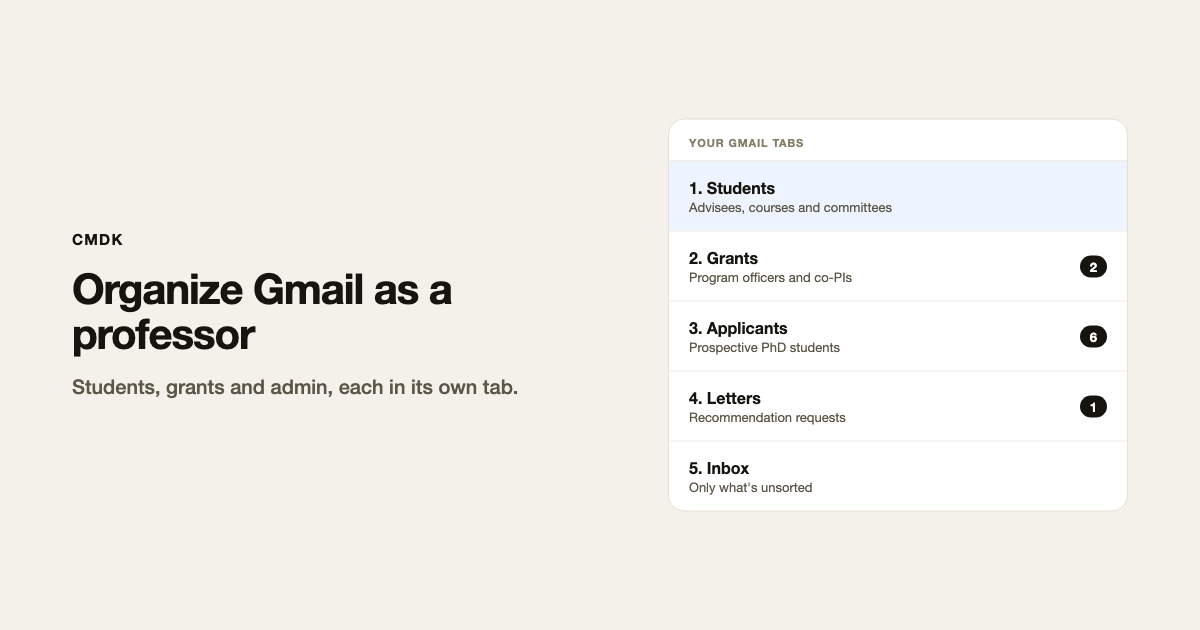
The fix is to split the inbox by role. Give students, grants, applicants, letters, reviews and the department a tab each, at the top of Gmail. Each tab is a saved Gmail search, so mail appears in its tab the moment it arrives. Then add one more tab, a leftover Inbox, which shows only the mail that fits none of the others.
Gmail has no custom tabs of its own. CMDK adds them inside Gmail, so you keep your university account, your labels and your filters.
The video walks through the same setup in two and a half minutes:
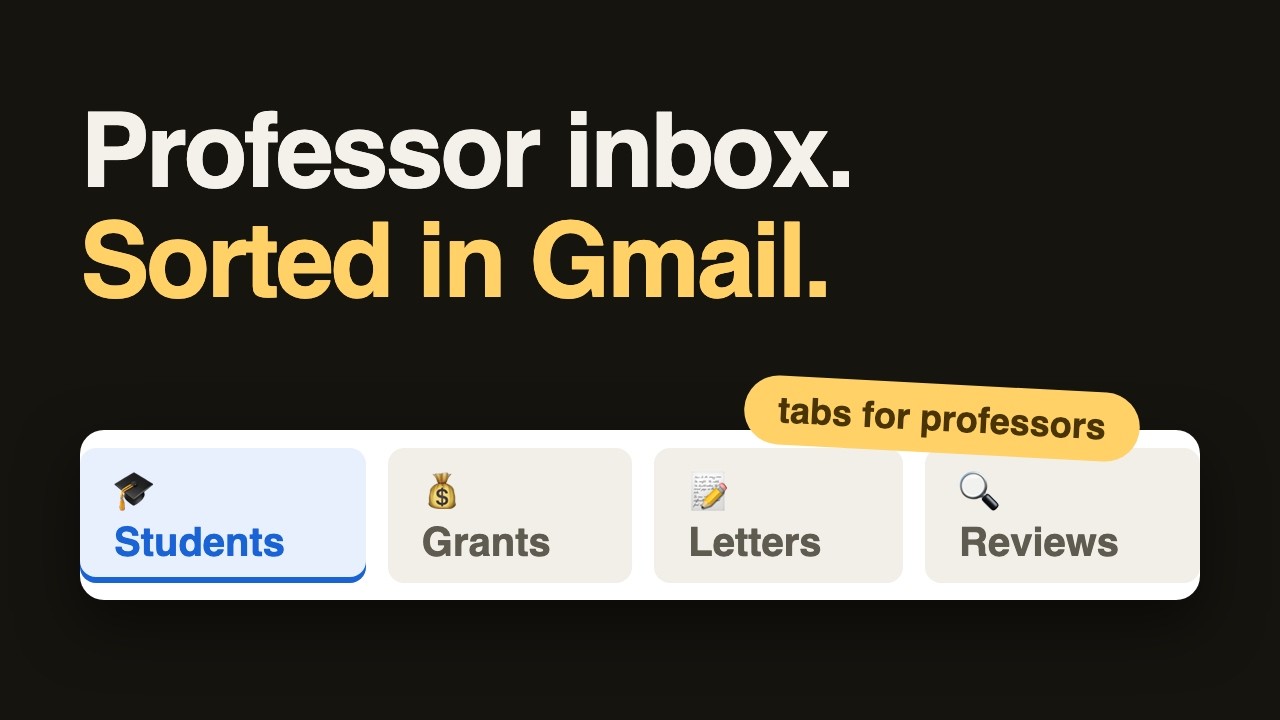
Seven tabs for a professor’s inbox
The setup below runs on Gmail labels. A filter applies each label as mail arrives, and each tab opens one label or a small group of them.
| Tab | What lands there | Gmail search |
|---|---|---|
| Students | Advisees, course mail and thesis committees | in:inbox label:{advisees courses committees} |
| Grants | Sponsored programs, program officers, co-PIs | label:grants |
| Applicants | Prospective PhD students and postdocs | label:applicants |
| Letters | Requests for recommendation letters | label:letters |
| Reviews | Journal and grant review requests | label:reviews |
| Department | Everything else from your university | in:inbox from:(@youruniversity.edu) -label:{advisees courses committees grants applicants letters reviews} |
| Inbox | Whatever fits none of the above | see the next section |
Replace youruniversity.edu with your school’s domain. Curly braces mean “any of these” in Gmail search, and a minus sign in front of them means “none of these.”
The leftover Inbox tab
Set up the last tab with care, because it catches whatever the other six miss. Turn off CMDK’s default Inbox tab and make your own that excludes every stream you have a tab for, plus Gmail’s promotional categories:
in:inbox -from:(@youruniversity.edu) -category:{social promotions updates forums} -label:{advisees courses committees grants applicants letters reviews}
This tab shows mail you haven’t sorted yet, such as a collaborator at another school, a conference organizer, or a student writing from a personal address. When something shows up here twice from the same place, write a filter for it and it moves to its own tab.
Gmail’s categories still have a place. If you want newsletters and notifications out of the way but within reach, make tabs for category:updates and category:forums and leave them at the end of the bar.
Set it up
- Install CMDK from the Chrome Web Store, open Gmail and sign in.
- Create the labels: Advisees, Courses, Committees, Grants, Applicants, Letters and Reviews. For each one, add a Gmail filter that applies it. Match advisees by address, courses by the course code in the subject (
subject:(BME 301)), and reviews by the journals and funders that write to you. Leave “Skip the inbox” off. - Click a label, press Cmd+K (Ctrl+K on Windows), type tab, and pick Create Tab from Search. For the Department and leftover Inbox tabs, run the search above first, then do the same.
- In CMDK’s Settings, under Tabs, switch off the default Inbox tab, then edit each tab to set its name and icon. Turn on Show unread count for Grants, Applicants, Letters and Reviews. Unread counts only work when a tab’s search is a single label and nothing else, which is why those four are just
label:grantsand so on, withoutin:inbox. They also show mail you have archived under that label, which helps when you need an old thread. - Press Tab to move to the next tab and Shift+Tab to go back.
Tabs are saved per Gmail account. If you keep a personal Gmail next to your university account, each one has its own set. The Gmail search operators guide covers every filter you can use in a tab, and labels versus folders explains why one email can sit in two tabs at once.
A week that keeps up
Not every tab needs a daily visit.
- Open Students and the leftover Inbox every day. These have people waiting on you.
- Open Grants and Department once a day, after the first two. Grant mail is rarely urgent, but missing a sponsored programs deadline is costly.
- Open Applicants in one weekly batch during admissions season. A sub-label per stage (Interview, Declined) keeps the pipeline readable.
- Open Letters and Reviews when you plan your week, and put each deadline on your calendar before you archive the request.
Replies you write every week
A lot of academic email is the same five replies. Save them as snippets and type ; in any reply to insert one. A snippet can fill in {first_name} for you.
- Letter requests: what to send you (CV, transcript, a draft of key points) and how much notice you need.
- Review requests you decline, with a colleague to suggest instead.
- Applicants: whether you are taking students this cycle and how to apply through the program.
- Office hours and how to book them.
- Committee scheduling: your availability and a link.
When you send something that needs an answer, such as a co-PI’s budget pages or a committee form, turn on a follow-up reminder in the compose window. If nobody replies, the thread comes back to the top of your inbox. Read receipts show whether a student opened your feedback before the next meeting.
For more tab ideas outside academia, see split inbox tabs in Gmail.
Frequently asked questions
How do professors organize their email?
Most split it by role: students, research and grants, applicants, service work such as reviews and letters, and department mail. Labels and filters sort each stream, and a tab per stream keeps them apart in Gmail.
Does this work with a university Google Workspace account?
Yes. CMDK works with Google Workspace and personal Gmail, and each account keeps its own tabs. Some universities restrict Chrome extensions on managed accounts, so check with IT if the install is blocked. Gmail’s keyboard shortcuts setting needs to be on.
How many tabs should a professor have?
Start with the seven above. Add a tab when you run the same search twice in a day, and remove one you have not opened in two weeks.
Can I see how many unread emails each tab has?
Yes, for tabs that open a single label, the Inbox, Starred or Important. Turn on Show unread count in the tab’s settings.
Will my tabs show on my phone?
No. Tabs live in Gmail on the desktop browser. The labels and filters behind them work everywhere, so your mail is still sorted in the Gmail app.
Set up the seven tabs above before term starts. CMDK puts students, grants, applicants and the rest in their own tabs inside Gmail, with snippets and follow-up reminders for the replies.