Gmail can do a lot, but most of it hides behind menus, sub-menus, and toolbar icons you have to find with your mouse. Want to snooze an email, switch accounts, or jump to a label? That is a hunt every time. If you have ever used a command bar in an app like VS Code, Linear, or Superhuman, you know how much faster it is to just type what you want.
CMDK adds that command bar to Gmail. Press Cmd+K, type a couple of letters, and run almost any action without touching the mouse.
What a command bar is
A command bar is a single search box that can do everything. Instead of remembering where a button lives, you summon one bar, type the name of the action, and hit Enter. Archive, label, snooze, mark as read, switch account, open settings: it is all one search away.
The point is to keep your hands on the keyboard and your attention on your inbox, not on the chrome around it.
How to open it
Press Cmd+K on a Mac, or Ctrl+K on Windows. The command bar opens right over your inbox.
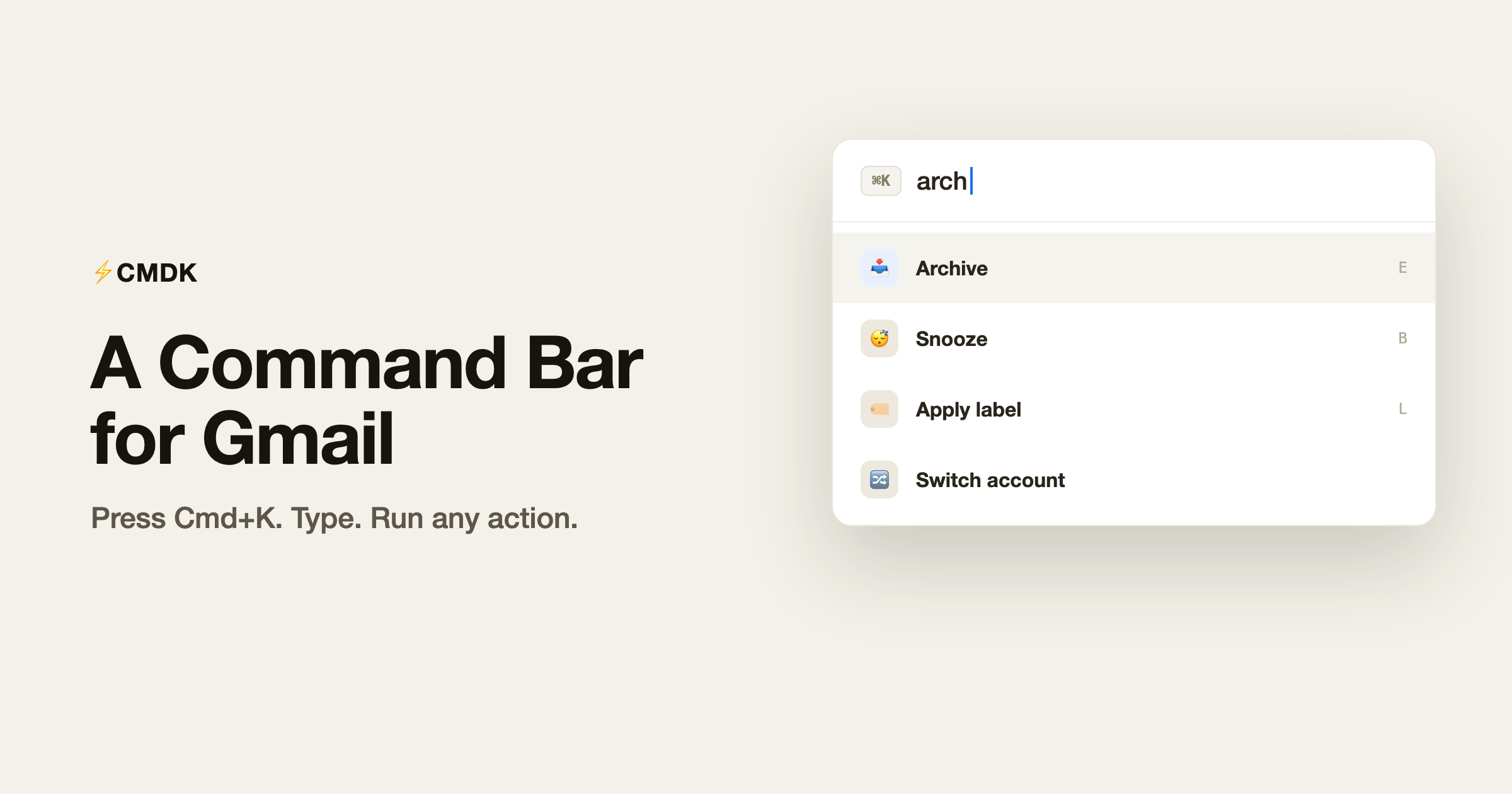
Start typing the action you want. The list filters live as you type, so “arch” surfaces Archive, “snz” gets you Snooze, “lab” finds your labels. Use the arrow keys to move and Enter to run it. Escape closes the bar.
CMDK takes over Cmd+K from Gmail’s native insert-link shortcut while you are in your inbox, so the bar is always one reflex away. When you are writing an email, Cmd+K behaves the way you expect for links.
It acts on the email you are looking at
The command bar is smart about context. If you have an email selected, or you are just hovering over one in the list, the action you run applies to that email. So you can glide down your inbox, hit Cmd+K on the one you want to archive or snooze, and keep moving. No need to tick a checkbox first.
Your most-used commands rise to the top
The bar learns from you. The commands you run most often float to the top of the list, so over time the things you actually do are the first things you see. The longer you use it, the less you have to type.
The kinds of things you can run
The command bar covers most of your day in Gmail. A sampling of what lives in there:
- Triage: archive, delete, mark as read or unread, snooze, add to tasks.
- Organize: apply a label, move to a folder, select or deselect emails in bulk.
- Navigate: jump to a label, open Calendar, Drive, or Meet, switch between Gmail accounts.
- Compose: start a new email, send, schedule send, edit the subject, attach a file, toggle a read receipt or a follow-up reminder.
- Calendar: RSVP yes, no, or maybe to an invite without opening it.
- Settings and help: open CMDK settings, customize your shortcuts, or see the full shortcut list.
It is the long tail of Gmail, made reachable in two keystrokes.
A second palette for links: Cmd+O
CMDK also gives you a links palette. Press Cmd+O to open a separate bar for quickly jumping to the places you go often. It is the same fast, type-to-find feel as the command bar, pointed at navigation instead of actions.
Coming from Superhuman?
The command bar is the heart of how Superhuman feels fast, and it is one of the things people miss most when they look at leaving. CMDK gives you the same Cmd+K muscle memory inside the Gmail you already use, with no inbox migration and no new client to learn. You keep Gmail, you keep your data, and you add the speed.
A few common questions
What is the shortcut to open the command bar?
Cmd+K on a Mac, Ctrl+K on Windows. Start typing the action you want and press Enter to run it.
Does it replace Gmail’s keyboard shortcuts?
No. It sits on top of them. You can still use Gmail’s native shortcuts, and the command bar gives you a searchable way to run actions you have not memorized.
Does the action apply to a specific email?
Yes. Whatever email you have selected or are hovering over is what the command acts on, so you rarely need to select first.
Do I have to memorize commands?
No. That is the whole point. You search by name, and your most-used commands move to the top automatically.
Is the command bar part of the free plan?
The command bar is part of CMDK’s paid plan. You can try CMDK and run through the full feature set before you decide.
Stop hunting through menus
The fastest way to do something in Gmail is to not go looking for it. Press Cmd+K, type the first few letters, and you are done.
Install CMDK, open Gmail, and hit Cmd+K. The next action you need is one search away.
Related reading
- Read receipts for Gmail
- Gmail email templates and snippets
- How to copy a sender’s email address in Gmail
Speed cuts both ways, so know how to recall an email in Gmail before you need it.