
Gmail gives you no single “turn off Gemini” switch. There is a native setting that removes some of the AI, but it takes useful features down with it, and on many accounts the Gemini button stays in the top bar no matter what you do. Here is what each method actually removes, what it costs you, and how to get a fully Gemini-free Gmail without giving anything up.
What Gemini puts in your Gmail
Once Google rolls Gemini out to your account, it shows up in at least four places:
- The Gemini button in the top bar, next to search or above your inbox
- AI Overview cards that summarize the conversation above the messages themselves
- Suggested replies generated at the bottom of conversations
- Help me write prompts inside the compose window

The AI Overview card is the biggest one. It inserts a summary block between the subject line and the actual email, so you scroll past Gemini’s version of the conversation to reach the real thing:
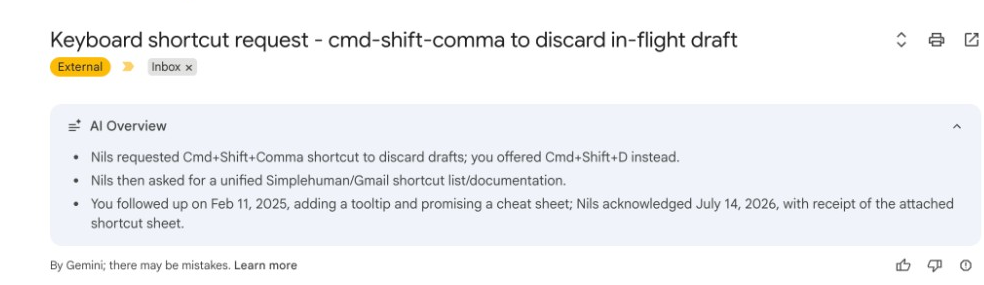
Each of these takes screen space and attention. If you never use them, they are furniture you cannot rearrange. Google added them account by account, and it did not add a matching switch to remove them.
Method 1: turn off smart features (the native way)
Gmail’s only real off switch is buried in settings, and it is a package deal:
- Open Gmail, click the gear icon, then See all settings.
- On the General tab, find Smart features and personalization.
- Untick it, scroll down, and click Save Changes.
This removes most Gemini surfaces. It also removes things you probably want to keep: Smart Compose autocomplete, spelling and grammar suggestions, package tracking, flight check-in reminders, and the tabbed inbox categories. Google bundled the AI you may not want with the automation you likely do.
On Workspace accounts, there is a second layer: your admin can disable Gemini features for the whole domain from the admin console. If you are not the admin, you cannot touch that layer.
Method 2: hide every Gemini element, keep everything else
The bundling is the real problem with Method 1. The alternative is to leave Gmail’s settings alone and simply remove the Gemini elements from view.
CMDK is a Gmail extension with an Appearance section built for exactly this. Three toggles, each independent:
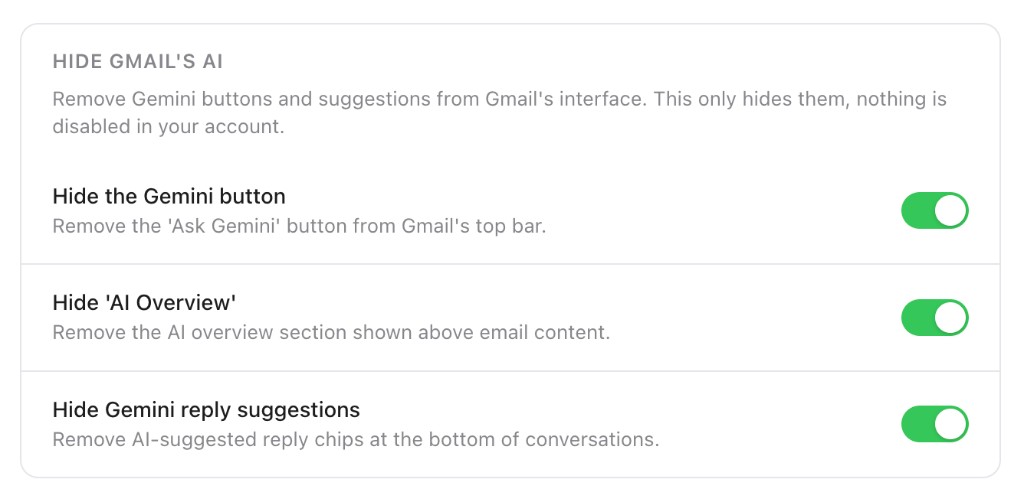
- Hide the Gemini button removes the “Ask Gemini” sparkle button from the top bar.
- Hide “AI Overview” removes the summary card above the email content.
- Hide Gemini reply suggestions removes the AI reply chips under conversations.
Setup takes under a minute: install CMDK, open its settings, click Appearance, and switch on the toggles you want. The changes apply instantly, nothing in your Google account changes, and Smart Compose, package tracking, and your inbox tabs keep working. Flip a toggle back off and the element returns.
Here is the same conversation with the toggles on. The email starts where the subject line ends:
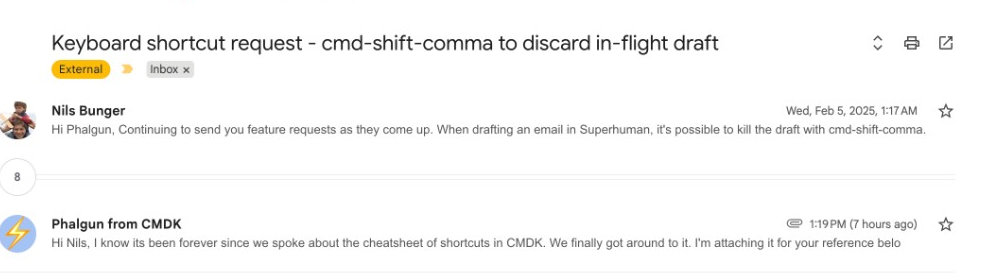
This works because the toggles only change what your browser displays. Google’s servers still think Gemini is on, so there is nothing for Google to re-enable in a future update, and no admin permission involved.
Which method should you use?
- You want AI gone and do not care about Smart Compose or package tracking: use the native smart features setting.
- You want the AI clutter gone but Gmail’s useful automation intact: hide the elements with CMDK.
- You are a Workspace admin who wants Gemini off for everyone: use the admin console, and expect users to ask for it back.
The two approaches also stack. Some people turn off smart features natively and use CMDK to catch the leftovers the setting misses.
FAQ
Can I remove the Gemini button from Gmail completely?
Not through Gmail’s own settings on most personal accounts. The smart features toggle removes some AI surfaces but often leaves the Gemini button in place. Hiding it with a browser extension like CMDK is the reliable way to get rid of it.
Does turning off smart features delete my data from Gemini?
No. It stops Gmail from showing AI features, but it is a display and processing preference. Deleting data is a separate job: see our guide on how to stop Gmail’s AI from reading your emails, which covers the smart features and Gemini activity controls.
Will hiding Gemini with an extension break Gmail?
No. CMDK’s Appearance toggles only hide elements on your screen. Gmail’s functions, shortcuts, and sync all behave exactly as before. If Gmail redesigns an element, the toggle simply stops matching it until the extension updates; nothing breaks.
Is there a way to turn off Gemini on the Gmail mobile app?
The smart features setting syncs to mobile and removes some AI there. Browser extensions only work on desktop, so the mobile app keeps whatever Google ships in it.
If Gemini has been sitting in your Gmail unused since the day Google added it, take it out of view. Install CMDK, open Appearance, and get your clean inbox back in under a minute.




