
Gmail has settings for the text you write, but almost nothing for the text you read. That split confuses everyone, because when people search for how to change the font size in Gmail, they usually mean “emails look too small on my screen” and end up in a compose setting that does not touch reading at all.
Here is every method, sorted by what you are trying to fix.
Change the font size of emails you write
This is the one Gmail supports natively, in two places.
Set a default for all new emails
- Click the gear icon, then See all settings.
- On the General tab, find Default text style.
- Pick a font, then a size: Small, Normal, Large, or Huge.
- Scroll down and click Save Changes.
Every new email you compose now starts with that style. Recipients see it too, so resist the temptation to fix your own eyesight by writing everything in Huge: that only makes your emails bigger for everyone you write to, while your inbox stays exactly as small as before.
Change the size inside one email
While composing, select the text, click the A icon in the toolbar to open formatting options, then click the size selector (the two Ts). The same four sizes apply. Keyboard version: select text and press Cmd/Ctrl + Shift + + to step the size up or Cmd/Ctrl + Shift + - to step it down.
Change the font of emails you write
Font and size share one setting. Default text style picks both, and Gmail starts you on Sans Serif.
- Click the gear icon, then See all settings.
- On the General tab, find Default text style.
- Open the font menu. Sans Serif is the default. The other choices are Serif, Georgia, Garamond, Tahoma, Trebuchet MS, Verdana, Comic Sans MS, Wide, Narrow, and Fixed Width.
- Scroll down and click Save Changes.
Sans Serif arrives as Arial. Serif arrives as Times New Roman. Fixed Width arrives as Courier New. The font is stored in the email, so the recipient sees your choice. It does not restyle your inbox, and it does not restyle mail someone else sent you. The screen around the message stays on Google Sans.
For a single email, select the text and choose a font from the formatting toolbar, beside the size control.
Make the emails you read bigger
Gmail has no setting for this. The Default text style above only affects what you send, and display density (covered below) only changes row spacing. That leaves three real options.
Option 1: browser zoom (the blunt one)
Press Cmd/Ctrl + + to zoom the whole page, Cmd/Ctrl + - to zoom out, Cmd/Ctrl + 0 to reset. The browser remembers the zoom level per site, so Gmail stays zoomed on your next visit.
The problem: everything scales. Buttons, the sidebar, the search bar, your email list all get bigger, so you fit fewer emails on screen and scroll more. You wanted bigger reading text and got a bigger everything.
Option 2: your operating system’s text scaling
On Windows: Settings, Accessibility, Text size. On macOS: System Settings, Displays, and pick a lower resolution (“larger text”). This scales every app, which is the right fix if all text everywhere is too small, and overkill if the problem is just email.
Option 3: scale only the email text with CMDK
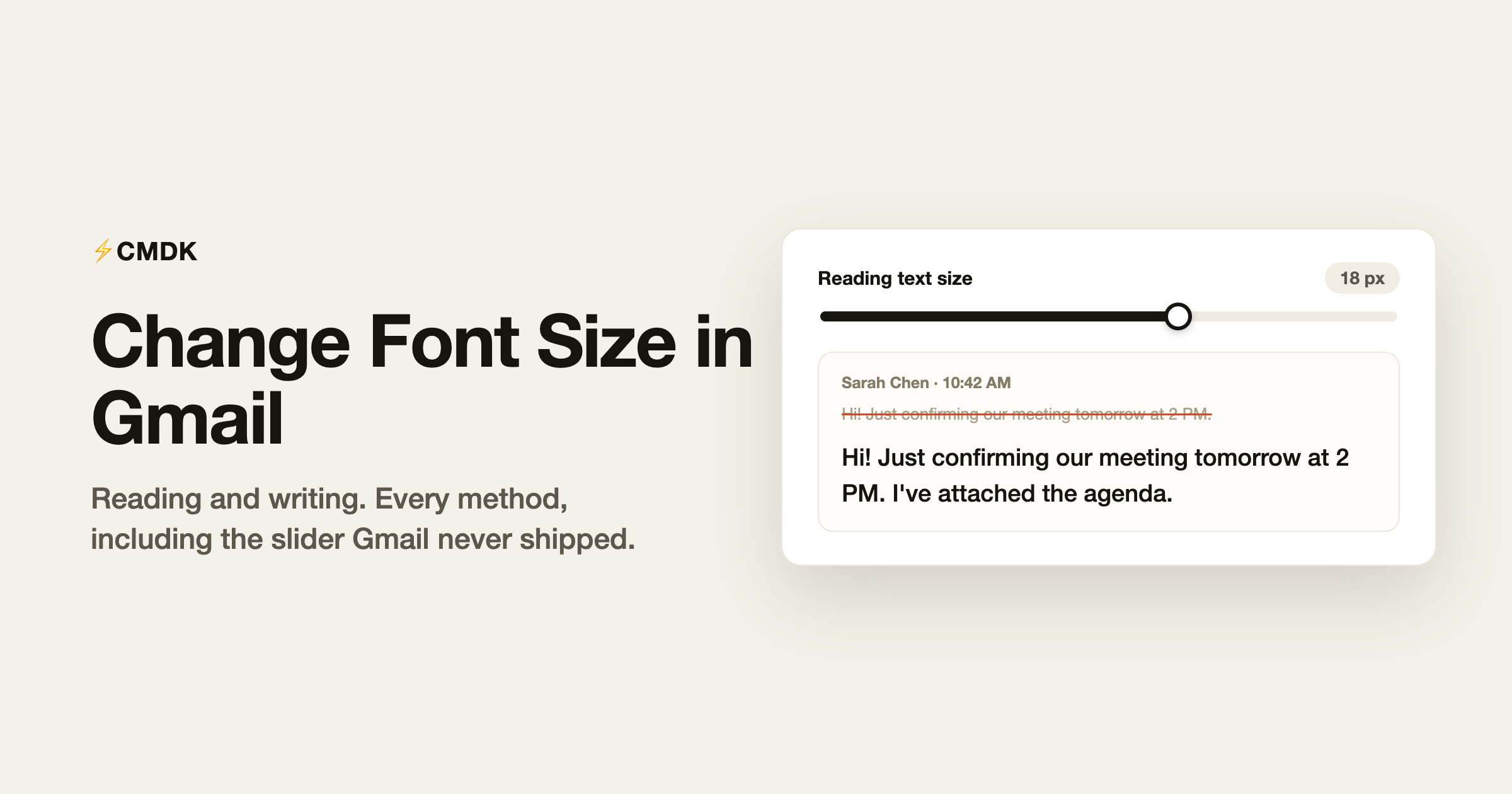
CMDK is a Gmail extension with an Appearance section that includes a Reading text size setting made for exactly this. It scales the text of emails you read, from 14 to 22 pixels, and touches nothing else: the inbox list, buttons, sidebar, and compose window stay at Gmail’s normal size, so you keep the same amount of email on screen.
- Install CMDK and open its settings.
- Click Appearance.
- Under Reading, drag the text size slider until the preview reads comfortably.
Two details worth knowing. First, it only applies to plain emails that inherit Gmail’s default typography; newsletters designed with their own fonts and sizes keep their intended look instead of getting distorted. Second, it never touches what you send. Compose is deliberately excluded, so recipients always see your emails exactly as you typed them.
Display density: more email per screen
If Gmail feels cramped rather than small, the setting you want is display density: gear icon, then pick Default, Comfortable, or Compact under Density. It changes the padding around each row in your email list. It does not change any font size, which is why it never fixes the “text too small” complaint, but combined with a bigger reading size it makes the inbox easier to scan.
The quick reference
- Emails you write, permanently: Settings, General, Default text style
- Font of emails you write: the same Default text style menu. Sans Serif (Arial) unless you change it
- Emails you write, one message: formatting toolbar, size selector, or
Cmd/Ctrl + Shift + +/- - Emails you read, everything bigger: browser zoom with
Cmd/Ctrl + + - Emails you read, only the text: CMDK’s Reading text size in Appearance
- Row spacing in the inbox: Density setting
FAQ
How do I increase the font size in Gmail?
For emails you write: Settings, See all settings, General, Default text style, pick a larger size, save. For emails you read: Gmail has no native setting, so either zoom the browser with Cmd/Ctrl and +, or use a Gmail extension like CMDK, whose Reading text size setting scales just the email text from 14 to 22 pixels.
Why is the text so small in Gmail?
Gmail renders reading text at roughly 13 to 14 pixels and offers no setting to change it. On high-resolution screens that can look tiny. Browser zoom scales the whole interface; CMDK’s Reading text size scales just the message text.
How do I change the font size for emails I receive?
You cannot change what senders use, but you can change how it renders for you. CMDK’s Reading text size applies your chosen size to plain emails while leaving designed newsletters untouched. Browser zoom is the alternative if you do not mind the whole interface scaling.
What is Gmail’s default font?
Sans Serif. In an email you send, that is Arial. The Gmail screen around the email (the inbox list, buttons, and sidebar) uses Google Sans, and Default text style does not change it.
Does changing my Gmail font size affect what recipients see?
The Default text style setting does: it changes the actual formatting of emails you send. Browser zoom and CMDK’s reading size do not; they only change rendering on your screen.
Related reading
- How to customize Gmail: layout, density, and a cleaner interface
- Gmail shortcuts cheat sheet: every shortcut on one page
If you want Gmail’s reading text at a size you can read comfortably, CMDK adds the slider Gmail never shipped, along with keyboard shortcuts, snippets, and read receipts. Install it free and set your size in under a minute.




