
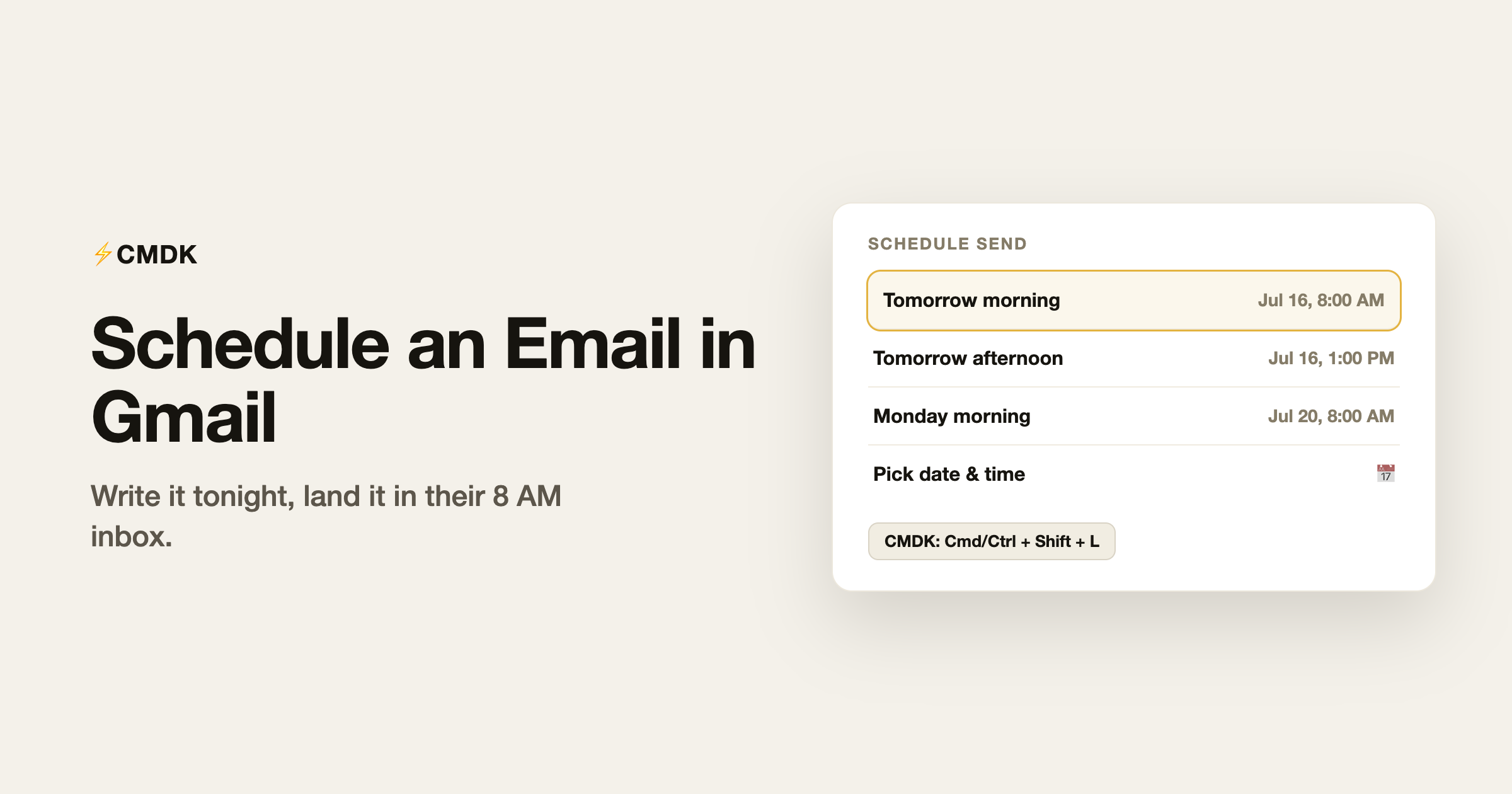
Schedule send is built into Gmail and hidden in plain sight: it lives behind the small arrow attached to the Send button, which is why half its users found it by accident. Write the email now, deliver it Monday at 8 AM. Here is every way to use it, its limits, and the faster keyboard route.
Prefer video? Set up undo send (30 seconds) and schedule send in two minutes:
On desktop
- Compose your email as usual.
- Click the arrow on the right edge of the Send button (do not click Send itself).
- Click Schedule send.
- Pick one of Gmail’s suggested times, or click “Pick date and time” for a calendar.
- Confirm. The email moves to the Scheduled folder in the left navigation.
Gmail’s suggested slots (tomorrow morning, tomorrow afternoon, Monday morning) cover most cases; the date-time picker handles everything else, including times years out.
On mobile (iPhone and Android)
- Compose the email in the Gmail app.
- Tap the three-dot menu in the top right.
- Tap Schedule send.
- Pick a suggested slot or “Pick date and time”.
The keyboard shortcut
Gmail has no native shortcut for schedule send; mouse-free senders hit a wall at that little arrow. With CMDK installed, Cmd/Ctrl + Shift + L opens schedule send directly from the compose window, and the rest of the flow stays on the keyboard. It is one of a set of compose shortcuts CMDK adds to Gmail that Gmail never shipped.
Editing or canceling a scheduled email
Scheduled emails are not locked in:
- Open the Scheduled folder in Gmail’s left navigation.
- Open the email.
- Click Cancel send. The email reverts to a draft.
- Edit if needed, then schedule it again or send immediately.
Cancel works any time before the delivery moment. Note that at the scheduled time the email sends regardless of whether you are online; Google’s servers handle the send.
The limits worth knowing
- 100 scheduled emails per account at any one time. Enough for humans, tight for newsletter-like use.
- Time zone is fixed at scheduling. “8 AM” means 8 AM in the time zone you scheduled from. If you fly from New York to London, your 8 AM email still sends at New York’s 8 AM.
- Recipients see the send time. A 6 AM scheduled email looks like a 6 AM email, with no trace of when you actually wrote it.
- Undo Send does not apply. Scheduled mail skips the undo window that normal sends get, so proofread before scheduling. If you catch a mistake after delivery, your options are the same as any sent email: few, and worth knowing.
When to schedule instead of send
Hitting the recipient’s morning. Email sent at 8 AM in the recipient’s time zone sits at the top of the inbox when they open it. Email sent at 11 PM is twenty scrolls deep by then.
Respecting boundaries without losing your evening. Write at 10 PM, schedule for 8:30 AM, and nobody feels pressure to reply at night. For managers this is close to mandatory: late-night mail from the boss reads as an expectation, whatever the disclaimer says.
Timing the follow-up. Write the follow-up while the context is fresh, schedule it for three days out. If the reply arrives before then, cancel it from the Scheduled folder. That pairs naturally with the follow-up playbook, and works even better with a reminder that fires only if nobody replies.
FAQ
How do I schedule an email in Gmail?
Compose the email, click the arrow next to the Send button, choose Schedule send, and pick a time. On mobile, the option is in the three-dot menu. The email waits in the Scheduled folder until delivery.
Can I edit a scheduled email in Gmail?
Yes. Open the Scheduled folder, open the email, and click Cancel send; it becomes a draft you can edit and reschedule. There is no direct edit-in-place, but cancel-edit-reschedule takes seconds.
Does Gmail schedule send work if my computer is off?
Yes. The send is executed by Google’s servers at the scheduled time, so your device can be off or offline.
Is there a keyboard shortcut for schedule send in Gmail?
Not natively. The CMDK extension adds Cmd/Ctrl + Shift + L in the compose window, which opens the schedule-send dialog without touching the mouse.
Why can’t I schedule more emails in Gmail?
Gmail caps scheduled mail at 100 messages per account. Cancel or let some send to free up slots; for bulk sending on a schedule, use a proper email platform instead.
Schedule send is one of a dozen compose actions CMDK puts on the keyboard. CMDK also adds snippets, follow-up reminders, and read receipts, so the whole write-send-follow-up loop runs without a mouse. Install it free.
Using a schedule-send extension? Compare CMDK vs Right Inbox against native Gmail + CMDK.




