
On a new email the subject line is a plain text field, so you type whatever you want. The moment you reply on an existing thread, that field disappears and Gmail keeps the old subject with a “Re:” in front of it. There is a way to change it, but Gmail tucks it behind a menu that most people never open.
Here is how to change or edit the subject line in every situation: a new email, a reply, and a forward.
Change the subject line on a new email
This is the easy case. When you press Compose, the new message window has a Subject field right under the recipients.
- Click Compose.
- Click the Subject field.
- Type your subject.
To replace a subject you already typed, click into the field, select the text with Cmd/Ctrl + A, and type the new one. Nothing here is hidden, which is why people rarely search for this part. The trouble starts with replies.
Change the subject line in a Gmail reply
When you reply to a message, Gmail attaches your reply to the same conversation and reuses the original subject. There is no visible Subject field in the reply box, so you have to reveal it.
- Open the email and click Reply (or Reply all).
- At the top of the reply box, next to the recipient names, click the small down arrow. Gmail labels this the “Type of response” menu.
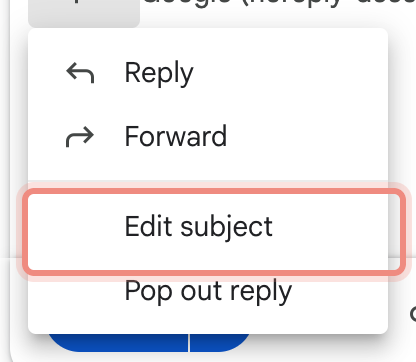
- Choose Edit subject.
- The reply opens as a pop-out window with an editable Subject field. Change the text to whatever you want.
- Finish your message and send.
The caret sits next to the recipient names at the top of the reply, and it is easy to miss:

Click it and the menu opens. Edit subject is the option you want:
Gmail then pops the reply out into its own window with an editable Subject field:

One thing to know before you do this: when you change the subject of a reply, Gmail treats it as a new conversation. The message leaves the original thread and starts its own, because Gmail groups messages by subject. That is usually what you want when a conversation has drifted onto a new topic and the old subject no longer fits.
If Edit subject is missing from the menu, you are looking at the wrong dropdown. It sits in the caret directly beside the To field of the open reply, not in the three-dot “More options” menu at the bottom of the compose box.
Change the subject line when forwarding
Forwarding works the same way as a reply, with the same hidden menu.
- Open the email and click Forward.
- Gmail fills the subject with “Fwd:” plus the original subject.
- Click the down arrow next to the recipients, then choose Edit subject.
- Edit the Subject field in the pop-out window, then send.
A forward already starts a fresh message rather than staying in the thread, so editing its subject does not split any conversation. You are free to rewrite it so the person you forward to knows what they are looking at.
The missing keyboard shortcut
Gmail has keyboard shortcuts for almost everything: r to reply, a to reply all, f to forward, c to compose. It has none for editing a subject. Every time you want to change the subject of a reply, you reach for the mouse, find the caret next to the recipients, open the menu, and click Edit subject. On a thread you rename often, that adds up.
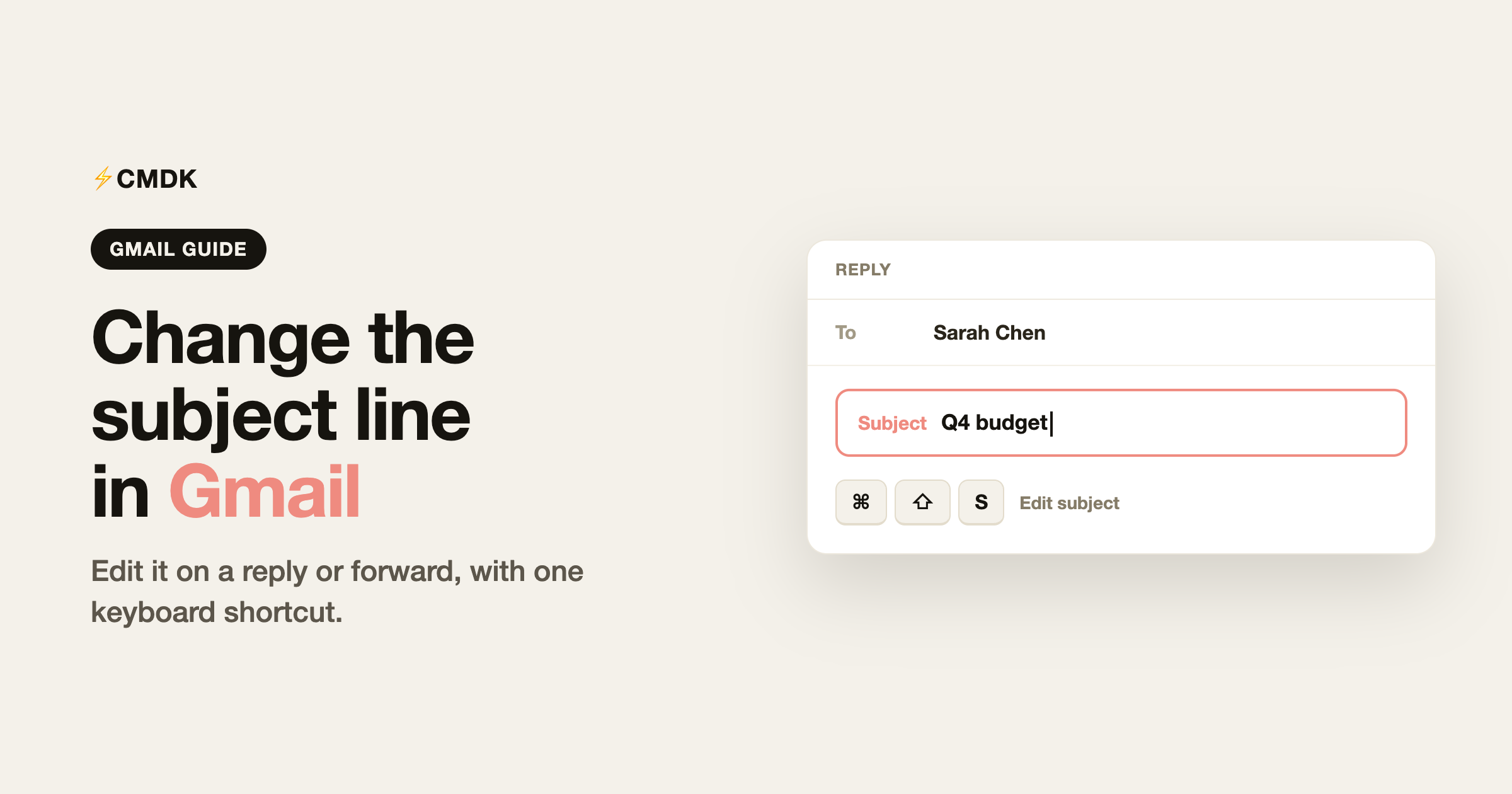
CMDK is a Gmail extension that adds the shortcut Gmail left out. While you are writing a reply or forward, press Cmd + Shift + S on a Mac or Ctrl + Shift + S on Windows, and it opens the subject field for you and puts your cursor in it. No hunting for the dropdown, no mouse. It runs the same Edit subject action Gmail already has, just bound to a key.
CMDK adds the rest of the keyboard-first layer too: a command bar, 25+ shortcuts for reply, archive, snooze and labels, snippets, and read receipts. Editing a subject is one small piece of it, but it is the piece Gmail makes needlessly slow.
Quick reference
- New email, any subject: type it in the Subject field under the recipients
- Reply, change the subject: caret next to recipients, then Edit subject (starts a new thread)
- Forward, change the subject: caret next to recipients, then Edit subject
- Reply or forward, by keyboard:
Cmd/Ctrl + Shift + Swith CMDK installed
Frequently asked questions
How do I change the subject line in Gmail?
On a new email, type it in the Subject field under the recipients. In a reply or forward, click the down arrow next to the recipient names, choose Edit subject, and change the text in the pop-out window that appears.
Can I change the subject line in a Gmail reply?
Yes. Click Reply, then click the small down arrow next to the recipients (the Type of response menu) and choose Edit subject. Gmail opens the reply with an editable Subject field. Changing it moves the message to a new conversation, since Gmail groups threads by subject.
Does changing the subject of a reply start a new thread?
Yes. Gmail groups messages into a conversation by their subject, so a reply with a changed subject no longer sits in the original thread. This is expected behavior and is helpful when the discussion has moved to a new topic.
How do I change the subject line when forwarding in Gmail?
Click Forward, then click the down arrow next to the recipients and choose Edit subject. Gmail starts a forward with “Fwd:” and the original subject, and you can rewrite it. A forward is already a new message, so nothing splits.
Is there a keyboard shortcut to change the subject in Gmail?
Gmail has no built-in shortcut for editing a subject. You have to use the Type of response menu with the mouse. CMDK adds one: Cmd/Ctrl + Shift + S opens the subject field of the reply or forward you are writing.
Related reading
- Gmail shortcuts cheat sheet: every shortcut on one page
- How to forward multiple emails in Gmail
- How to customize Gmail: layout, density, and a cleaner interface
If you rename reply subjects often, CMDK gives you the keyboard shortcut Gmail never shipped, along with 25+ other Gmail shortcuts, snippets, and read receipts. Install it free and press Cmd/Ctrl + Shift + S on your next reply.




