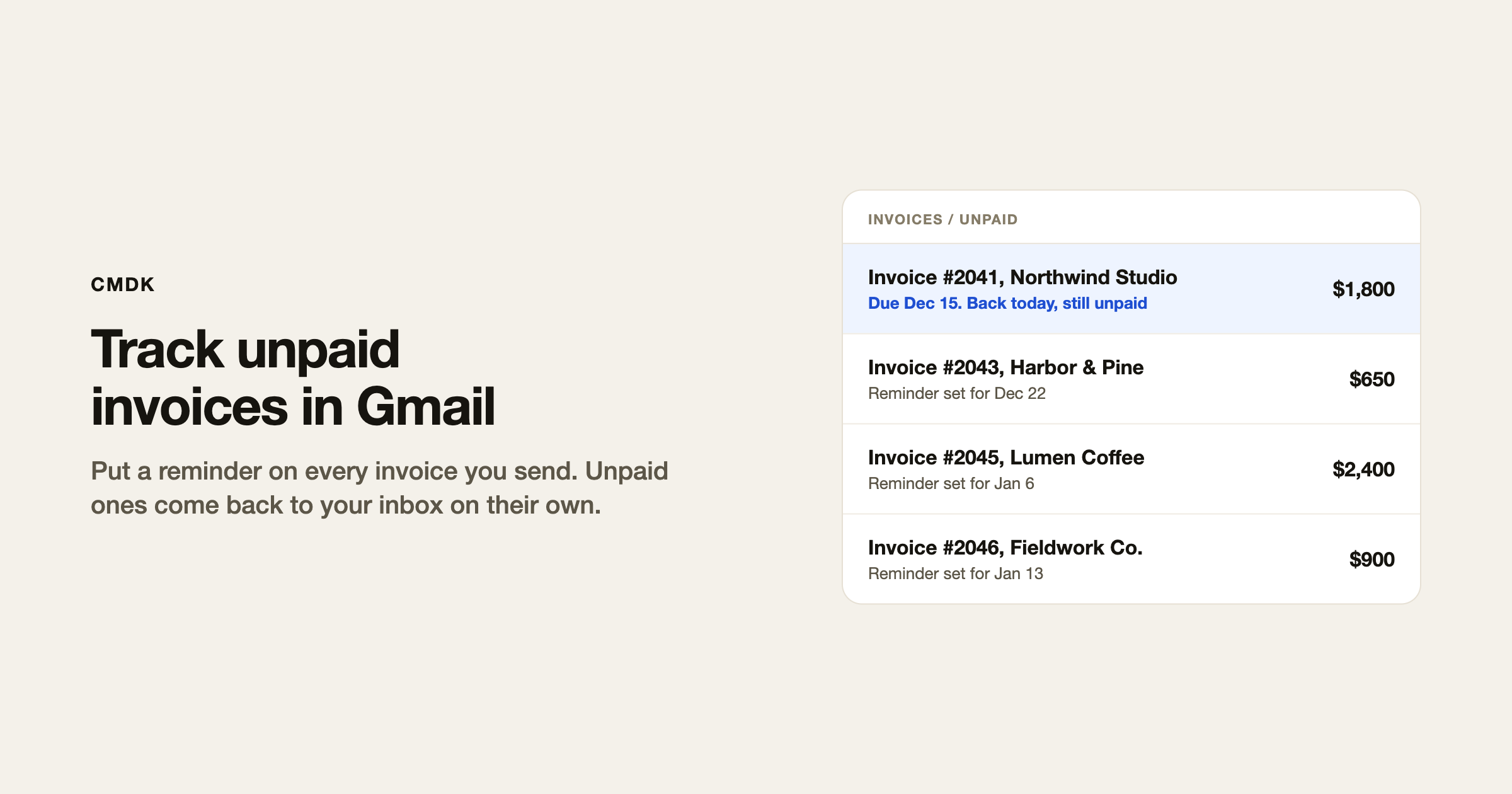
To track unpaid invoices in Gmail as a freelancer, put a reminder on every invoice email when you send it, set to the day after it’s due. If the client hasn’t paid or replied by then, the invoice comes back to the top of your inbox, so you never have to remember which ones are still open.
The usual system is a spreadsheet: client, amount, due date, paid or not. It works until a busy month, when you stop updating it. Then you find out in March that a December invoice was never paid, because the email went quiet and nothing reminded you.
Gmail already keeps the record: every invoice you send sits in your Sent folder with the amount and date. What it doesn’t do is bring an unpaid one back to you after the due date.
Step 1: Send every invoice with a reminder for the day after it’s due
When you email an invoice, decide right then when you want to see it again. The day after the due date works best: payment often lands on the due date itself, and checking a day later saves you a pointless nudge.
There are three ways to do this, from manual to automatic.
Option A: Snooze the sent email yourself
This is built into Gmail. After you send, open the Sent folder, open the invoice email, click the clock icon (or press B) and pick the date. When the date arrives, the thread returns to your inbox. A new reply from the client brings it back early.
This costs nothing. The gaps: you have to remember to go to Sent after every invoice, and anything past “next week” means scrolling a calendar picker. Miss it once and that invoice is untracked.
Option B: A task or calendar event
From the open email, add it to Google Tasks with a due date, or put a calendar event on the due date. The task links back to the email. The gap: the task doesn’t change when the client replies or pays, and you now check two lists.
Option C: A follow-up reminder in the compose window
Snooze & Follow-up Reminders for Gmail puts a clock in the compose window. Before you hit Send, click it and type when you want the email back, like “Dec 16” or “in 15 days”. If nobody replies by then, the invoice comes back to your inbox. If the client replies first, the reminder clears itself.
The reminder is set before the invoice leaves, so you can’t forget it, and you never open the Sent folder. Snooze is built on Gmail’s own snooze, needs no account, and never stores your emails or sends their content anywhere. Times are typed in English.
One catch with options A and C. If a client writes back “Got it, thanks”, the thread returns to your inbox and a follow-up reminder is cleared, even though nobody has paid. When that happens, snooze the thread to the day after the due date (press B and type the date).
Step 2: Keep a list of what’s still open
Reminders handle the timing. For a quick look at everything you’re owed, use labels.
- Create two labels: Invoices/Unpaid and Invoices/Paid.
- When you send an invoice, apply Invoices/Unpaid. In the compose window, open the three-dot menu, choose Label, and tick it.
- When a payment lands, swap it for Invoices/Paid.
Now label:invoices-unpaid lists every open invoice in one place, which replaces the spreadsheet. Gmail writes a nested label like Invoices/Unpaid as invoices-unpaid in search.
If you never labeled your old invoices, Gmail search can still find them:
| What you want | Gmail search |
|---|---|
| Every invoice you’ve sent | in:sent subject:invoice |
| Invoices sent with a PDF | in:sent subject:invoice has:attachment filename:pdf |
| Invoices for one client | in:sent subject:invoice to:(@clientdomain.com) |
| Invoices older than 30 days | in:sent subject:invoice older_than:30d |
| Invoices not yet marked paid | in:sent subject:invoice -label:invoices-paid |
This depends on the word “invoice” being in your subject lines, which is a good habit anyway: “Invoice #2041 from Rivera Design, due Dec 15” is easy to find, forward and pay. The Gmail search operators guide covers the rest.
Step 3: When an invoice comes back unpaid, send the right nudge
The invoice is back in your inbox. Before writing anything, check your bank or payment app: plenty of clients pay without replying. If it’s paid, skip to step 4.
If it isn’t, reply in the same thread, so the original invoice and amount sit right under your nudge. Then set a new reminder on that reply, so the next step comes back to you too. A simple ladder:
| When | What to send | Next reminder |
|---|---|---|
| Day after the due date | A warm payment reminder with the invoice attached again | In 7 days |
| One week late | A firmer second notice asking for a payment date | In 14 days |
| Three weeks late | A final notice, or a phone call | None, decide what you’ll do |
For the wording, use the copy-paste payment reminder, second notice and final notice in our invoice email templates. The same post has the first invoice email and a payment received confirmation.
If the client replies “paying Friday”, that reply clears the reminder. Snooze the thread to Saturday morning, and check that the money arrived.
Step 4: When it’s paid, close it out
Swap Invoices/Unpaid for Invoices/Paid and archive the thread. A one-line “Payment received, thank you” is worth sending: it confirms the amount on record and makes the next invoice go smoother.
Your Invoices/Unpaid label should now hold only invoices that are actually unpaid. Glance at it once a week. label:invoices-unpaid -in:snoozed shows the ones with no reminder waiting, and each of those needs one.
Save the invoice email itself
Your invoice email is probably the same few lines each time, with a different name, amount and due date. CMDK saves it as a snippet. Type ; and a few letters of its name in any compose window, and it drops in.
{first_name}fills in the recipient’s first name.{date+14d}writes the date 14 days from today, which works for net-14 terms.- Custom placeholders like
{amount}and{invoice_number}stay as highlighted blanks, and your cursor jumps to the first one.
A snippet can also carry a follow-up reminder. Set your invoice snippet’s reminder to your payment terms plus a day, like 15 days for net-14, and every invoice you send with it is tracked without a separate click. Save your three nudges the same way, each with the gap to the next step as its reminder. CMDK has snooze and follow-up reminders built in, so you don’t need both extensions.
Which to pick: if reminders are all you want, Snooze is $29 once, after 15 days free. If you also want the invoice and nudge templates, read receipts and the rest of CMDK, plans start at $9/month with a 15-day free trial.
Frequently asked questions
How do I track unpaid invoices in Gmail?
Put a reminder on each invoice email when you send it, set to the day after the due date, so unpaid invoices come back to your inbox on their own. Add an Invoices/Unpaid label for a list of everything open, and swap it for Invoices/Paid when the money lands.
When should I follow up on an unpaid invoice?
The day after it’s due, then a week later, then at about three weeks with a final notice. Set a new reminder each time you send a nudge so the next step comes back to you.
Can Gmail remind me if a client doesn’t reply to an invoice?
Not on its own. You can snooze the sent email by hand, and Gmail’s Nudges sometimes resurface unanswered emails, but Google picks which ones. A follow-up reminder extension lets you choose the date for each invoice when you send it.
What happens to the reminder if the client replies?
The reminder clears, because a reply usually means the conversation is moving. For invoices, a reply like “received, thanks” isn’t payment, so snooze the thread to the day after the due date when you get one.
Does this work on Firefox, Safari or my phone?
Snooze & Follow-up Reminders is Chrome only for now. CMDK works in Chrome, Edge, Firefox and Safari on the desktop. Reminders are set on your computer, but they use Gmail’s own snooze, so returned invoices show up in the Gmail app too.
Send your next invoice with a reminder already on it. Snooze & Follow-up Reminders brings unpaid ones back for $29 once (more on the Snooze page), and CMDK adds invoice snippets and the rest of the toolkit from $9/month.