
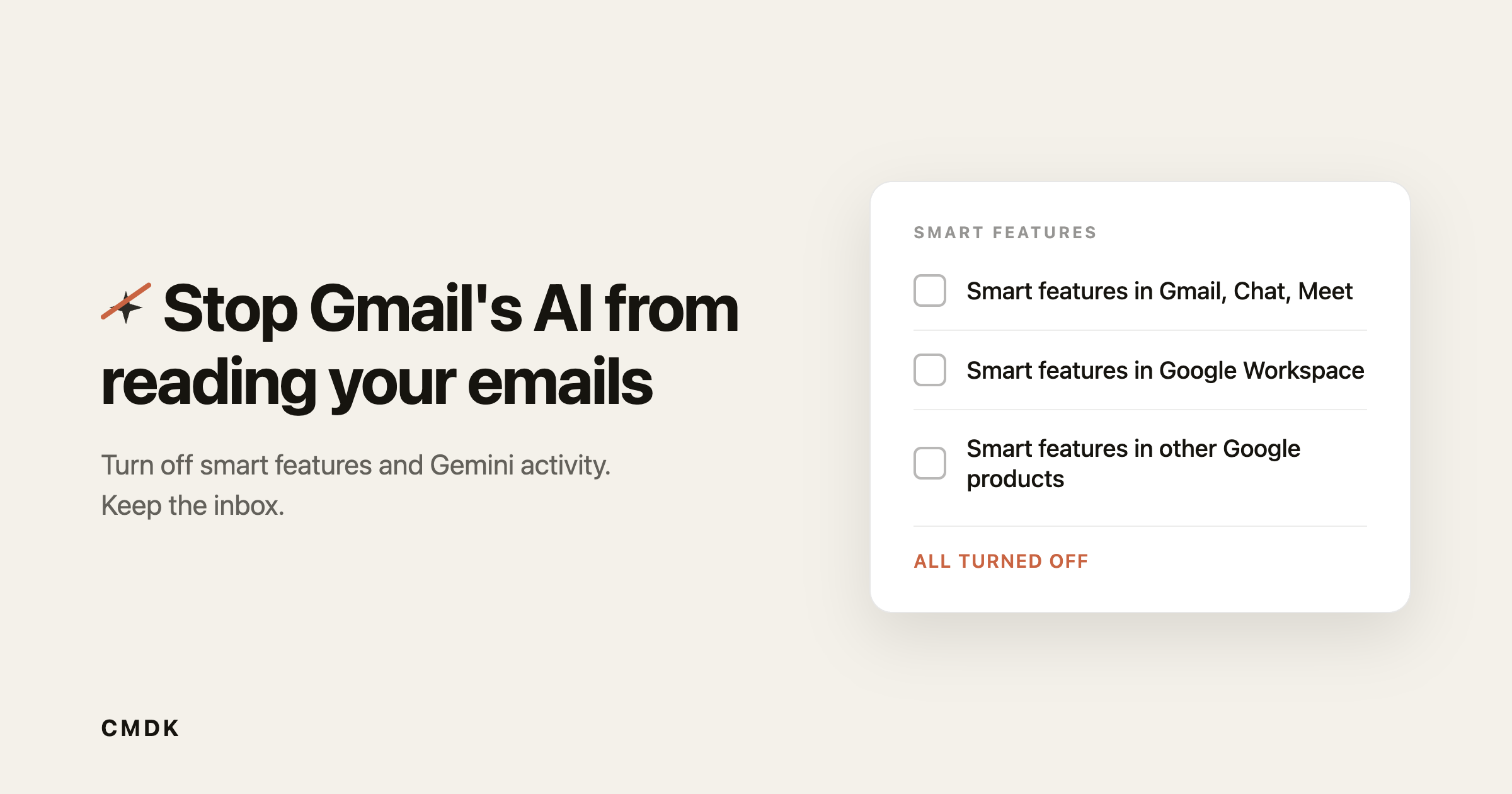
Gmail’s “smart features” let Google process the content of your emails and attachments to power things like Smart Compose, categories, and package tracking. You can turn that processing off in three places: the Gmail smart features setting, the Google Workspace smart features setting, and your Gemini activity. Here is exactly where each control lives, on desktop and phone, and what stops working when you switch it off.
Is Gmail using your emails to train AI?
No. Google says it does not use your Gmail content to train its Gemini AI model, and the security firm behind the November 2025 report that sparked the panic, Malwarebytes, corrected its article to say the same. What Gmail does do is analyze your messages to run its own in-product features, which it has done for years. That is a real form of data processing, and a fair thing to want off, but it is not model training and your settings were not secretly flipped.
So treat this as a privacy preference. There is no breach to react to. If you would rather Gmail not read your mail to personalize your experience, the switches below do that.
What Gmail’s smart features actually do with your email
When smart features are on, Gmail reads your messages and attachments to provide features inside Gmail, Chat, and Meet. That includes Smart Compose and Smart Reply, spam and category sorting, and summary cards. A second, separate setting extends that personalization to other Google products, such as adding a flight from a confirmation email to Google Calendar or Maps.
Two things make people uneasy. The word “smart” reads as “AI” at a time when Gemini is showing up across Google. And in January 2026 Google split the old single toggle into two independent controls, so the wording moved and some people found a setting on that they thought they had turned off. Turning the controls off stops the processing tied to them.
How to turn off smart features in Gmail (desktop)
This is the main switch, and it covers Gmail, Chat, and Meet.
- Open Gmail, click the gear icon, then See all settings.
- On the General tab, scroll to Smart features.
- Uncheck Turn on smart features in Gmail, Chat, and Meet.
- Scroll to the bottom and click Save Changes.
That stops Gmail from using your content and activity to personalize your experience inside those three apps.
How to turn off Google Workspace smart features (the second switch)
Turning off the first setting is not the whole job. A separate control governs whether your data personalizes other Google products, and it has its own two checkboxes.
- In the same General tab, scroll to Google Workspace smart features.
- Click Manage Workspace smart feature settings.
- Turn off Smart features in Google Workspace and Smart features in other Google products.
- Click Save.
With both settings off, Gmail stops feeding your content into Workspace and other Google products for personalization.
How to turn off smart features on your phone
The settings do not always match across devices, so check the app too.
- Open the Gmail app and tap the Menu (the three lines, top left).
- Tap Settings, then select the account you want to change.
- Under General, tap Google Workspace smart features and turn off both boxes.
- Look for Smart features and personalization in the same account settings and turn it off, then confirm.
Labels shift a little between Android, iPhone, and app versions, so match on the words “smart features” rather than an exact menu position.
How to delete your Gemini activity
If you have ever used the Gemini app or chatbot, those conversations can be saved to your account and a sample can be reviewed by humans. That is separate from Gmail’s smart features, and it has its own control.
- Go to myactivity.google.com/product/gemini.
- Turn off Gemini Apps Activity so future chats are not saved.
- Click Delete, then choose All time to clear past chats.
This stops new Gemini chats from being stored and removes the history you already have.
What you lose when you turn off smart features
Google bundled the AI you may not want with automation you probably use. Turning smart features off removes:
- Smart Compose and Smart Reply suggestions
- Spelling and grammar hints
- Automatic inbox categories and tabs
- Package tracking and flight or event details added to Calendar and Maps
Spam filtering and core Gmail keep working. If losing autocomplete and package tracking is not worth the privacy gain for you, you can leave the settings on and still get the AI clutter out of your way, which is the next section.
Remove the leftover AI without changing your account
The smart features settings control what Gmail processes. They do not change what shows on your screen. On many accounts the Gemini button, the AI Overview summary card, and the suggested-reply chips stay on screen even after you opt out. Those are interface elements, and Gmail gives you no setting to hide them.
CMDK is a Gmail extension with an Appearance section that hides the Gemini button, the AI Overview card, and the reply suggestions with one toggle each. It works entirely in your browser. It does not read or store your email content and it sends nothing to a server, so it removes the AI surfaces without adding a new party to your inbox. The full walkthrough is in our guide on how to turn off Gemini in Gmail.
Use the two together: the Google settings above stop the data processing, and CMDK clears the AI elements the settings leave behind.
Frequently asked questions
Does turning off smart features stop Gmail from reading my emails?
It stops the reading tied to personalization in Gmail, Chat, Meet, and other Google products. Gmail still processes messages for core functions like spam filtering and delivery, which do not turn off. For everything under the smart features settings, unchecking the boxes ends that processing.
Is Google smart features safe to leave on?
It is a personal call. There is no security flaw here. Google says the content is used to run in-product features and not to train its Gemini model. If you are comfortable with Gmail analyzing your mail to power autocomplete, categories, and tracking, leaving it on is fine. If you would rather it not, turn it off.
Were smart features turned on without my permission?
Google says it did not change anyone’s settings and that the features are opt-in. Some people did find a setting on after Google split one toggle into two in January 2026, so it is worth checking both the Gmail and Workspace controls yourself rather than assuming.
Will turning off smart features delete data Google already has?
No. The settings control future processing, not past data. To clear saved Gemini chats, use the Gemini activity steps above. For broader history, review the activity controls in your Google Account.
Can I stop the AI features on mobile only?
The smart features settings sync across devices, so turning them off on desktop usually turns them off on your phone as well. Check the Gmail app separately anyway, since the controls do not always match across devices.
If Gmail’s AI has been reading your mail since Google switched the features on, take back both halves: turn off smart features in your settings, then install CMDK to clear the AI panels the settings leave on screen.




