
Quick answer: To set reminders in Gmail, snooze the email (hover over it and click the clock, or press B) and pick when it should come back to your inbox. Gmail can’t remind you about a specific email you sent if nobody replies, and its snooze only offers preset times. Snooze & Follow-up Reminders for Gmail adds both: type a time like ‘friday 2pm’, and get any sent email back if there’s no reply. It costs $29 once, after a free 15-day trial.
There are three kinds of Gmail reminder, and each needs a different tool:
- Remind yourself about an email you received: snooze it.
- Remind yourself to follow up on an email you sent: set a follow-up reminder.
- Remind someone else: write a reminder email and schedule it.
1. How to set a reminder on an email in Gmail (snooze)
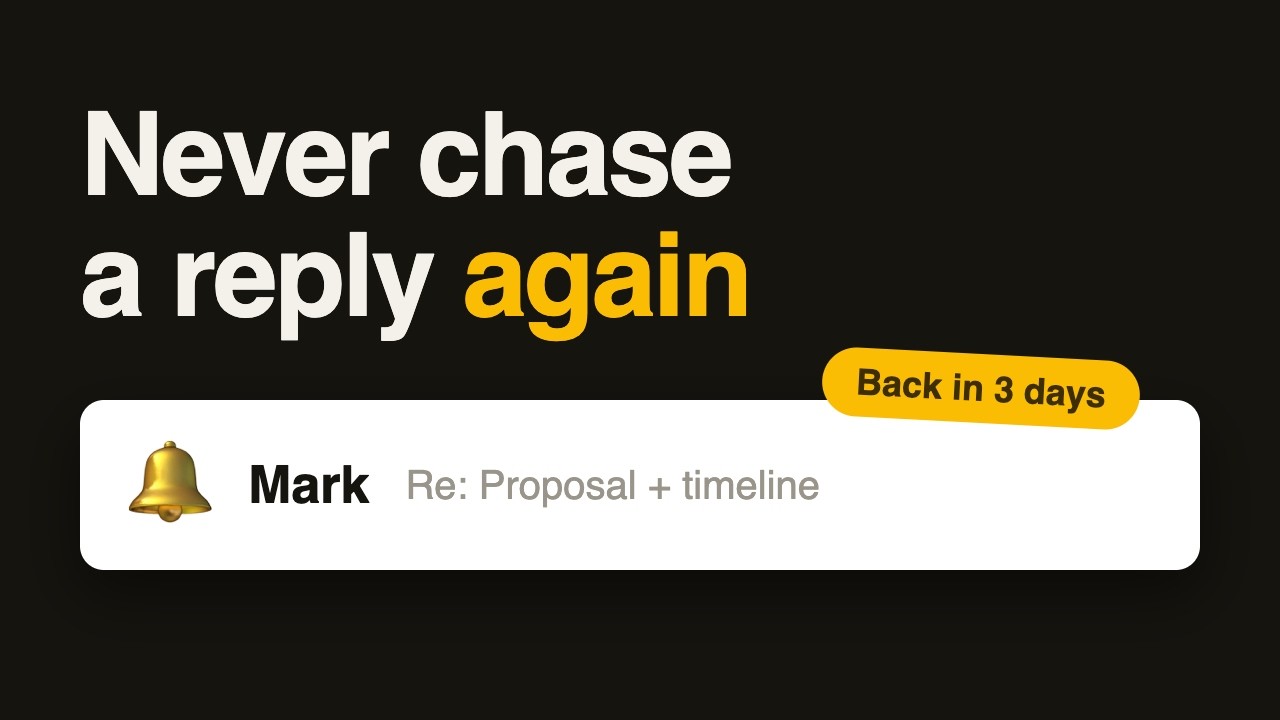
Snooze hides an email and brings it back to the top of your inbox at the time you choose. It is Gmail’s built-in reminder.
- On desktop, hover over the email and click the clock icon. In an open email, the clock is in the top toolbar. With keyboard shortcuts on, press B.
- Pick a preset (Later today, Tomorrow, This weekend, Next week) or click Pick date & time.
- On the Gmail app, open the email, tap the three dots, then Snooze.
Snoozed emails wait in the Snoozed folder in the left sidebar, or search is:snoozed. To cancel, open the email and click Unsnooze.
The catch: anything that isn’t a preset takes a calendar and a time picker. With Snooze & Follow-up Reminders, press B and type ‘tuesday 2pm’ or ‘in 3 hours’. It uses Gmail’s own snooze, so snoozed emails still come back if you ever remove it.
2. How to set a follow-up reminder in Gmail if nobody replies
Gmail has no reminder you can set on a specific sent email. Its Nudges (Settings, General, Nudges) sometimes float an unanswered email back with ‘Sent 3 days ago. Follow up?’, but Google’s AI decides which emails get one and when.
To choose for yourself:
- Install Snooze & Follow-up Reminders for Gmail (free for 15 days, no card).
- In a new email, click the clock and type when you want to be reminded, like ‘friday’.
- Send. If nobody answers by then, the email comes back to your inbox. If they reply first, the reminder clears itself.
CMDK has the same follow-up reminder, along with keyboard shortcuts, snippets and read receipts: press Cmd+Shift+H (Ctrl+Shift+H on Windows) in the compose window, type when, and send.
For what to write when it comes back, see follow-up email templates after no response.
3. How to send a reminder email to someone in Gmail
To remind someone else, write the email and schedule it: click the arrow next to Send, choose Schedule send, and pick a date and time. A short template:
Subject: Quick reminder: [thing] due [date]
Hi [Name], a quick reminder that [thing] is due on [date]. Could you send it over by then, or let me know if the date needs to move? Thanks, [You]
Then set a follow-up reminder on that email too, so you hear about it if they don’t answer.
Frequently asked questions
Can you set reminders in Gmail without an extension?
Yes, with snooze, Nudges and Schedule send. What Gmail can’t do is snooze to a time you type or remind you about a chosen sent email when there’s no reply.
Do Gmail reminders work on my phone?
Snoozed emails come back on every device, including the Gmail app, because the extension uses Gmail’s own snooze. You set reminders on your computer.
Do I need CMDK for this?
No. If snooze and follow-ups are all you want, Snooze & Follow-up Reminders is $29 for life. CMDK includes them along with 80+ keyboard shortcuts, read receipts and a command bar.
To snooze to a time you type and get reminded when nobody replies, try Snooze & Follow-up Reminders for Gmail free for 15 days. For the same reminders plus 80+ keyboard shortcuts, snippets and read receipts, install CMDK.