
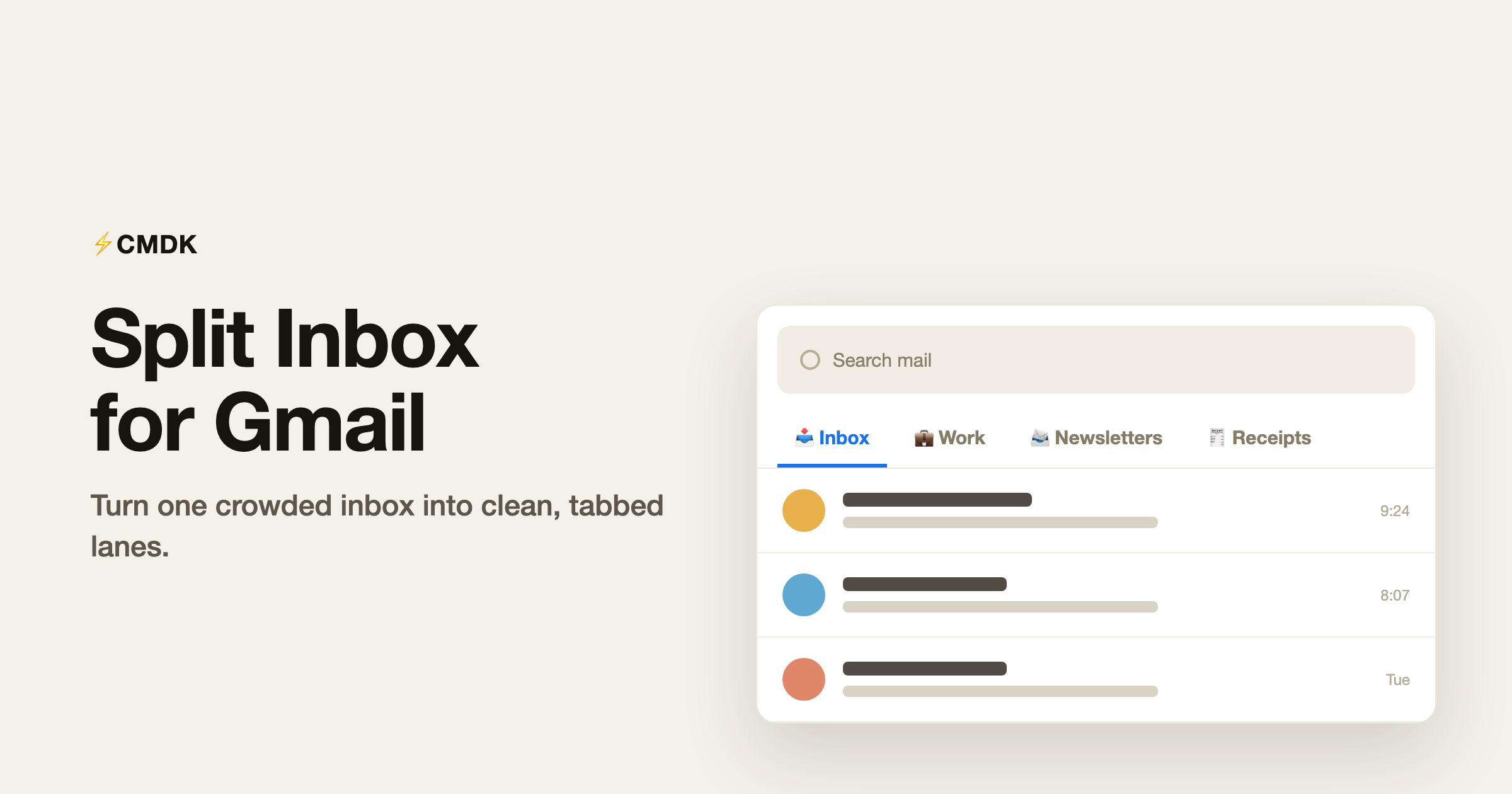
Gmail multiple inboxes is what you want when one list is too much. Gmail’s built-in version stacks extra panes from Settings. Tabs across the top are the other way: newsletters, your team, receipts, and VIPs, each in its own lane. If you have used Superhuman, that tab bar is the Split Inbox you miss after leaving.
You can get the same thing right inside Gmail, without switching email clients, using CMDK. Here’s what it does, how to set it up, and a few tab setups worth stealing.
What a split inbox actually is
A split inbox breaks your one inbox into separate views you can click between. Instead of scrolling a single long list and triaging by hand, you get tabs like Inbox, Work, Newsletters, and Receipts, and each tab shows only the mail that belongs there.
Superhuman made the name popular, but the idea is older than that. People have always wanted to keep “stuff I need to reply to” away from “stuff I’ll read later.” A split inbox just makes that split visible at the top of your screen.
CMDK adds this to Gmail directly. You get a tab bar across the top of your inbox, and each tab is a saved view of your mail.
How CMDK’s split inbox (or Tabs) works
In CMDK, each tab is a saved Gmail search.
Click a tab, and CMDK runs that search and shows you the results. That’s the whole thing. A few things follow from that:
- Your emails don’t move. Nothing gets archived, labeled, or deleted to make a tab work. A tab is just a filtered view.
- It’s invisible to the rest of Gmail. Open Gmail on your phone or in another browser and everything’s exactly where you left it.
- You can build a tab out of anything Gmail can search: sender, subject, label, keyword, attachments, dates, read or unread, or any mix of those.
CMDK starts you with three default tabs: Inbox, Calendar (anything with a calendar invite), and Read Receipts (emails you sent with a receipt attached). Turn those on or off, then add your own.
How to set up split inbox in Gmail
Setup takes about two minutes.
- Open Gmail with CMDK installed. You’ll see the tab bar across the top of your inbox.
- Search for the mail you want to group. For example, type
from:stripe.comoris:unread label:workinto Gmail’s search box. - Click the + at the end of the tab bar. CMDK reads your current search, suggests a name and an icon, and opens a short editor so you can tweak them.
- Save. Your new tab shows up in the bar.
To manage things later, click the gear icon at the end of the bar. You can rename tabs, drag them to reorder, delete the ones you don’t use, switch the bar between light, dark, and transparent, and turn the default tabs on or off.
One thing to remember: after you add or change a tab, reload Gmail so the change takes effect.
Tab setups worth stealing
The hard part of a split inbox isn’t the setup, it’s deciding what your tabs should be. Here are a few that work well. Each one is just a Gmail search you drop into a new tab.
- To reply:
is:unread in:inbox -category:promotions. The mail that actually needs you, minus the marketing noise. - VIPs:
from:([email protected] OR [email protected]). The handful of people you never want to miss. - Newsletters:
category:updates OR label:newsletters. Everything you’ll read later, out of the main flow. - Receipts:
subject:(receipt OR invoice OR order) has:attachment. Handy at expense time. - Waiting on:
label:waiting. Pair it with a “waiting” label you put on threads where the ball is in someone else’s court. - Attachments this week:
has:attachment newer_than:7d. A quick way to find that file someone sent you.
If you can describe the mail in Gmail’s search box, you can make a tab for it. Google’s list of search operators is a good reference when you want to get specific.
Switch tabs from the keyboard
Once your tabs are set, you don’t need the mouse. Press Tab to move to the next tab and Shift + Tab to go back. It keeps the whole triage flow on the keyboard, which is rather the point of CMDK.
How this compares to Gmail’s built-in Multiple Inboxes
Gmail does have a native feature called Multiple Inboxes (Settings, then See all settings, then Inbox, then set Inbox type to Multiple inboxes). It splits your screen into extra sections, each showing the results of a search you define. It works, but it is limited: you get up to five sections, they are stacked around your main inbox rather than shown as tabs you click between, and the setup lives deep in Gmail’s settings.
CMDK’s split inbox takes the same idea and makes it feel like a modern email client. Instead of fixed panels crowding one screen, you get a clean tab bar across the top, you switch between lanes with a click or the keyboard, and you add a tab straight from any Gmail search in two clicks. If you tried Gmail’s Multiple Inboxes and found it awkward, this is the friendlier version.
Coming from Superhuman?
If you’re leaving Superhuman to save the $30 a month, the split inbox is usually the feature people worry about losing. CMDK covers it, with two differences.
Superhuman’s Split Inbox lives in a separate email client you have to migrate into. CMDK’s tabs sit inside the Gmail you already use, so there’s no migration and no new app to learn. Your labels, filters, and existing setup stay exactly as they are, and the tabs sit on top.
You also get the rest of CMDK along with it: the command bar, over a hundred Gmail keyboard shortcuts, snooze, and read receipts. It starts at $7.49 a month, roughly a quarter of Superhuman’s price.
A few common questions
Can you have multiple inboxes in Gmail?
Yes. Gmail has a native Multiple Inboxes setting that adds a few search-based sections around your inbox, and CMDK offers a cleaner version: a tab bar across the top of Gmail where each tab is its own saved view. Both let you see different slices of your mail without leaving Gmail.
Does a split inbox move or delete my emails?
No. Each tab is a saved search, so it only changes what you’re looking at. Your mail stays where Gmail put it.
Does it work across my devices?
Your tab setup syncs to your account, so it follows you between computers. The tab bar shows up wherever you use Gmail with CMDK installed on a desktop browser.
Can I use it with more than one Gmail account?
Yes. Each Gmail account gets its own tabs, and you pick which account you’re setting up from the settings page.
How many tabs can I have?
As many as you find useful. Most people land on four to six before the bar starts to feel noisy.
Is split inbox part of the free plan?
Tabs are part of CMDK’s paid plan. You can try CMDK and see the full feature set before you decide.
Try it on your own inbox
Instead of one wall of mail, you get a few clean lanes and a keyboard shortcut to move between them.
Install CMDK, open Gmail, and build your first tab. Two minutes from now your inbox will be sorted into views that match how you actually work.
Related reading
Prefer an AI to do the sorting for you? Read our Fyxer AI review for what that costs and where it works.




