
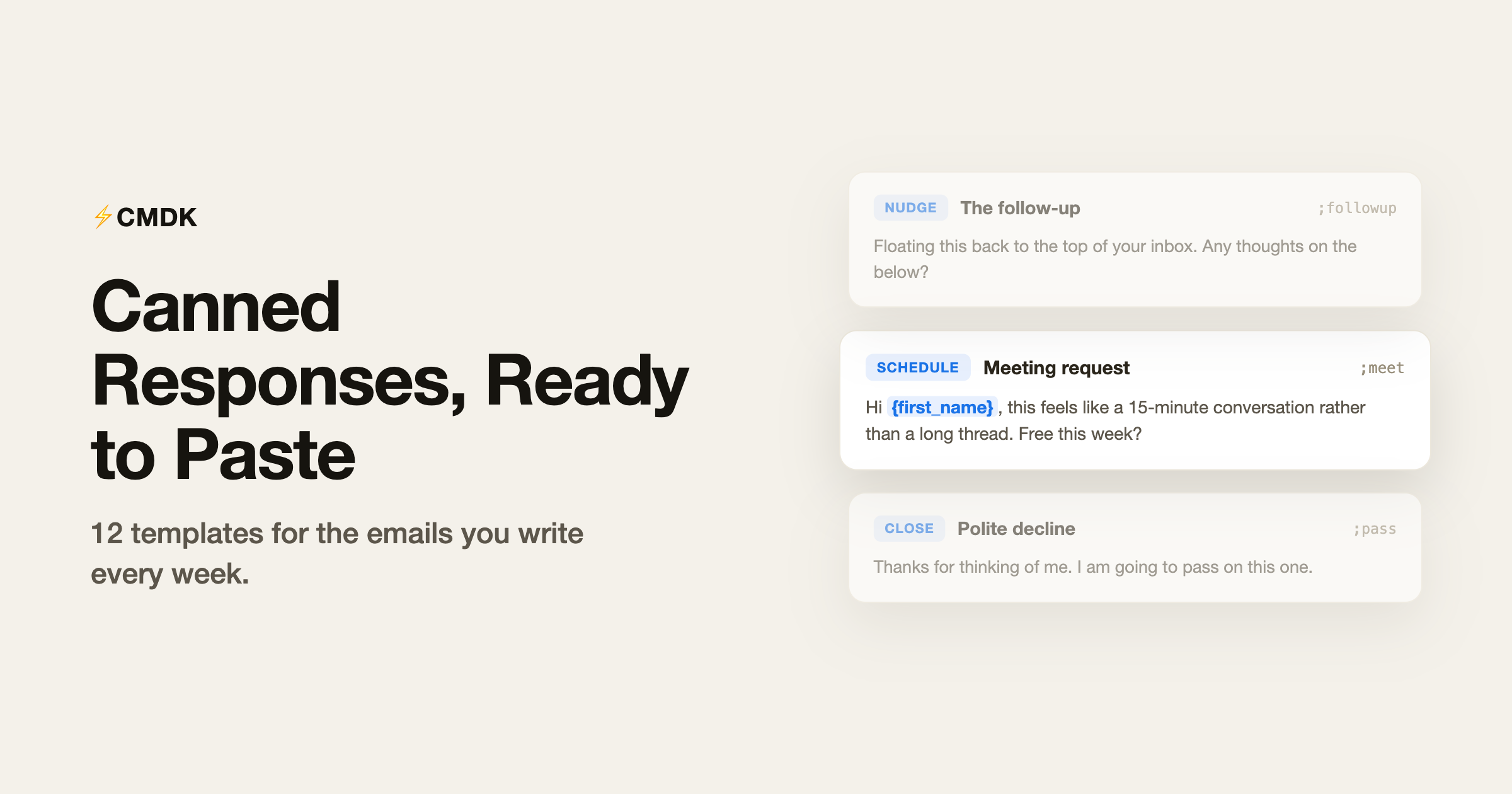
Quick answer: Turn on Gmail Templates in Settings → Advanced, save a reply once, then insert it from the compose ⋮ menu or with a tool like CMDK snippets (type ; in compose). The twelve examples below cover follow-ups, declines, and meeting requests.
A canned response is a prewritten email you save once and reuse every time the same situation comes up. The follow-up nudge, the meeting request, the polite decline. You already write these emails weekly; the only question is whether you retype them every time or keep them one keystroke away.
Watch the whole workflow, from creating a snippet to inserting it in a reply:
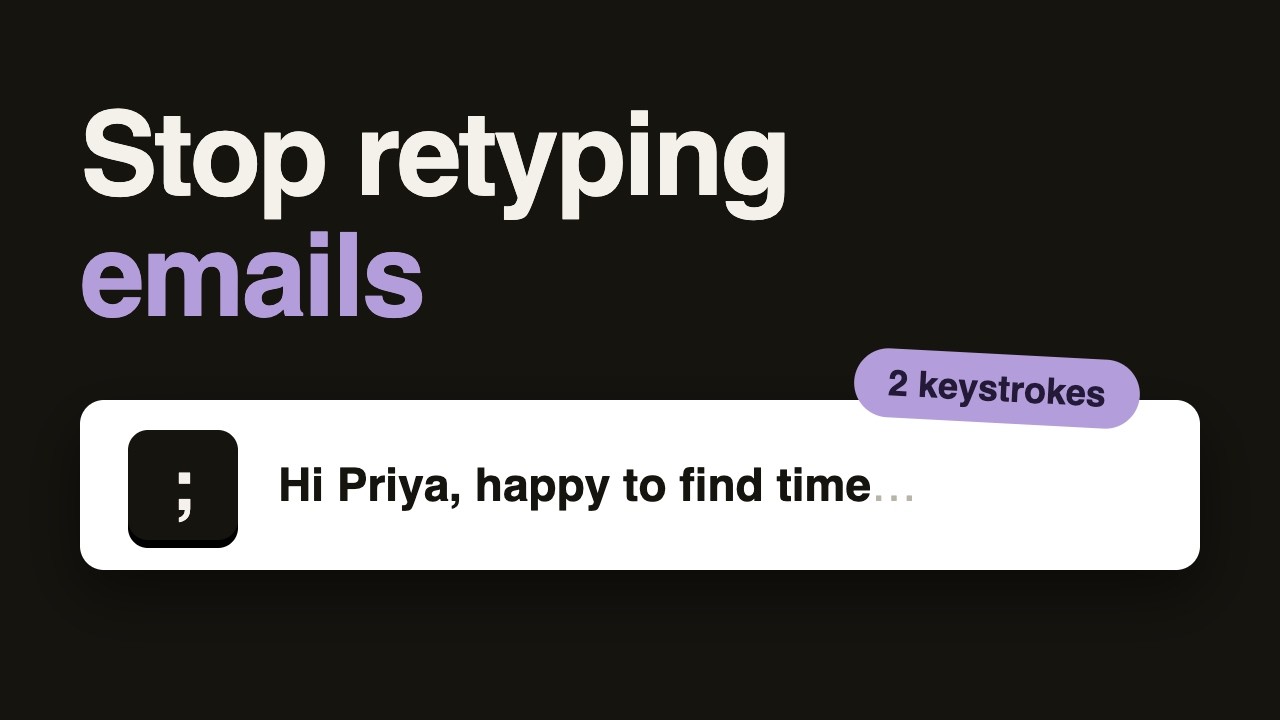
This page is a working library. Every example below is ready to copy into Gmail as-is. The placeholders in {braces} mark the spots you personalize, and if you save these as CMDK snippets, the name and date placeholders fill themselves in automatically when you insert them.
Need something more specific than the universal templates here? We keep two deeper libraries:
- Sales email templates: cold outreach, follow-up sequences, pricing and proposal emails.
- Customer service email templates: first responses, bug reports, refunds, apologies, and de-escalation.
What makes a canned response good
Before the examples, three rules that separate templates people appreciate from templates people can smell:
- Short beats complete. A canned response should handle the 80 percent case in under 100 words. Edge cases get a real email.
- Personalize two things minimum. The name and one specific detail. A template with a real first name and a real reference reads like a fast reply, not a form letter.
- One clear next step. Every canned response should end with exactly one thing the reader does next: pick a time, reply with a detail, or do nothing because you closed the loop.
The 12 canned responses everyone needs
1. Acknowledgment: got it, working on it
Use it when you cannot answer properly yet but do not want to leave silence.
Hi {first_name},
Got your note. I am on it and will get back to you by {date+2d} with a proper answer.
Thanks for your patience.
2. The follow-up nudge
Use it three or four days after an email that went unanswered.
Hi {first_name},
Floating this back to the top of your inbox. Any thoughts on the below?
If now is a bad time, tell me when to check back and I will.
3. Meeting request
Use it when the thread has gone past three replies and a call would be faster.
Hi {first_name},
This feels like a 15-minute conversation rather than a long thread. Are you free this week?
Here is my calendar: {calendar_link}. Grab any slot that works.
4. Scheduling confirmation
Use it to lock a meeting and prevent the “wait, what time zone” reply.
Hi {first_name},
Confirmed: {date}, {time} {timezone}. I have sent a calendar invite with the video link.
If anything changes on your end, just reply here.
5. The warm introduction
Use it when you connect two people, with both on the thread.
Hi {name_1}, meet {name_2}.
{name_1} is {one_line_context}. {name_2} is {one_line_context}.
I will let you two take it from here. Happy connecting!
6. Reply to an introduction
Use it when someone introduces you, and move the introducer to BCC.
Thanks {introducer_first_name}! Moving you to BCC to spare your inbox.
{first_name}, great to meet you. {one_line_about_why_this_is_relevant} Do you have 20 minutes this week or next?
7. The polite decline
Use it for offers, pitches, and invitations you want to close kindly but firmly.
Hi {first_name},
Thanks for thinking of me. I am going to pass on this one; it is not a fit for what we are focused on right now.
Wishing you luck with it.
8. The graceful reschedule
Use it when you need to move a meeting without a paragraph of apology.
Hi {first_name},
I need to move our {date} meeting. Apologies for the shuffle.
Could we do {option_1} or {option_2} instead? Pick whichever suits and I will update the invite.
9. Payment reminder
Use it when an invoice is past due and you want to stay friendly.
Hi {first_name},
A quick reminder that invoice {invoice_number} for {amount} was due on {due_date}. The original is attached.
If payment is already on its way, ignore me. If anything is blocking it, tell me and we will sort it out.
10. Thanks after a meeting
Use it within a day of any meeting worth having.
Hi {first_name},
Thanks for the time today. My takeaways: {takeaway_1} and {takeaway_2}.
Next step on my side is {next_step}, which you will have by {date+3d}.
11. Out of scope, here is who can help
Use it when the request is real but not yours to handle.
Hi {first_name},
This one is outside what I can help with, but {referral_name} ({referral_email}) handles exactly this. I have CC’d them here.
Leaving you in good hands.
12. Closing the loop after no response
Use it as the last email in a follow-up sequence. It gets more replies than another nudge.
Hi {first_name},
I have not heard back, so I will assume the timing is not right and stop nudging.
If this becomes relevant again, my door is open. Just reply to this thread.
How to save these in Gmail
Gmail has a built-in Templates feature, hidden in Settings under Advanced. It works, but it is static text behind several clicks: no name filling, no dates, no subject lines, and you dig through a menu every time. Fine for one or two templates, painful for a library.
The faster route is saving these as CMDK snippets. You type a semicolon in any compose window, a couple of letters of the snippet name, and press Enter. The template drops in with {first_name} already replaced by the recipient’s actual name and {date} replaced by the real date. Snippets can also carry a subject line, CC list, and an automatic follow-up reminder, so “canned response” starts to mean the whole email, not just the middle of it. The full snippets guide covers how they work.
Common questions
What is a canned response?
A canned response is a prewritten reply you save and reuse for situations that repeat: follow-ups, scheduling, declines, reminders. Instead of retyping the same email, you insert the saved version and personalize a detail or two before sending.
Are canned responses unprofessional?
No, slow replies are unprofessional. A good canned response is simply your best version of an email you have already written fifty times. As long as you personalize the name and one specific detail, nobody can tell and nobody would mind.
Does Gmail have canned responses built in?
Yes, Gmail’s Templates feature (Settings, then Advanced, then enable Templates) saves static blocks of text you insert from the compose menu. It cannot fill in names or dates and takes a few clicks per use, which is why heavy emailers usually move to a snippets tool.
How many canned responses should I have?
Start with the five you reach for weekly, usually a follow-up, a scheduling email, an acknowledgment, a decline, and a thanks. Add one whenever you catch yourself writing the same email a third time. Most people plateau at 15 to 25.
Stop retyping, start inserting
Copy the templates you need from this page, or grab the deeper stacks in the sales library and the customer service library.
Then make them fast: install CMDK, save your five most-used responses as snippets, and the next time the situation comes up, the email is one semicolon away.
Related reading
Free Gmail signature generator: build yours in 60 seconds
Templates cover the middle of the email; for the last line, see our guide on how to end an email with 60 sign-offs by situation.
Related reading
- Thank you email after an interview: 8 templates that work
- Subject line tester: score your subject before you send
Tracking whether a template got opened? See Gmail read receipts.




