
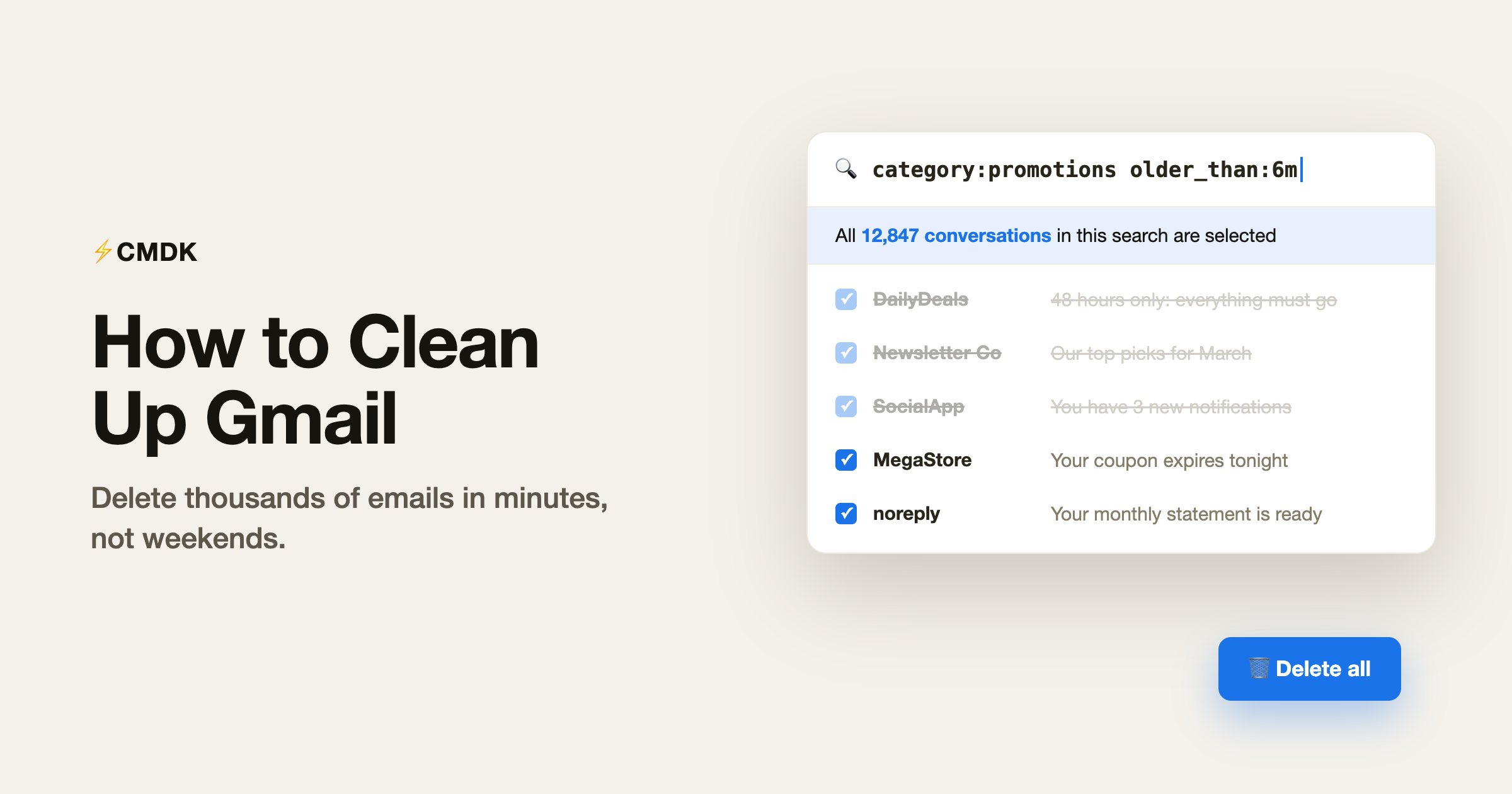
A Gmail account that has been running for ten years holds tens of thousands of emails, and almost all of them are newsletters, receipts, and notifications you never needed to keep. Cleaning that up one page at a time would take days. Cleaning it up with search operators and bulk actions takes about an hour, and most of that hour is Gmail doing the deleting while you make coffee.
This guide walks through the full cleanup in seven steps, in the order that removes the most email with the least effort. Each step works with plain Gmail. Where a step gets faster with CMDK, we say so.
Prefer to watch first? The whole cleanup, including the Nuke button, in just over two minutes:
Step 1: Find out what is actually filling your inbox
Before deleting anything, spend two minutes looking at the shape of the problem. Type each of these into Gmail’s search bar and note the result counts:
category:promotionsshows marketing emailcategory:socialshows social media notificationsolder_than:2yshows everything more than two years oldlarger:10Mshows emails with big attachments
For most people, promotions plus social plus everything older than two years covers 80 percent or more of the inbox. That is your target list. You now know exactly where the volume is, so you can delete by category instead of by scrolling.
Step 2: Mass delete by search, not by scrolling
This is the step that removes thousands of emails in one action. Run one of the searches above, click the select-all checkbox at the top of the list, then click the link Gmail shows that says “Select all conversations that match this search.” That last click is the one people miss: without it you are only deleting the 50 emails on screen. With it, you are deleting every match, whether that is 500 or 50,000.
Good first targets:
category:promotions older_than:6mdeletes old marketing email while keeping recent offersfrom:noreply older_than:1ydeletes old automated mailcategory:socialdeletes social notifications, which nobody rereads
Deleted mail sits in Trash for 30 days before it is gone for good, so a mistake here is recoverable. The full search-and-delete workflow, including what to check before you pull the trigger, is in our guide to mass deleting emails in Gmail.
Step 3: Clear out large attachments
Attachments are where the storage went. A thousand newsletters weigh less than one email with a video attached. Search larger:10M, sort through the results, and delete what you no longer need. If something matters, download it or move it to Drive first.
Work down in size: larger:10M, then larger:5M, then larger:2M. Each pass gets more results and smaller wins, so stop when the effort stops paying. Our guide to finding and deleting large Gmail attachments covers the search operators in more detail.
Step 4: Unsubscribe so the mess stops coming back
Deleting promotions without unsubscribing means you repeat this cleanup in six months. As you go through the remaining marketing email, unsubscribe from every list you have not read in the last month.
Gmail shows an Unsubscribe button next to the sender name on most marketing email. It works, but only one email at a time. To clear a whole inbox worth of subscriptions in one sitting, see how to unsubscribe from emails in Gmail in bulk.
The subscription audit: count the lists you are on
Before purging anything, get a number. Three ways to count, fastest first:
- Gmail’s Manage subscriptions view. In the left sidebar under More, Manage subscriptions lists every frequent sender sorted by volume, with a one-click unsubscribe next to each. It only counts senders Gmail recognizes as mailing lists, so treat its number as a floor.
unsubscribe newer_than:6min the search bar shows every mailing-list email from the last six months. The result count is your six-month subscription volume; a four-figure count is common in an inbox that has never been audited.category:promotions newer_than:1mshows which lists are active right now. Scan the sender column and count the distinct names. Most people land between 20 and 30, in line with the averages on our email statistics page.
With the number in hand, run the 15-minute purge:
- Work through Manage subscriptions (or your promotions senders) top to bottom and unsubscribe from everything you have not opened in the last month. The lists you actually read survive; everything else goes.
- For senders with hundreds of accumulated emails, unsubscribe and then clear the backlog in one search:
from:[email protected], select all, delete. - Recount next quarter. If the number grew back, the filters in step 7 are the fix.
Step 5: Nuke the repeat offenders
Every inbox has a handful of senders responsible for hundreds of emails each: the daily deal site, the social network, the newsletter that publishes twice a day. For those, CMDK’s Nuke does two things in one click: it blocks the sender and deletes every email they have ever sent you. Ten nukes typically clears more space than an hour of manual searching, because you are removing the highest-volume senders at the source. If you nuke someone by mistake, it can be undone.
Step 6: Empty Trash and Spam
Nothing you deleted counts against your storage until it leaves Trash. Open Trash, click “Empty Trash now,” and do the same in Spam. If you started this cleanup because Gmail warned you about storage, this is the step where the meter actually moves. Skip the 30-day wait only if you are sure; once Trash is emptied, the mail is gone.
Step 7: Set up filters so you never do this again
Filters are the difference between a one-time cleanup and a clean inbox. Three filters cover most of the future mess:
- Emails containing the word “unsubscribe” skip the inbox and get a Newsletters label. You can read them when you choose to.
- Mail from
noreplyaddresses skips the inbox. Receipts and confirmations stay searchable without interrupting you. - Senders you tried to unsubscribe from but who keep mailing get deleted on arrival.
Setting these up takes five minutes. The complete guide to Gmail filters and rules walks through each one.
If storage is the real problem
The red “storage full” warning changes the job: Gmail stops receiving mail entirely until you get under the limit, so speed matters more than thoroughness. Do steps 3, 5, and 6 first, in that order, and check Google Photos and Drive too, since all three share the same 15GB. The fast version is in Gmail storage full? How to free up space in 5 minutes.
The ten-minute weekly routine
Once the big cleanup is done, keeping Gmail clean takes ten minutes a week:
- Unsubscribe from anything new you did not read
- Delete or archive everything left in Promotions
- Nuke any sender that showed up three times with nothing you wanted
With CMDK, this routine runs from the keyboard: Del deletes the email under your cursor, E archives it, and the 🚫 button nukes the sender. No checkboxes, no menus.
Frequently asked questions
How do I delete thousands of emails in Gmail at once?
Search for what you want to delete (for example category:promotions or older_than:2y), click the select-all checkbox, then click “Select all conversations that match this search” and delete. Gmail removes every match, not just the visible page.
Does deleting emails free up Gmail storage immediately?
No. Deleted emails sit in Trash for 30 days and still count against your storage until then. To free space immediately, empty the Trash folder after deleting.
How do I clean up Gmail without deleting something important?
Delete by narrow searches instead of broad ones. category:promotions and from:noreply are safe because they only match marketing and automated mail. Anything you delete stays in Trash for 30 days, so you have a month to catch mistakes.
How long does a full Gmail cleanup take?
About an hour for a typical years-old inbox. The bulk deletes in steps 2 and 3 do most of the work, and Gmail processes them in the background while you move on.
Why is my Gmail storage full even after deleting emails?
Either Trash has not been emptied, or the space is being used by Google Drive and Google Photos, which share the same 15GB quota. Check storage at one.google.com to see the split.
How do I see all my email subscriptions in Gmail?
Open Manage subscriptions under More in Gmail’s left sidebar to see frequent senders with one-click unsubscribe. For a fuller count, search unsubscribe newer_than:6m, which matches every mailing-list email from the last six months.
Ready to clean up faster than Gmail’s menus allow? CMDK adds one-key delete and archive, sender nuking, and a command bar to Gmail, so the weekly routine takes minutes.
Related reading
Gmail search operators: cheat sheet and free search builder




